How to Use Pika: 7 Steps and What Each One Costs
Learn how to use Pika in seven steps, with the credit cost of each feature checked directly against Pika's own published pricing page.
 The Seadanse Team8 分钟阅读
The team behind Seadanse. We run the models we write about, and we publish the specs, prices and limits the marketing leaves out.

TL;DR — Pika's interface runs across seven clear steps, and the cost of each action is published upfront. But the free plan caps your output at 480p and adds a watermark to every clip, so you should pick your plan before typing your prompt. Here's how each step works and what it spends from your credit balance.
You type a prompt into the box on pika.art, but the length and model chips stay locked. They'll open up as soon as you sign in, and every click past that point costs credits. We checked Pika's pricing page and FAQ on 26 August 2026 without running a paid generation, so you can see the costs before you spend a balance.
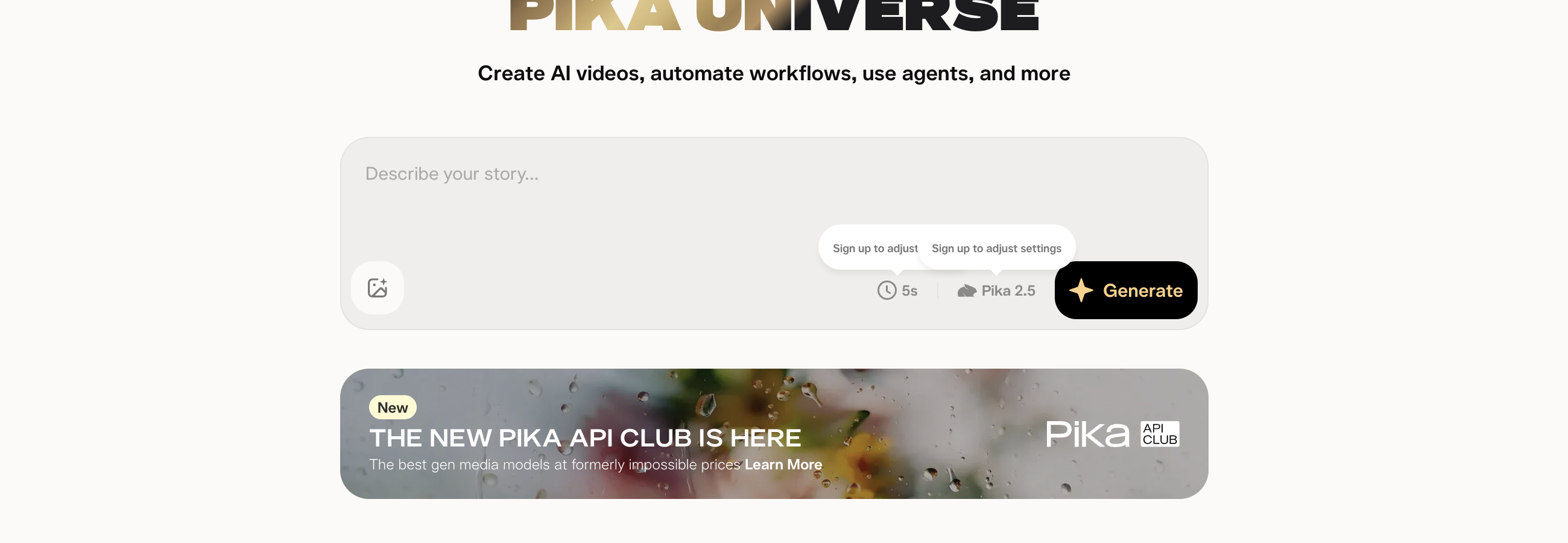
Pika's generator, logged out — read 26 August 2026. The length and model chips say "Sign up to adjust settings" until you're signed in.
Step 1: Sign in before you touch the settings
On pika.art, the main prompt box reads "Describe your story…". To its left sits a picture button, and to its right you'll see a 5s length chip, a Pika 2.5 model chip, and a black Generate button. When you're logged out, hovering over those chips shows a tooltip that says "Sign up to adjust settings". So you can't change the length or the model until you sign in.
You can sign in using Google or Apple. But keep in mind that Pika treats a Google login and an Apple login on the same email address as two separate accounts.
Pika's official video app is "Pika - AI Video", published by Mellis, Inc.. At least four apps in the US App Store carry Pika in the name, from four different sellers, and only one of them comes from Mellis, Inc. — so check the developer line before you install anything.

A genuine Pika listing — read 26 August 2026. This is Pika's agent app, not the video generator, but the line to check is the same one: DEVELOPER reads Mellis, Inc.
Step 2: Pick the plan, because it sets your ceiling
Pika offers four plans. Billed yearly, they cost $0 for Basic, $8 a month for Standard, $28 a month for Pro, and $76 a month for Fancy. Billed monthly, they are $0, $10, $35, and $95. That's 80 credits a month on Basic, 700 on Standard, 2,300 on Pro, and 6,000 on Fancy.
Basic limits your generations to 480p on Pika 2.5, and its Pikaffects tool works on image-to-video only. Both Basic and Standard include a watermark and grant no commercial rights, which means clean exports and commercial rights both start on Pro.
We broke down what Pika's free plan actually gives you so you can see where the limits sit.
Unused plan credits reset at the end of each billing cycle. Only separately bought top-up credits don't expire.
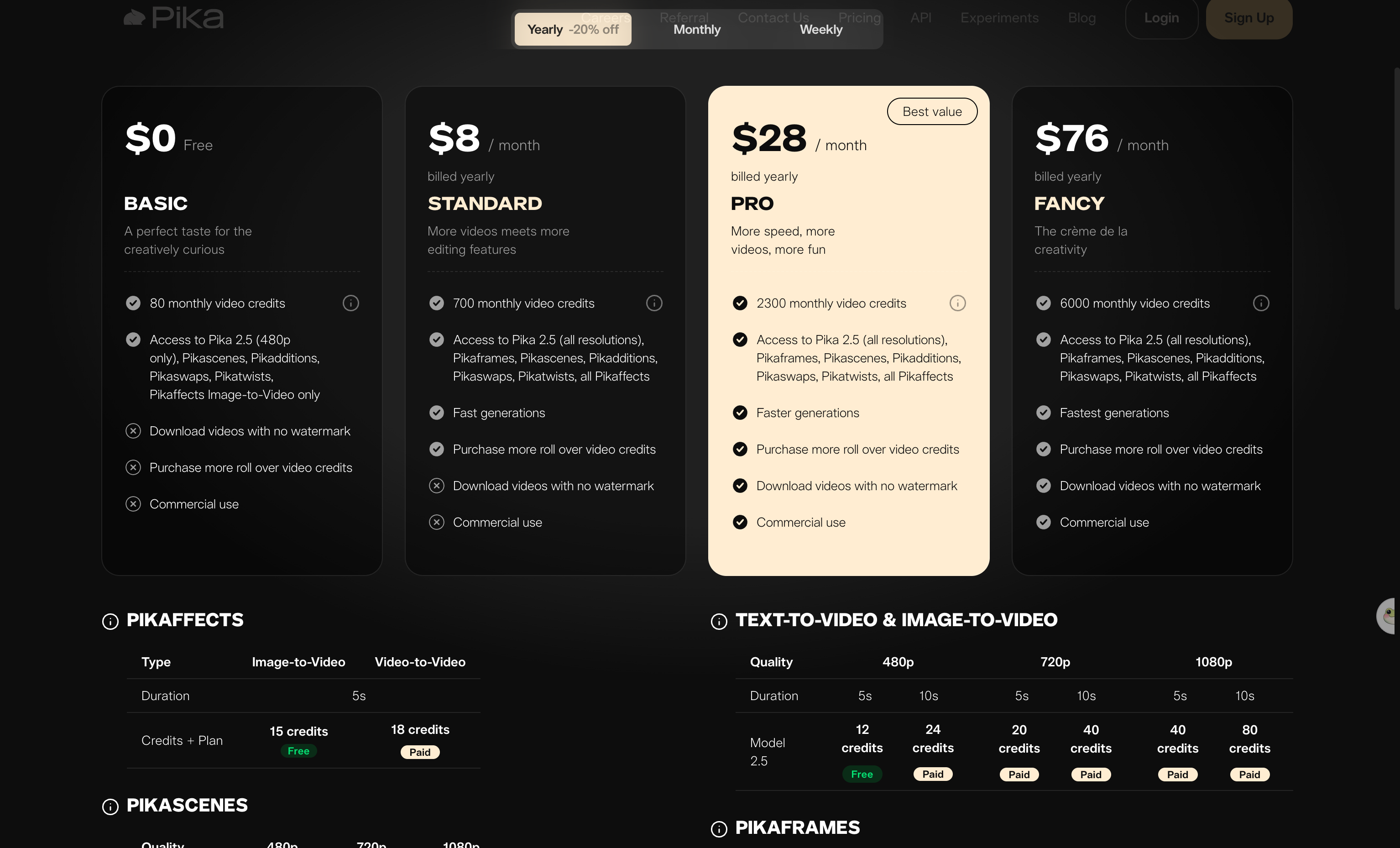
Pika's four plans — read 26 August 2026. The plan you pick decides your resolution, your watermark and your commercial rights.
Step 3: Write the prompt in the story box
Type your scene description into the story box.
If you're looking for camera movement, Pika's FAQ suggests keywords like bullet time, vertigo, timelapse or dolly down. Pika notes that details help, like "bullet time 360 degrees" or "vertigo into a closeup of that raccoon's face".
Step 4: Add a starting image if you want image-to-video
To animate a still, click the picture button sitting directly to the left of the prompt box and upload your image. Image-to-video costs the exact same credit amount as text-to-video at every resolution, so starting from a still won't drain your balance any faster than starting from text.
Step 5: Choose 5 or 10 seconds, or switch to Pikaframes
Text-to-video and image-to-video on Pika 2.5 offer two lengths only: 5 seconds or 10 seconds. If you need longer continuous clips, Pikaframes (you give it the first still and the last still, and it fills the middle) runs up to 25 seconds.
Pika's FAQ confirms how these clip lengths work across tools:
For Pika Model 2.2, Pikaframes generations can be up to 25 seconds. Other Model 2.2 generations (image-to-video, text-to-video or Pikascenes) can be either 5 or 10 seconds. All other models and features have 5 seconds long generations.
Pika's FAQ calls Model 2.2 its latest version, but the live pricing page lists Pika 2.5. We used the pricing page figures since they match the generator.
If you're after single clips from 5 up to 30 seconds without matching start and end frames, Seedance 2.5 AI Video Maker gives you longer clips in one go.
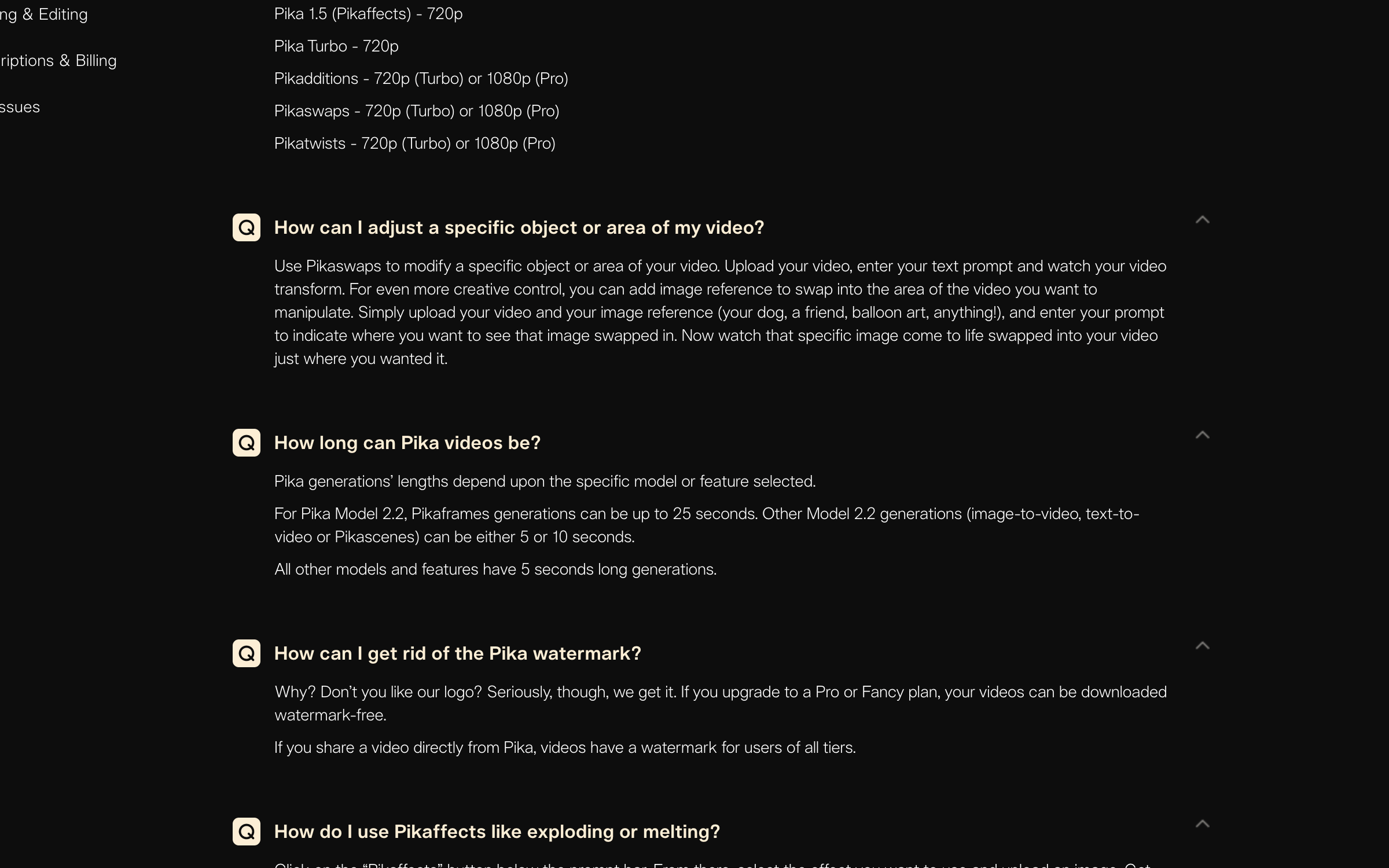
Pika's FAQ on lengths and watermarks — read 26 August 2026. Everything outside Pikaframes is a 5 or 10 second clip.
Step 6: Add an effect from the Pikaffects button
Pika includes pre-built motion presets called Pikaffects, like exploding or melting items. Pika's FAQ says to "Click on the 'Pikaffects' button below the prompt bar. From there, select the effect you want to use and upload an image."
Pikaswaps lets you change one object or area in your clip by typing a text prompt or adding an image reference to swap in.
You can also test the Pikaffects iOS app on Pika's experiments site, which carries a banner noting that Pika experiments are intentionally rough around the edges.
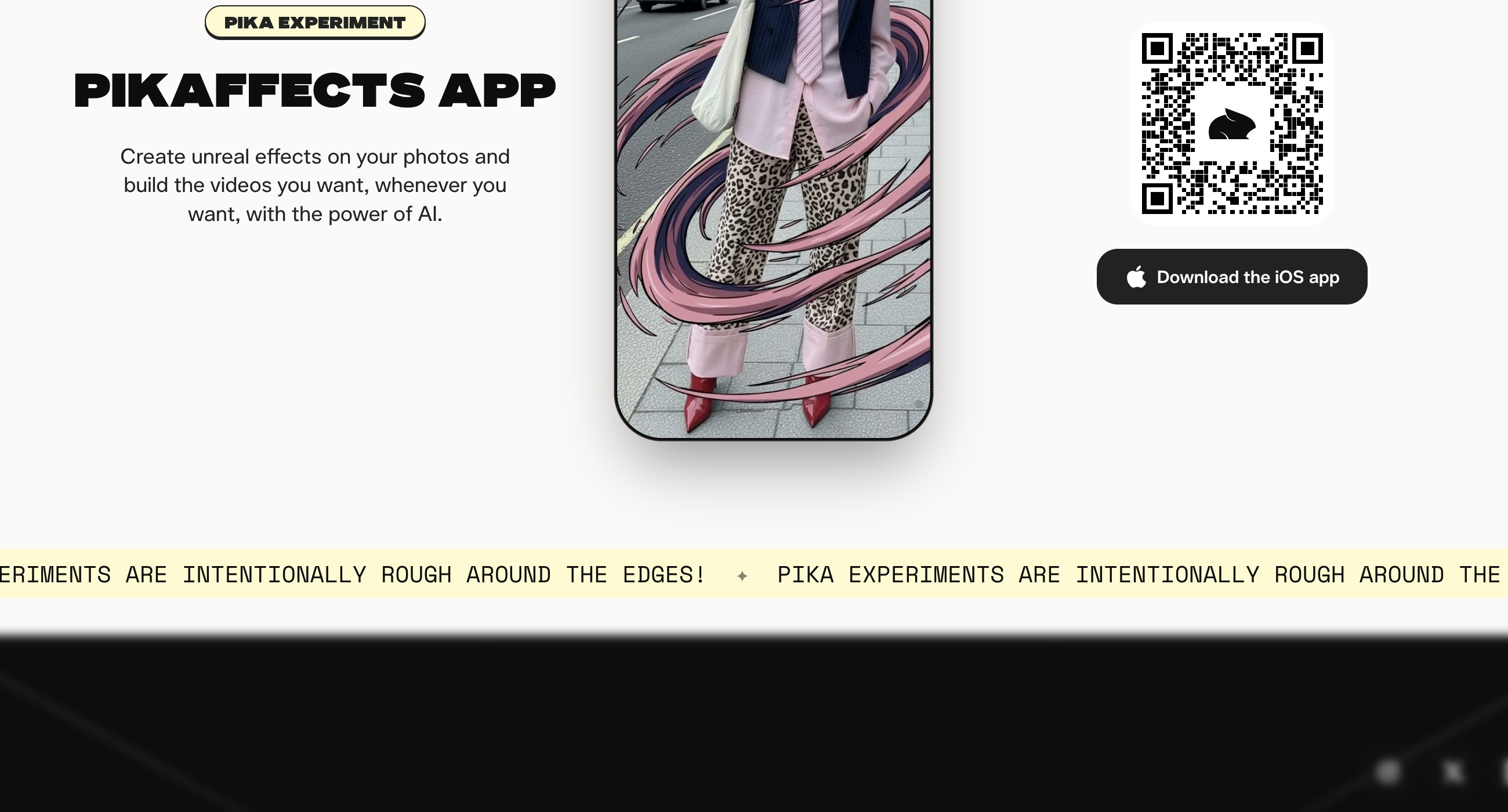
The Pikaffects app page — read 26 August 2026. Pika files it under experiments, with an iOS download.
Step 7: Check the credit cost, then generate and download
Before you hit the black Generate button, check your resolution and feature cost. Here's what each feature spends from your plan balance:
- Text-to-video and image-to-video at 480p cost 12 credits for a 5-second clip and 24 credits for a 10-second clip.
- Text-to-video and image-to-video at 720p cost 20 credits for a 5-second clip and 40 credits for a 10-second clip.
- Text-to-video and image-to-video at 1080p cost 40 credits for a 5-second clip and 80 credits for a 10-second clip.
- Pikaffects runs for 5 seconds only, costing 15 credits on the free tier and 18 credits on a paid tier.
- Pikascenes, Pikadditions, and Pikaswaps are 5 seconds only: they cost 20 credits at 480p, 35 credits at 720p, and 65 credits at 1080p.
- Pikatwists is 5 seconds only, costing 60 credits on Turbo at 720p and 80 credits on Pro at 1080p.
- Pikaframes at 480p costs 12, 24, 36, 48, or 60 credits across five length bands.
- Pikaframes at 720p costs 20, 40, 60, 80, or 100 credits across five length bands.
- Pikaframes at 1080p costs 40, 80, 120, 160, or 200 credits across five length bands.
When your generation finishes, remember that downloads on Basic and Standard carry a watermark.
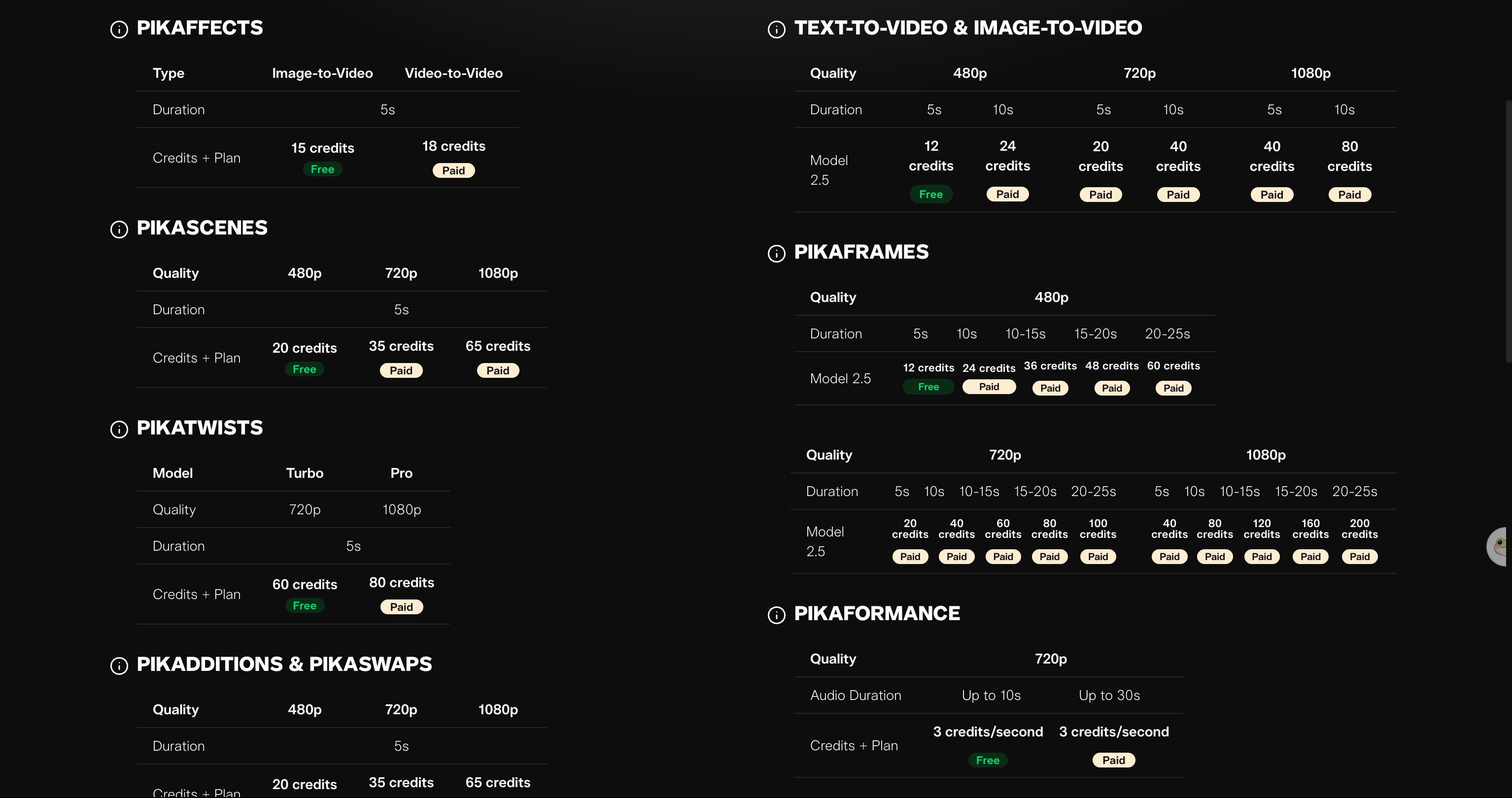
Pika publishes the cost of every feature — read 26 August 2026. Text-to-video and image-to-video stop at 10 seconds.
What this costs against your monthly allowance
To see how far your allowance goes, look at what these credit costs mean in practice:
- The free plan's 80 credits buy six 5-second clips at 480p, so that's about six short clips a month.
- Standard's 700 credits buy 35 clips of 5 seconds at 720p, so that's about one clip a day.
- Pro's 2,300 credits buy 57 clips of 5 seconds at 1080p, so that's almost two full HD clips a day.
- Unused monthly plan credits reset each billing cycle, so you can't roll them over.
If you'd like to compare balance models, check what credits cost on Seadanse.
If Pika's limits are the wrong shape for your work
If you need clean video without jumping to a Pro tier, the Seadanse generator runs in your browser. Starter credits arrive on sign-up with no card needed, exports carry no watermark, and failed or interrupted renders are refunded automatically.
You can also start from a still on Seedance 2.0 AI Image to Video.
For a broader view of pricing models, explore our comparison of six platforms we checked against their own pricing pages.
Related articles
- Is Pika Free? What the Free Plan Gives You (and What It Doesn't) — the 480p ceiling, the watermark and the commercial-use line.
- 6 Best Pika Alternatives in 2026 (Prices Checked) — six platforms, their plan prices, and where a clean export starts on each ladder.
- Pika Not Working? 6 Fixes Straight From Pika's Own Support — stuck generations, missing credits and the sign-in trap that looks like a lost subscription.


