Video to Video AI

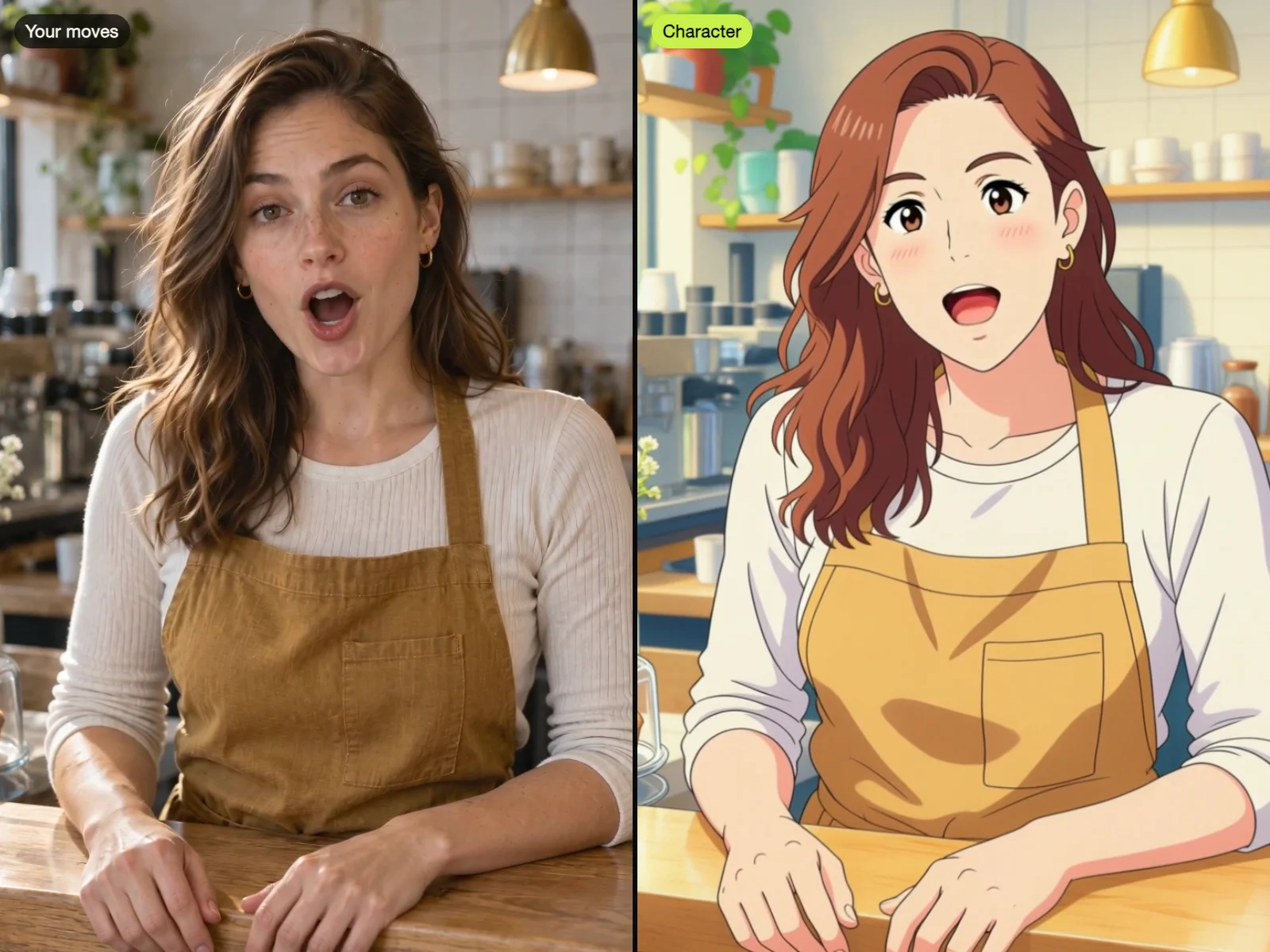
You want to update a clip without filming it again. Use our video to video AI to change the style, people, or background in up to 4K.

Video to Video AI for Instant Video Edits

0/20000

Why Choose Our Video to Video AI on Seadanse

Type Any Edit Without Manual Masking or Tracking

Type Any Edit Without Manual Masking or Tracking

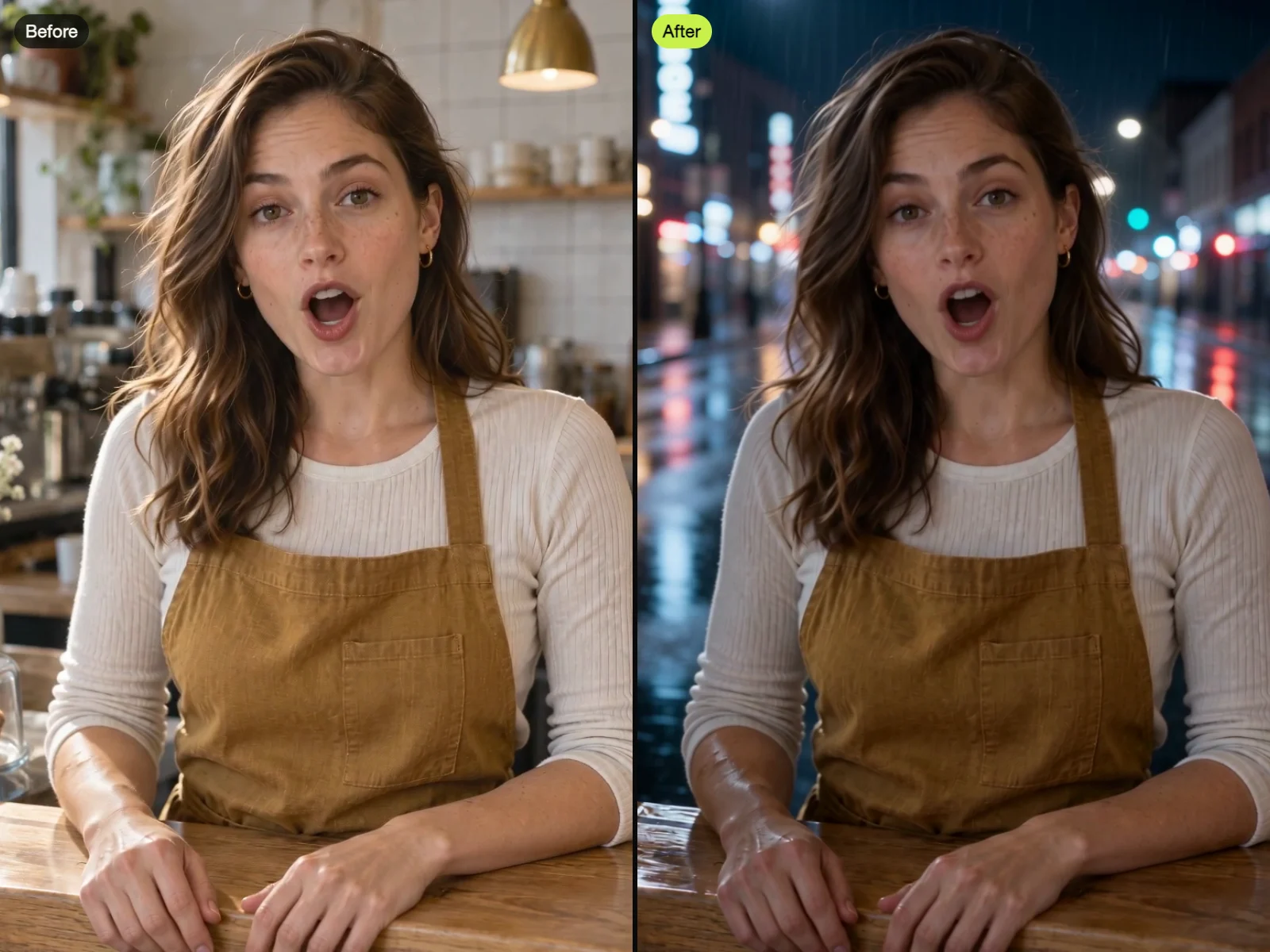
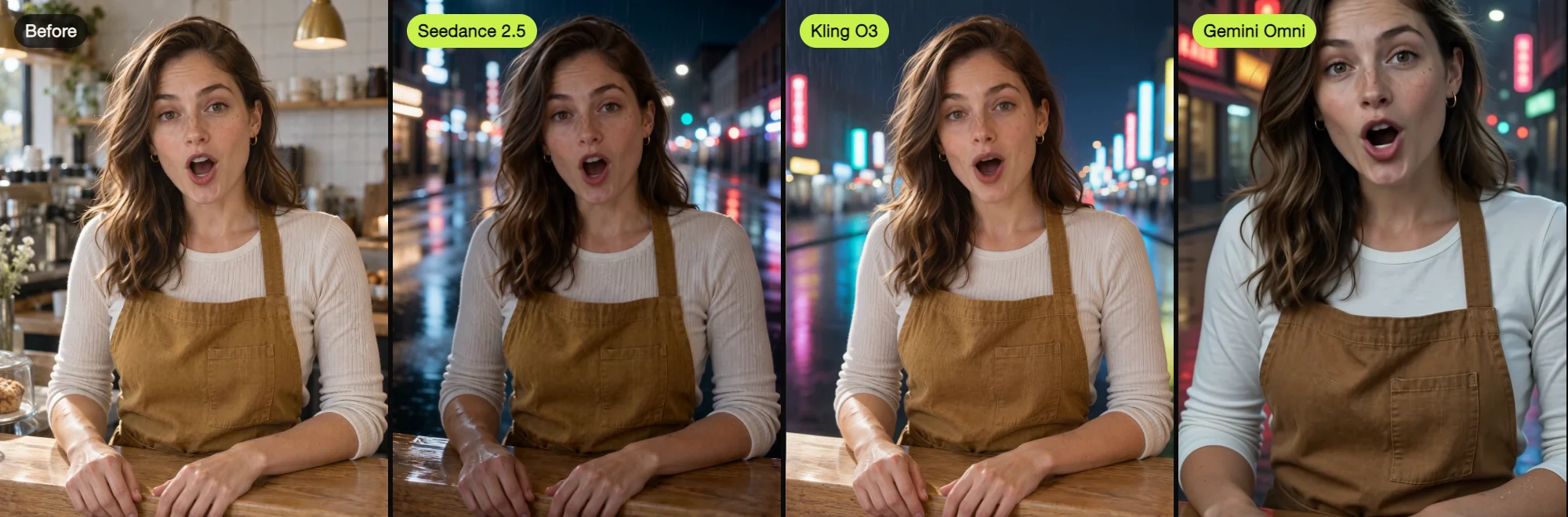
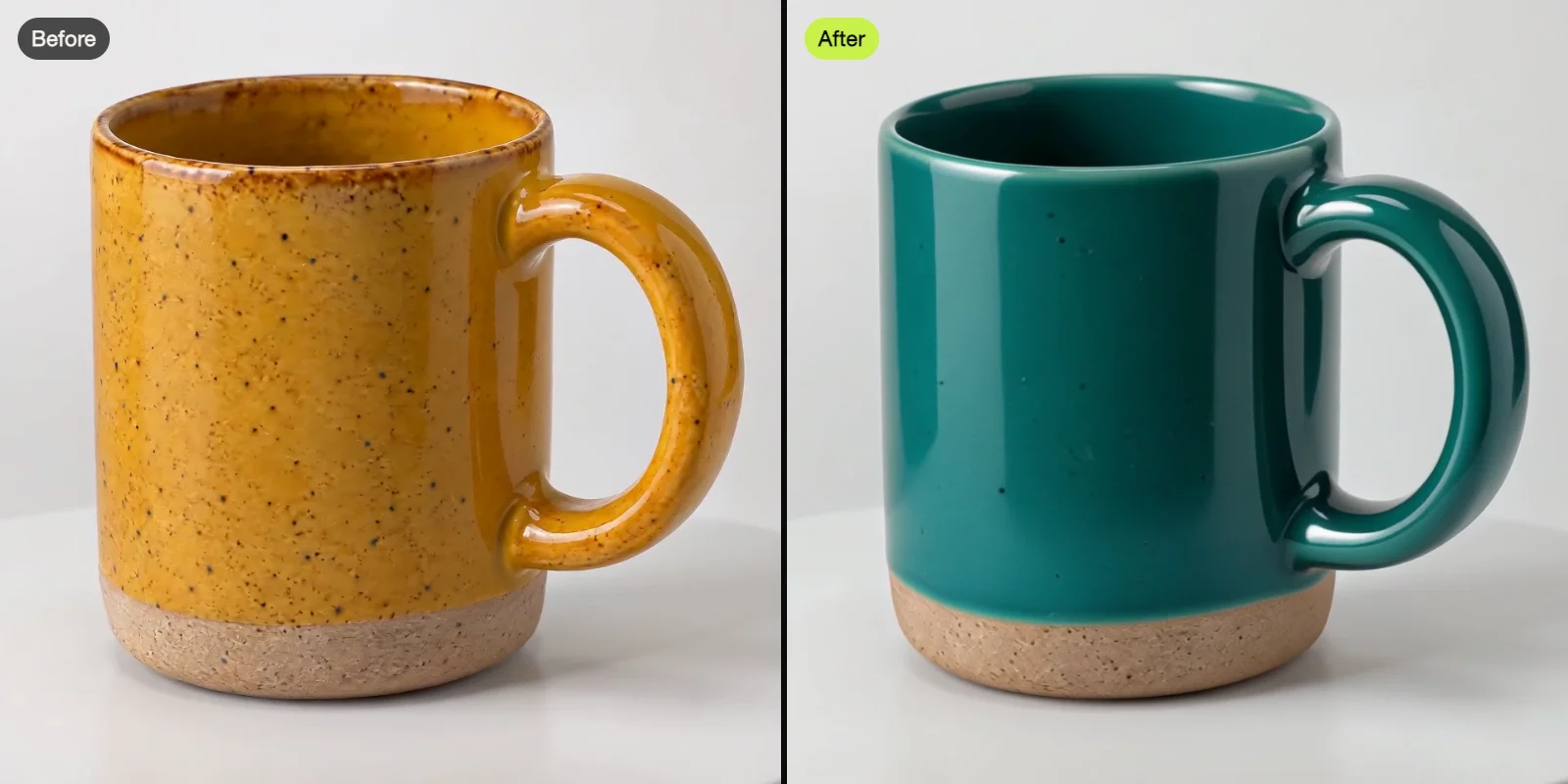
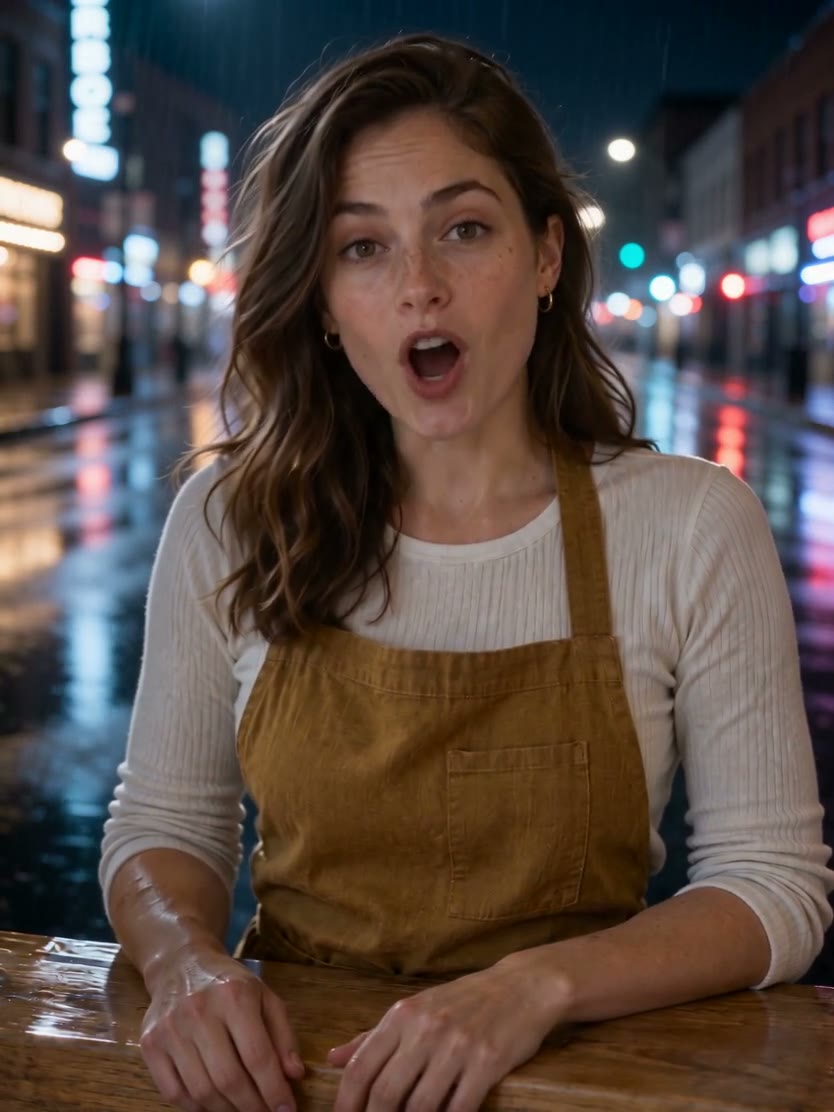
Swap an outfit, remove bystanders, or change daytime to dusk simply by typing your request into our video to video AI. You drop in reference photos on Kling O3 to replace people, switch products, or create green screens without keyframing or manual masking.

Turn Real Clips Into Animated Art Styles Instantly

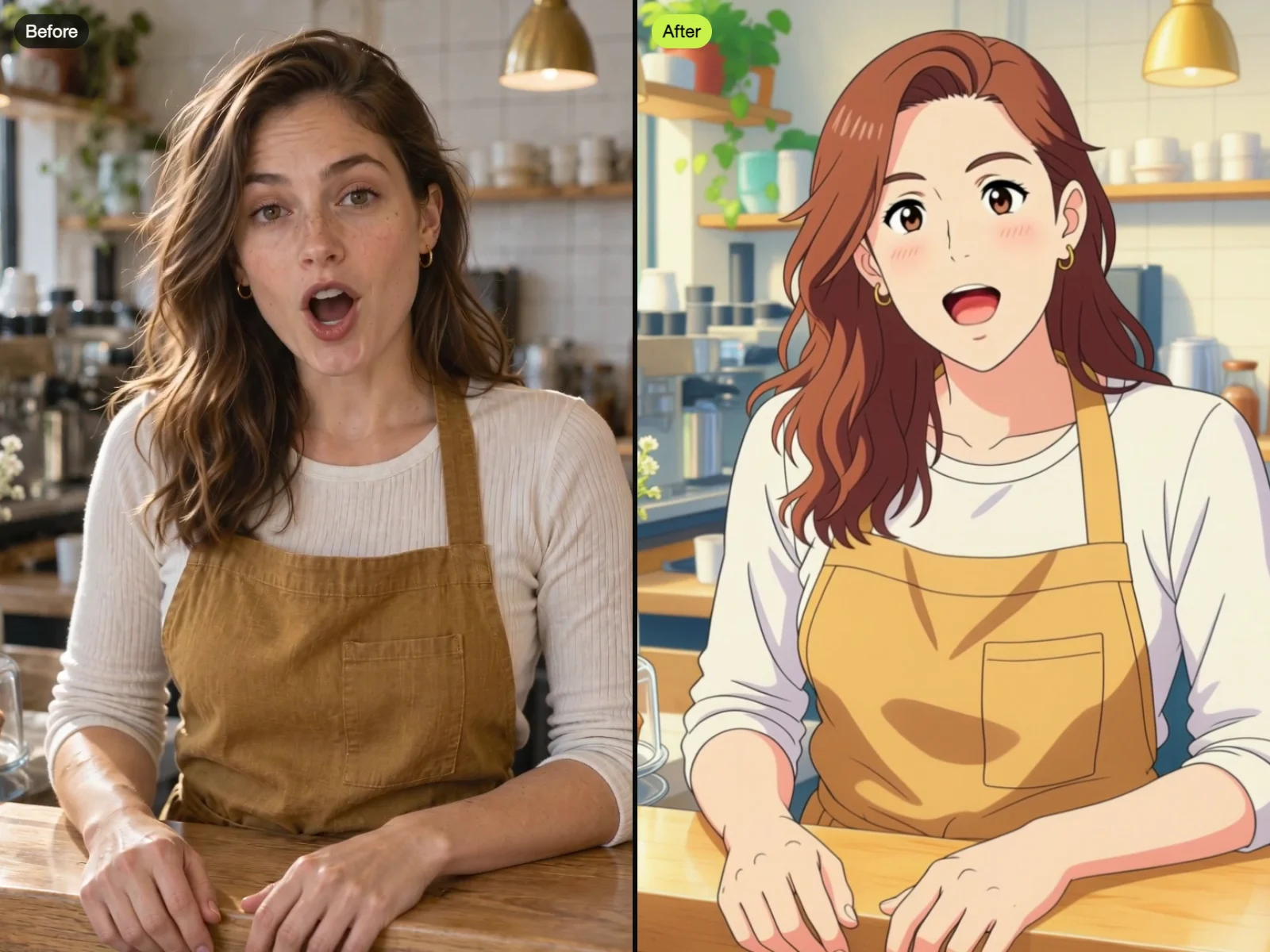
Turn real clips into Japanese anime, American cartoon, clay, or oil painting while keeping your original motion and timing. Our video to video AI restyles your entire scene from a prompt or reference picture using Kling's video editing styles to give your video a fresh new look.

Turn Real Clips Into Animated Art Styles Instantly

Keep Your Original Sound or Remove Unwanted Tracks

Keep the original voices and sound effects in your clip, or turn the sound off completely. When you need cleaner audio, our video to video AI edits sound across chosen time ranges so Seedance 2.5 removes background music while protecting your dialogue.

Use Video to Video AI for Any Project

Creators & YouTubers

Restyle Your Videos in Minutes

Upload a clip of yourself to change the room behind you or turn your vlog into anime. You get the same clip back with your words, moves, and timing untouched, plus your original sound on Kling O3.

Make Multiple Ads From One Shoot
Marketers & Online Sellers

Make Multiple Ads From One Shoot

Bring one product video along with a photo of a new product, color, or outfit. Our video to video AI creates fresh ad variations with updated backgrounds, lighting, and styles without setting up a new shoot.

Filmmakers & Directors

Add New Angles Without Reshoots

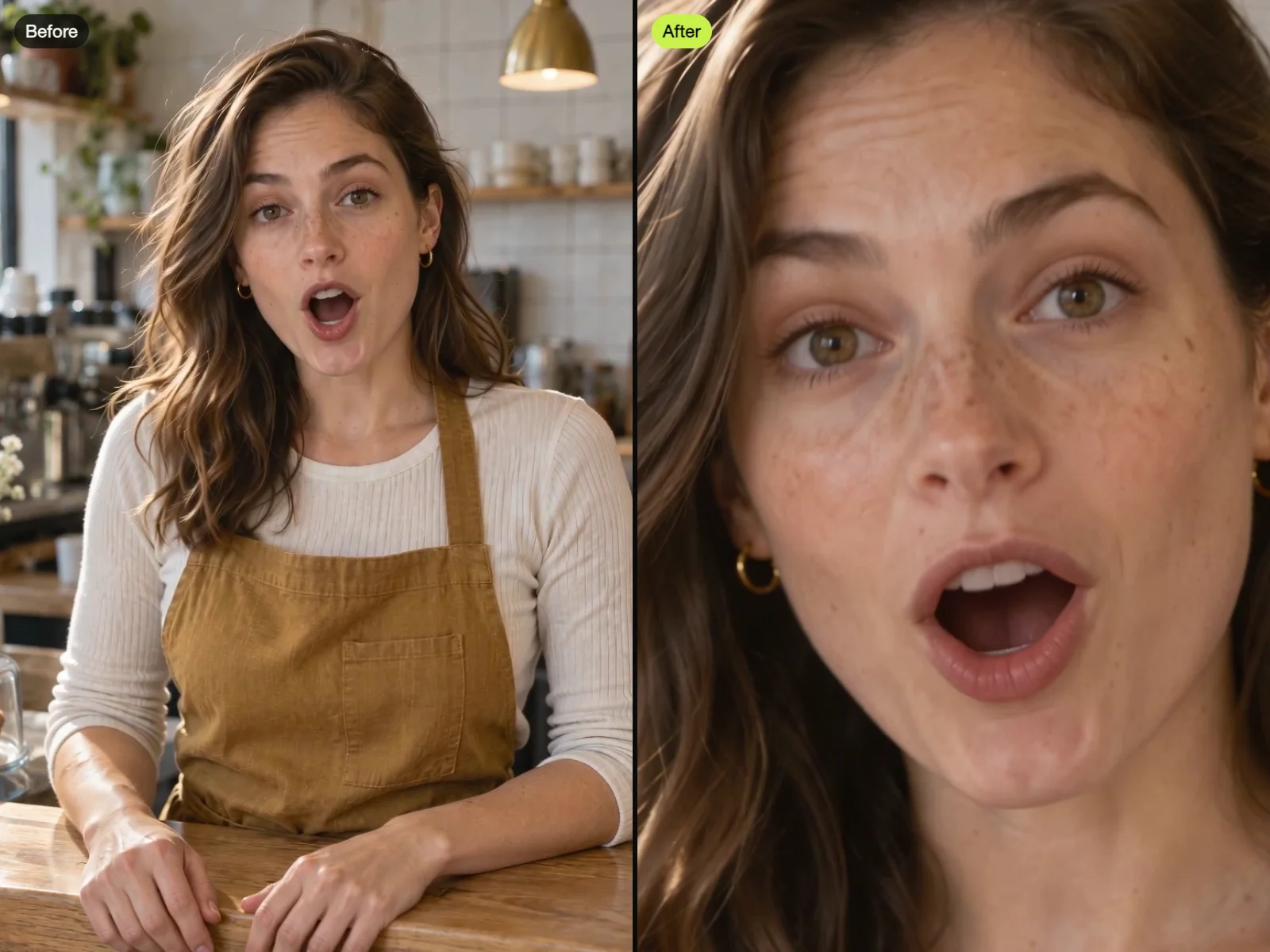
Bring a take you already shot and generate a close-up or wide shot with the actors, actions, and look unchanged. You can also turn a 3D blockout into a finished scene with the Blender to Seedance 2.5 add-on.

Add New Angles Without Reshoots
Clean Up Locked Shots Fast
Video Editors

Clean Up Locked Shots Fast

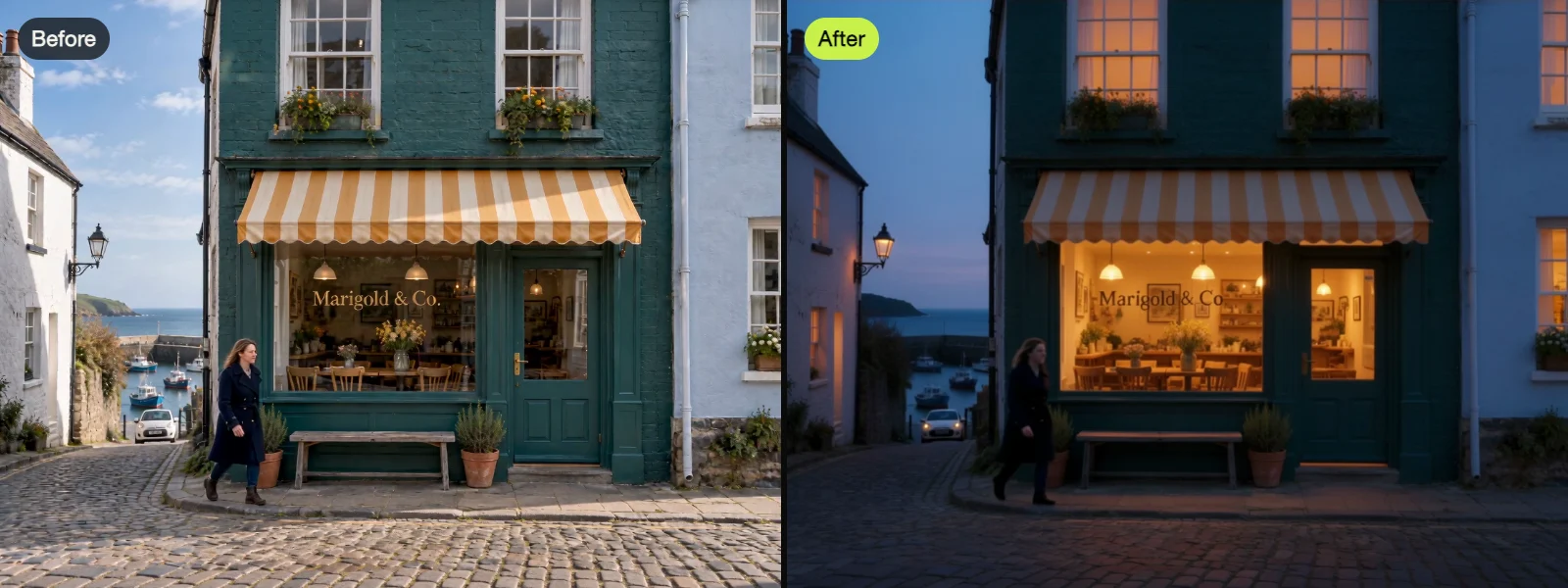
Upload your locked footage to remove bystanders, cars, or logos without manual masking, tracking, or keyframing. Swap the background, turn it into a green screen, or change daytime to dusk in a couple of minutes.

How to Use Our Video to Video AI

Step 1

Upload Your Video

Upload your video as an MP4 or MOV file into our video to video AI.

Step 2

Describe the Change

Type the one change you want, add "Keep everything else the same", add a photo when you swap a person, an outfit or a product, then pick your model and resolution and check the credits.

Step 3

Download Your Clip

Generate your clip and download your MP4 in a couple of minutes.

Try Our Video to Video AI Free and Edit Clips From 30 Credits

Sign up free with no credit card for 40 starter credits, enough for one 5-second 480p video on our Seedance 2.0 Mini AI video maker at 30 credits. Run our video to video AI on Kling O3 to pay only for the video you get back up to 4K with free uploaded seconds, or choose Seedance 2.5 at 25, 55 or 98 credits per second at 480p, 720p or 1080p plus uploaded seconds at 0.6 times that rate—priced at 880 credits for a 10-second 720p edit on our AI video cost calculator for Seedance 2.5—while credits show before you generate and return automatically when a render fails.

Video to Video AI FAQ

What is video to video AI?

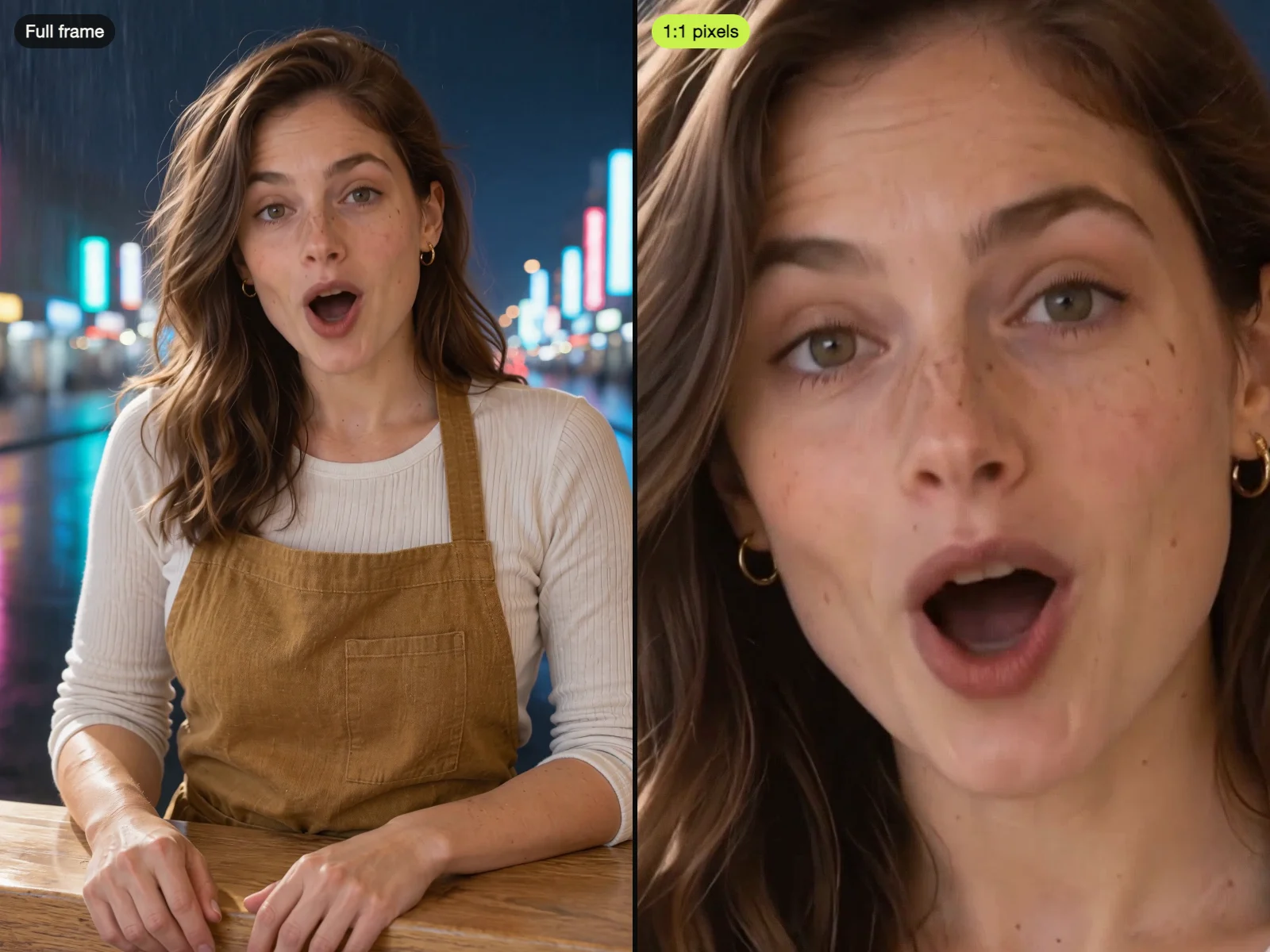
It takes a video you already have and changes its style, its background, or the things inside it, while your original motion and structure stay. On Seadanse, our video to video AI lets you upload your clip, type the change you want, and get the finished clip back right in your browser on a computer or phone with nothing to install.

Can I use video to video AI for free?

Yes. Sign up free with no credit card required and get 40 starter credits right away. That gives you enough credits for one 5-second 480p video on the Seedance 2.0 Mini AI video maker (30 credits), where the seconds you upload are free. View Seadanse pricing to find plans and credit packs for longer edits, 1080p on Seedance 2.5, and 4K on Kling O3.

What can I change in a video with AI?

You change styles, subjects, and environments with simple text prompts. Restyle your footage to anime, cartoon, clay, pixel art, or watercolor. Drop in a photo to swap a person, an outfit, or a product. Replace the background, turn it into a green screen, shift daytime to dusk, or remove bystanders. You can switch between close-ups and wide shots, or choose a time range on Seedance 2.5 to remove background music.

Will video to video AI keep the rest of my video the same?

Yes. Only the part you name changes. Seedance 2.5 keeps the aspect ratio and length of your upload, Kling O3 keeps your original sound, and Gemini Omni keeps untouched parts across every turn. Add "Keep everything else the same" to your prompt, as recommended in Google's Gemini Omni editing guide, to lock your original scene in place.

How long can my video be, and what files can I upload?

Upload MP4 or MOV files directly into the editor. Seedance 2.5 accepts clips up to 30 seconds and 100 MB. Kling O3 takes videos from 3 to 15 seconds up to 50 MB and produces edits up to 4K. Wan 3.0 handles clips up to 15 seconds. You can also extend clips forward or backward on Seedance 2.5, or build clips up to 40 seconds in total on Gemini Omni.

Can I turn a real video into anime or a cartoon?

Yes. Turn any footage into American cartoon, Japanese anime, clay, pixel art, ink wash painting, oil painting, watercolor, wool felt, cyberpunk, or figure styles using Kling's video editing guide, or match the style of an image you upload. Your original motion and timing remain perfectly preserved.

Can AI change a video background without a green screen?

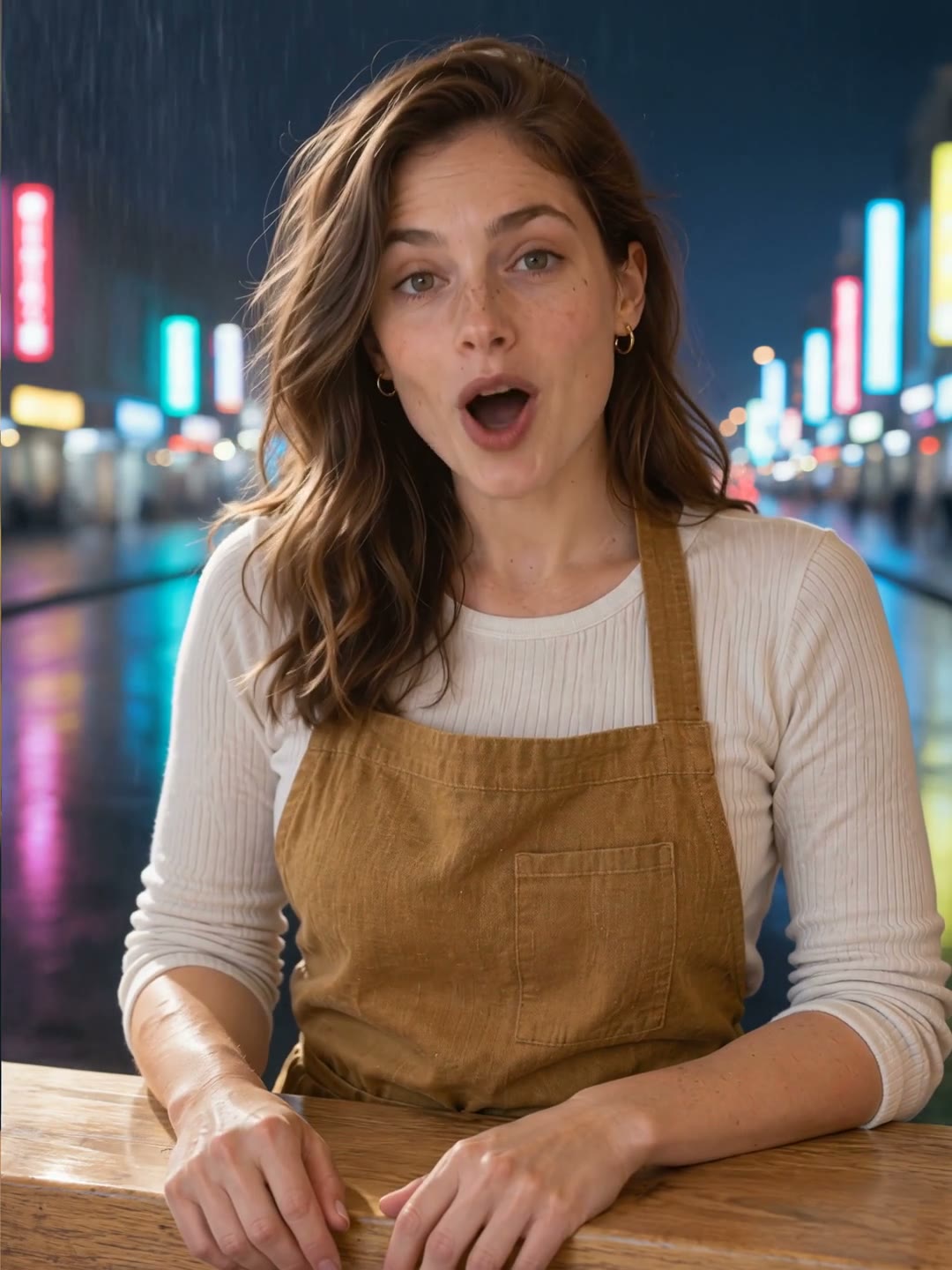
Yes. Type your new location or add a photo of the setting you want. On Seedance 2.5, your subject stays intact while their clothes, hair, walk, and lighting match the new place, as shown in ByteDance's Seedance 2.5 launch post. Kling O3 and Seedance 2.5 also turn your background into a clean green screen for other editing tools.

Which AI model is best for video to video?

Pick the model that fits your job. On the Artificial Analysis video editing leaderboard for edits with sound (September 2026), the Wan 3.0 AI video maker ranks #1 (Elo 1188), the Hailuo 3 AI video maker ranks #2 (1132), and the Gemini Omni AI video maker ranks #3 (1125). Choose the Kling O3 AI video maker for 4K output and your original audio, or select the Seedance 2.5 AI video maker for clips up to 30 seconds. One Seadanse credit balance lets you switch between all models at any time.

How do I write a good video to video AI prompt?

Name only the change, one change at a time, in simple words, and add "Keep everything else the same" from Google's Gemini Omni editing guide. On Seedance 2.5, state what stays, like ByteDance's example: "Edit @Video 1. Keep the characters, actions, and visual style unchanged. Adjust only the camera movement." Add a time range like 0-5s to change only that part. Explore the Seedance 2.5 prompt guide and filter reference-video examples in the Seedance 2.5 prompt library.

How is video to video AI different from text to video or image to video?

Our video to video AI starts with footage you already have and preserves its real motion, pacing, and framing. Text to video and image to video create entirely new clips from a written description or a photo. You can run every model across all three workflows in one unified composer with the AI Video Creator.

How much does one edit cost, and do I lose credits if it fails?

Each edit costs credits per second, displayed clearly beside Generate before you start. Seedance 2.5 costs 25 credits per second at 480p, 55 at 720p, and 98 at 1080p, plus your uploaded seconds at 0.6 times that rate, so a 10-second 720p edit costs 880 credits. Kling O3, Hailuo 3, and Seedance 2.0 Mini never charge for uploaded seconds, while Gemini Omni costs 22 credits per second of final length. Estimate project costs with the AI video cost calculator for Seedance 2.5 or review plans on Seadanse pricing. If a render fails, times out, hits a platform error, or gets turned down by a safety check, your credits return automatically.

Can I download edited videos without a watermark and use them commercially?

Yes. Upgrade to any paid plan or credit pack listed on Seadanse pricing to remove all watermarks from your exported clips. Every paid option includes a commercial license and private renders for your projects.

Can I edit a video of myself?

Yes. Upload a clip of yourself talking, presenting, or dancing, and tell our video to video AI editor to change the room, swap your outfit, or apply an art style. Your movements, expressions, and natural timing stay intact.

Try Our Video to Video AI for Free Today

Sign up for 40 free starter credits to make a 5-second video on Seedance 2.0 Mini with only the change you typed.