
How to Make a Goodbye 2026 Welcome 2027 AI Video From One Photo (4 Steps)
How to make a Goodbye 2026 Welcome 2027 AI video from one photo. You'll climb onto the giant 2027, 10 seconds with sound, 720p for $9.90, no sign-up.
 The Seadanse Team10 min read
The team behind Seadanse. We run the models we write about, and we publish the specs, prices and limits the marketing leaves out.

TL;DR — You'll make a Goodbye 2026 Welcome 2027 AI video by adding 1 photo to Seadanse's Goodbye 2026 Welcome 2027 page and pressing Create. You climb onto a giant stone 2027 on a mountain at sunrise, arms wide, as the camera flies back. There's no app, template link or prompt, and one 720p video costs $9.90, paid once, with no sign-up.
Pick the Goodbye 2026 scene instead, and the 2027 you hugs the 2026 you goodbye.
The clip everyone's posting this year is a climb onto a giant 2027 on a mountain top, seen in a TikTok post with 1.1 million views. Under it, a viewer asked "kasy bni ye video" ("how was this video made"). Most tutorials answer with a CapCut template, and under one, viewers say "c'est payant" ("it's paid").
On our Goodbye 2026 Welcome 2027 page, we built the mountain, the giant numerals, the camera move and the music into the page. You add one photo, press Create, and see the price before you pay.
Your hands grip the edge of a giant stone 0, you pull yourself up, stand, and laugh into the camera with your arms wide. The camera flies back to show 2027 on the peak at sunrise.
Here's what's below:
- The 4 steps: add your photo, pick a scene, pick a quality, and press Create.
- The 10 seconds: what happens in each scene, moment by moment.
- The other routes: CapCut templates, other AI sites and typed prompts.
- The right photo: the pictures that work best for the mountain climb.
How Do You Make a Goodbye 2026 Welcome 2027 AI Video?
To make a Goodbye 2026 Welcome 2027 AI video, you add one photo to our page, pick Welcome 2027 or Goodbye 2026 and a quality, and press Create. You'll get back a 10-second vertical MP4 with sound, made in your web browser on a phone, tablet or computer.
- What's yours: your face, hair and the clothes from your photo.
- What's built in: the mountain and the giant 2027, or the rainy highway and the two road signs, the camera move and the music.
- What you hear: mountain wind, your hands on the stone, a hard breath, a happy laugh, and an original uplifting tune from the first second.
It's a new video made from your photo, not your face dropped into a ready-made clip. You can add your photo to our Goodbye 2026 Welcome 2027 video maker and press Create.
What Happens in Your Goodbye 2026 Welcome 2027 Video
Your Goodbye 2026 Welcome 2027 video's 10 seconds in one continuous shot, and you pick one of two scenes.
Here's the Welcome 2027 scene, second by second:
- The climb (0 to 2 seconds): close up, level with the flat top of a giant stone 0. Your hands grip its edge, and your head and shoulders rise over it as you pull yourself up, your face toward the camera.
- On top (2 to 4 seconds): you swing a knee up, crawl toward the camera and stand up; the camera eases back to show all of you.
- Arms wide (4 to 5.5 seconds): standing on top of the 0, you look straight into the lens, laugh and throw both arms wide.
- The reveal (5.5 to 8.5 seconds): arms still wide, you stay on the 0 as the camera flies back and up like a drone. All four numerals, 2027, come into view on the peak, with the sun rising behind the mountains.
- The wide shot (8.5 to 10 seconds): the camera holds still on the wide view: you, small, arms wide on top of the 0, and 2027 sharp and whole.
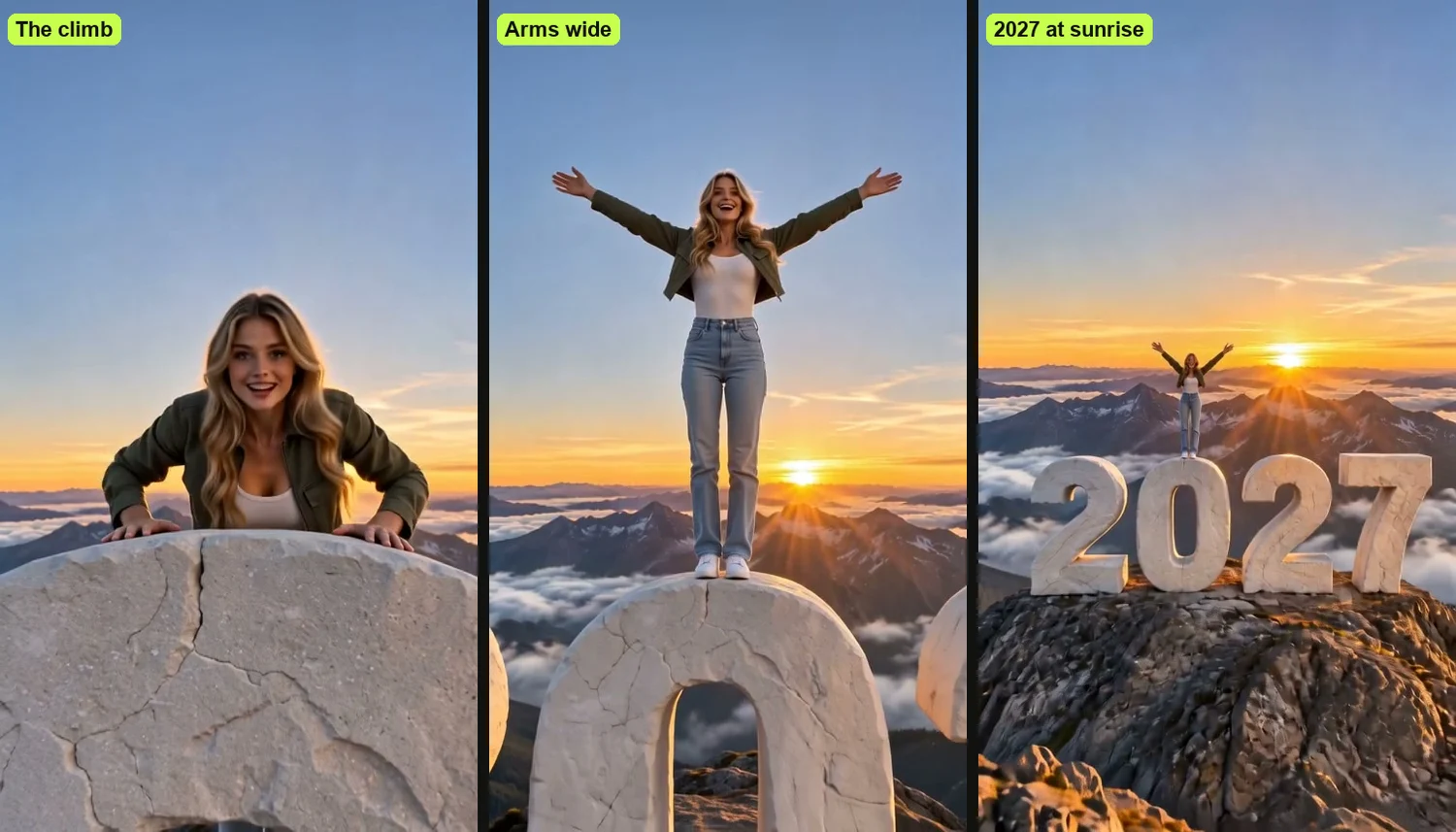
The Welcome 2027 scene has the sound of mountain wind, your hands on the stone, a hard breath, a happy laugh, and an original uplifting tune.
And here's the Goodbye 2026 scene:
- The hug (0 to 2 seconds): the two of you hold each other in a long, tight hug in the middle of the road, rain pouring.
- Letting go (2 to 4 seconds): you let go; the 2027 you smiles, touches the 2026 you's cheek once and takes the suitcase.
- The car (4 to 6.5 seconds): the 2027 you rolls the suitcase to a black car in the right lane, puts it in the boot and gets in to drive.
- Driving off (6.5 to 8.5 seconds): the car pulls away under the 2027 sign toward the orange city lights, a hand waving from the window.
- The smile (8.5 to 10 seconds): the 2026 you, alone under the 2026 sign, waves after the car, then looks straight into the camera with a small, brave smile.
Here's where the Goodbye 2026, Welcome 2027 trend comes from, from the first posts to the million-view climb.
Make Your Goodbye 2026 Welcome 2027 Video in 4 Steps
To make your Goodbye 2026 Welcome 2027 video, you add your photo, pick a scene, pick 480p or 720p, and press Create, all on one page.
Step 1: Add Your Photo
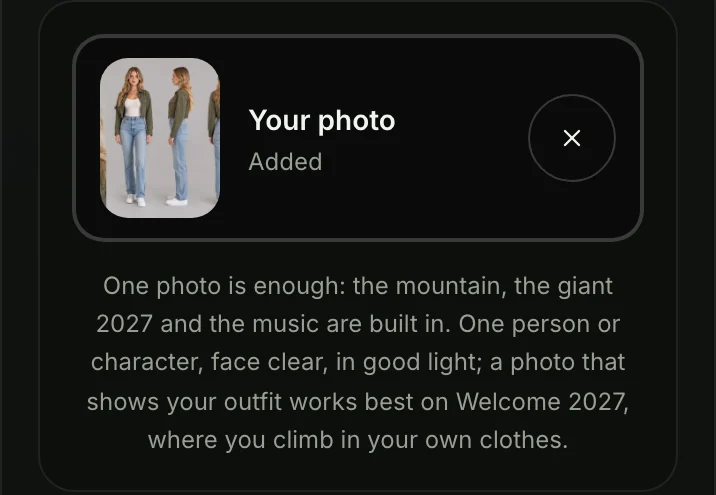
Open the Goodbye 2026 Welcome 2027 AI video page in your browser. Tap the photo box and pick one photo from your camera roll or your computer.
Step 2: Pick Welcome 2027 or Goodbye 2026
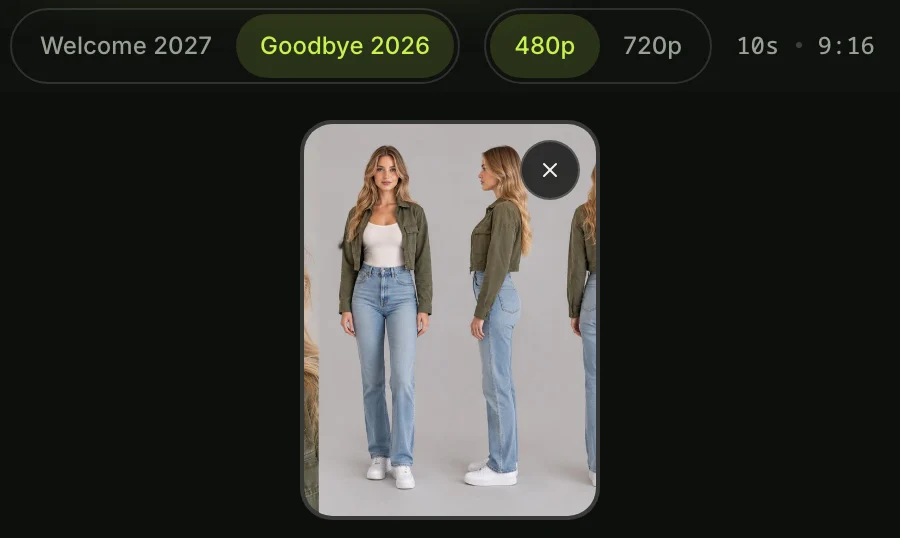
Welcome 2027's picked to start: the climb onto the giant 2027. Pick Goodbye 2026 for the 2027 you saying goodbye to the 2026 you. Both cost the same.

Step 3: Pick 480p or 720p
480p's picked to start; tap 720p if you want it. Either way, your video is the same 10 seconds in the same vertical frame. The price shows on the Create button before you pay.
Step 4: Leave the Box Ticked and Press Create
The box under the photo comes ticked: it confirms you have the right to use the photo and that any person in it is 18 or older. Leave it ticked and press the Create button.
You don't need an account, since you pay once and the video starts on the page.

A window with the credit packs opens. You pay once at checkout, with no account and no subscription. You can read about how pay-once credits work.
The checkout email carries a sign-in link, so your video opens on any phone, tablet or computer.
When your video's ready, you download the MP4 with its sound and no watermark on exported video. Pack credits stay valid for 12 months, and if a video fails, its credits come back automatically.
Which Photo Works Best for a Goodbye 2026 Welcome 2027 Video
The photo that works best for a Goodbye 2026 Welcome 2027 video shows one face clear, in good light, facing the camera.
- One clear face: make sure the eyes are showing clearly and aren't hidden by sunglasses.
- Your favourite outfit: wear what you'd like to stand on top of 2027 in, since the Welcome 2027 scene keeps the clothes from your photo. In the Goodbye 2026 scene, the 2026 you wears them and the 2027 you gets the camel coat.
- A character works too: use a cartoon, anime or game character if you like.
- 18 or older: everyone in the photo must be 18 or older.
How Other People Make the Goodbye 2026 Welcome 2027 Video
Most people who make the Goodbye 2026 Welcome 2027 video use a CapCut template, another AI website or a typed prompt in a video app.
Here are the three routes:
- CapCut templates: a CapCut template is an edit someone already built in the CapCut app, with a slot for your photo. The summit climb most people post comes from the summit template's CapCut page. That template has 1 photo slot, runs about 9 seconds, and was used 137,450 times by November 2, 2026.
- Other AI websites: at least five AI websites put up a page for the 2027 climb between October 29 and November 1, 2026. You upload a photo and pick a scene.
- Typed prompts: you write the whole scene yourself in a video app that takes a photo.
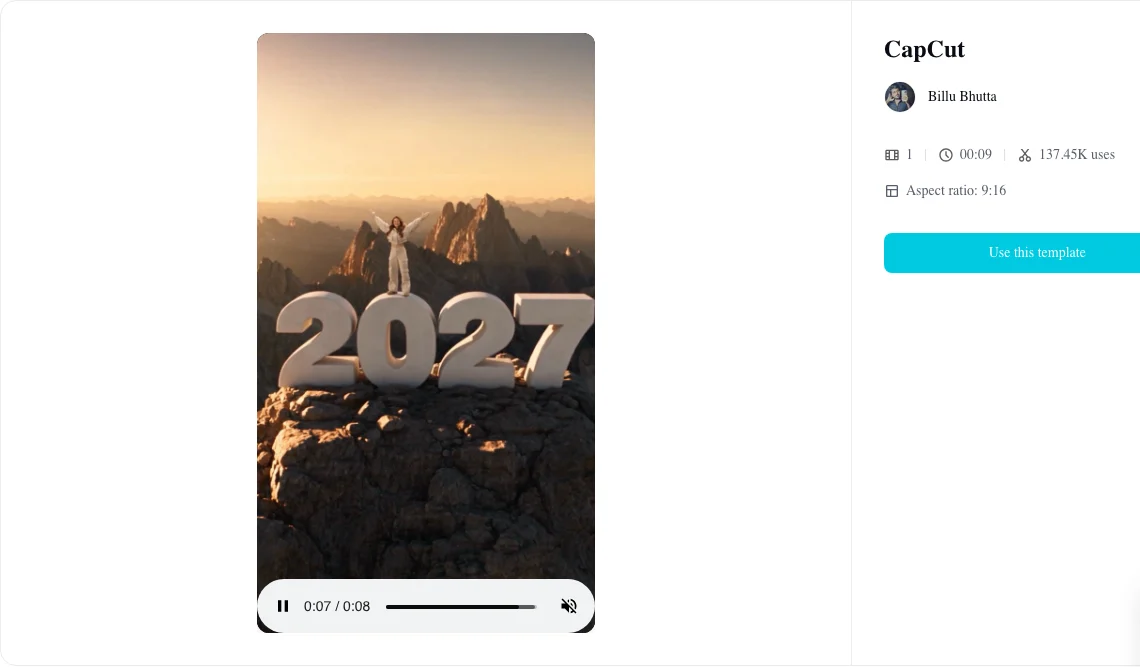
On our page, you climb the giant 2027 from one photo, with the mountain, the numerals, the camera move and the music built in.
Read about why the Goodbye 2026 Welcome 2027 CapCut template won't work. See the New Year AI video generators compared. Check out the copy-ready Goodbye 2026 Welcome 2027 AI prompt.
Goodbye 2026 Welcome 2027 Video FAQ
How do I make the Goodbye 2026 Welcome 2027 AI video?
Add one photo to the page, pick Welcome 2027 or Goodbye 2026, leave the box ticked and press Create; or you can use the template, AI site or prompt routes.
Do I need CapCut to make the 2027 climb video?
No, you don't: the page runs in the web browser on an iPhone, an Android phone, a tablet or a computer, with nothing to install and no template link.
How long is the Goodbye 2026 Welcome 2027 video?
It's 10 seconds long, in a 9:16 vertical frame made for TikTok, Reels and your New Year post.
Does the video have sound?
Yes: the Welcome 2027 scene includes mountain wind, laughing and uplifting music, while the Goodbye 2026 scene features rain, a car driving off and a piano tune.
Can the 2027 me say goodbye to the 2026 me?
Yes: that's the Goodbye 2026 scene, where both versions of you from your photo hug in the rain before the 2027 you drives away.
How much does a Goodbye 2026 Welcome 2027 video cost?
$9.90 buys one 720p video, paid once with no subscription, the same for both scenes, and that pack also covers a 480p video. Pack credits stay valid for 12 months, and credits for failed videos return automatically; see Seadanse pricing.
Can I make other AI videos with the same photo?
Yes: you can use Elf Dance AI for TikTok and Reels or browse our other AI video effects.
Make Your Goodbye 2026 Welcome 2027 Video Before Midnight
You can make your Goodbye 2026, Welcome 2027 video in your browser and climb onto the giant 2027 before the year ends. It's one photo to get your 10-second vertical clip for $9.90 at 720p.
Written by The Seadanse Team, the team that built the Goodbye 2026 Welcome 2027 page.
Related Articles
- Goodbye 2026 Welcome 2027 Trend: The AI Summit Climb and the 2027 You Saying Goodbye, Explained — what the trend is, where it came from and why it spread.
- Goodbye 2026 Welcome 2027 CapCut Template: Which One Is Which, and Why It Won't Work — the four templates by name, and five fixes.
- Best New Year AI Video Generators for 2027: 10 Ways to Make the Goodbye 2026, Welcome 2027 Video — the sites and apps side by side.
- Goodbye 2026 Welcome 2027 AI Prompt: Copy the Summit Climb and the Rainy Goodbye, Beat by Beat — full prompts to use in a video app yourself.


