
How to Do the Pixar Snow Globe Filter With Your Photo (3 Steps)
How to do the Pixar snow globe filter: add your photo on Seadanse in 3 steps for an 11-second 9:16 video with sound. It costs $9.90 for 720p, no account.
 The Seadanse Team9 min read
The team behind Seadanse. We run the models we write about, and we publish the specs, prices and limits the marketing leaves out.

TL;DR — To do the Pixar snow globe filter, you add one photo of the two of you (or one photo each) on the Pixar Snow Globe AI Filter page. You pick your preferred resolution of 720p or 1080p, and you press Create. That's three steps. You'll get an 11-second 9:16 video for TikTok and Reels: a Christmas snow globe slides up over your photo, and you're inside it as cute 3D cartoon figures, with the trend's sound. You'll pay $9.90 for one 720p video, paid once, with no account needed.
Couples, best friends, and pet owners are posting the Pixar snow globe trend as their favorite Christmas clip, but the filter apps you find often make a still picture. The trend lives in a CapCut template (an edit someone already built in the CapCut app, with a slot for your photo). But you don't need a template, an app, or a prompt.
You just need one photo to join the fun.
Seadanse builds the trend's 11 seconds into our Pixar Snow Globe AI Filter, from the photo to the pull-back, with the trend's sound. Your faces, hair, and outfits come from your photo, and only you change. We've read the template's page on November 18, 2026, to bring you this guide.
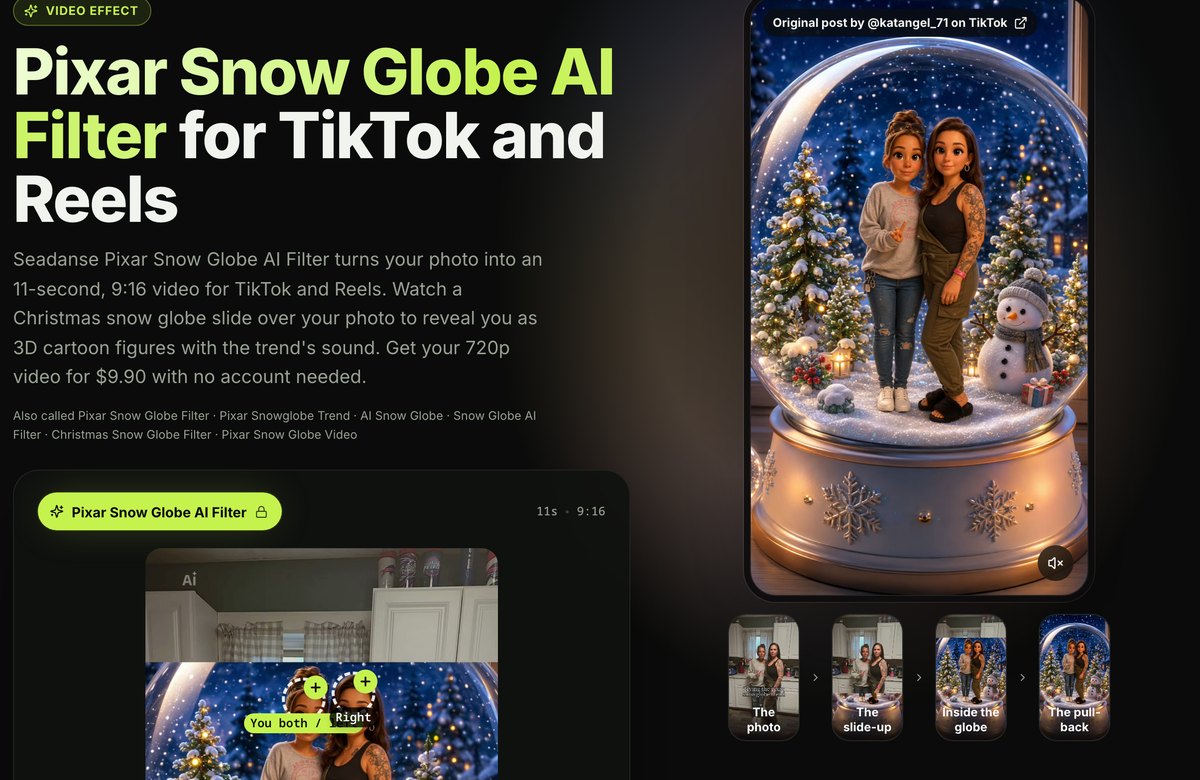
Here's the page, with the clip the trend comes from playing beside the photo circles.
What You Need for the Pixar Snow Globe Filter
You need one photo (or two) and a web browser to use Seadanse's Pixar snow globe filter.
- The two of you: One photo of you both side by side, or one photo each.
- Head to toe or from the knees up: The figures stand full length in the globe, outfits and shoes included.
- Faces clear: Faces turned to the camera, sharp, in good daylight, with nothing over them (no sunglasses, masks, or hands).
- Your outfits: The figures wear the clothes from your photo, so a Christmas sweater or matching outfits look great.
- Pets and characters: A dog, a cat, or a cartoon or game character can take either spot, with its whole body in view.
- Everyone 18 or older: You and your partner, two friends who both said yes, or you and your pet.
You can use a phone, tablet, or computer browser to make this video. There's no app to install, no template to hunt for, and no prompt to write. It's designed to be simple for anyone who wants to follow this festive trend.
Since the site runs in your browser, you don't have to download extra software to your device. You'll find that creating your video is a quick task.
Step 1: Add Your Photos to the Pixar Snow Globe AI Filter
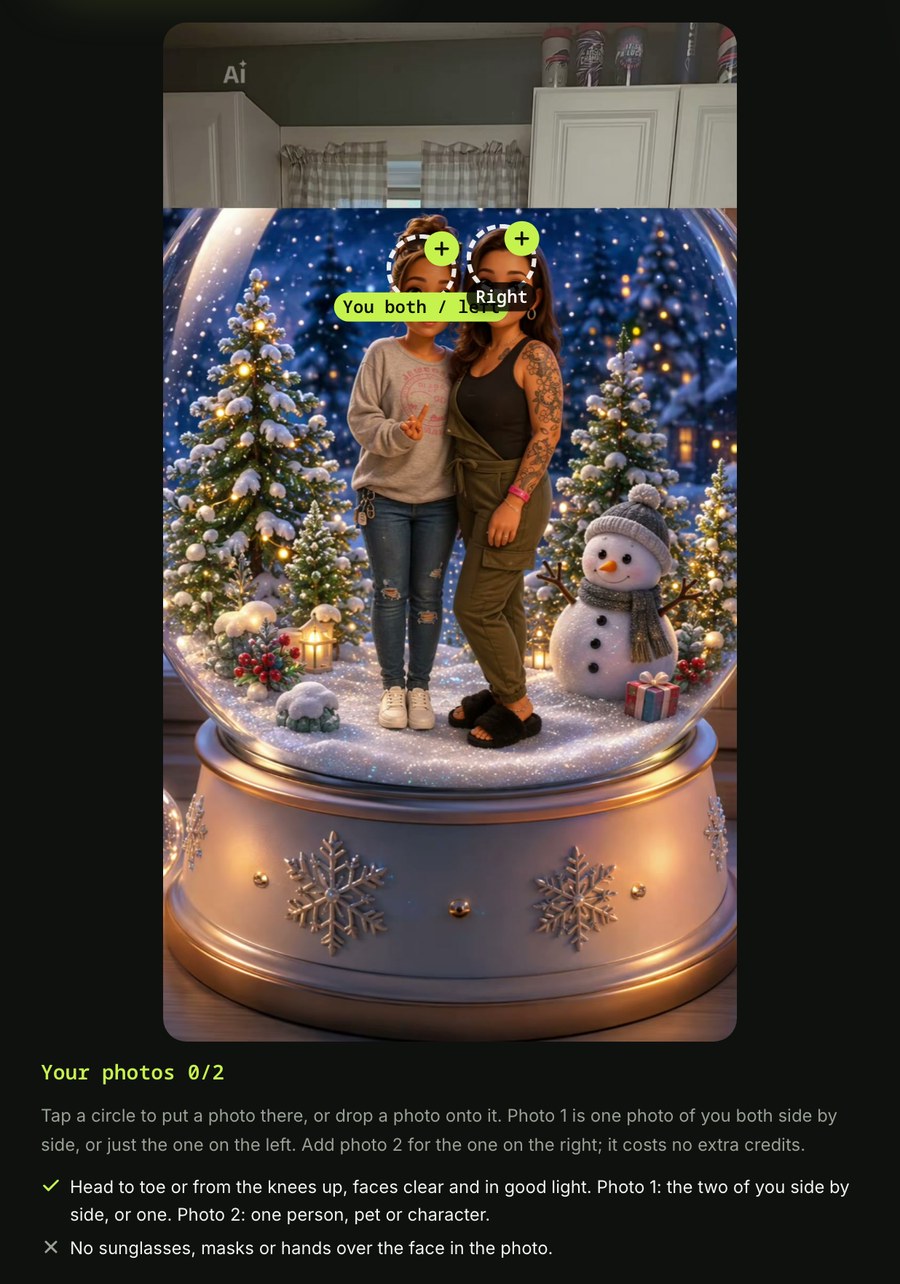
You add your photos to the two circles on the page. The left circle is labelled "You both / left": photo 1 is one photo of you both side by side, or just the one on the left.
The right circle is labelled "Right": add photo 2 for the one on the right when photo 1 shows only one of you.
This costs no extra credits. You can tap a circle or drop a photo onto it, and you can also scan a code with your phone and pick the photos from your camera roll ("Upload from phone"). Adding your photos this way makes sure the final 3D figures match your original look.
Step 2: Pick 720p or 1080p for Your Snow Globe Video
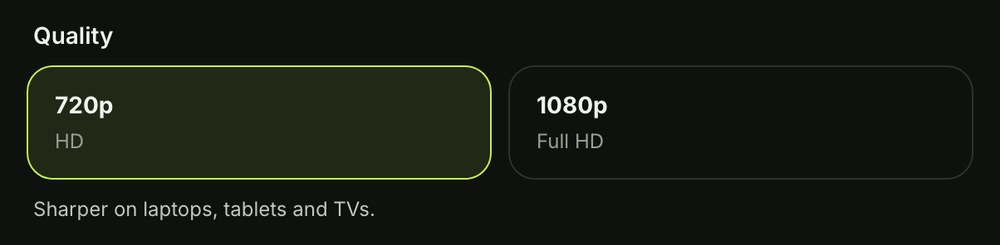
You pick 720p or 1080p to determine your video quality. 720p, marked HD, is picked when the page opens. 1080p is marked Full HD.
The price shows on the Create button. Choosing the right quality helps you get the best look for your TikTok or Reels post. High-definition options make sure your snow globe looks crisp when you share it with friends.
Step 3: Leave the Box Ticked and Press Create
You leave the box above the Create button ticked because it's already ticked when the page opens. Signed out, the button reads "Create · $9.90" at 720p, and the price on the button changes when you pick 1080p. Next to it, the page says no account is needed.
That's all you pick and press. There's nothing to write and no length, scene, or globe to choose: the length is fixed at 11 seconds, the whole trend clip.

You pay once at checkout, with no account and no subscription. The $9.90 pack is 500 credits (the site's own currency you buy in packs), and one 720p video takes 500 credits.
Pack credits stay valid for 12 months. You can find more information about Seadanse pricing on our pricing page.
You don't need an account or a sign-in to make the video. The email from checkout brings a link that signs you in, so you can open your video again on any device.
Your video starts right on the page, and you download the 11-second 9:16 video with the trend's sound. If a video fails, its credits come back automatically.
What Your 11-Second Pixar Snow Globe Video Looks Like
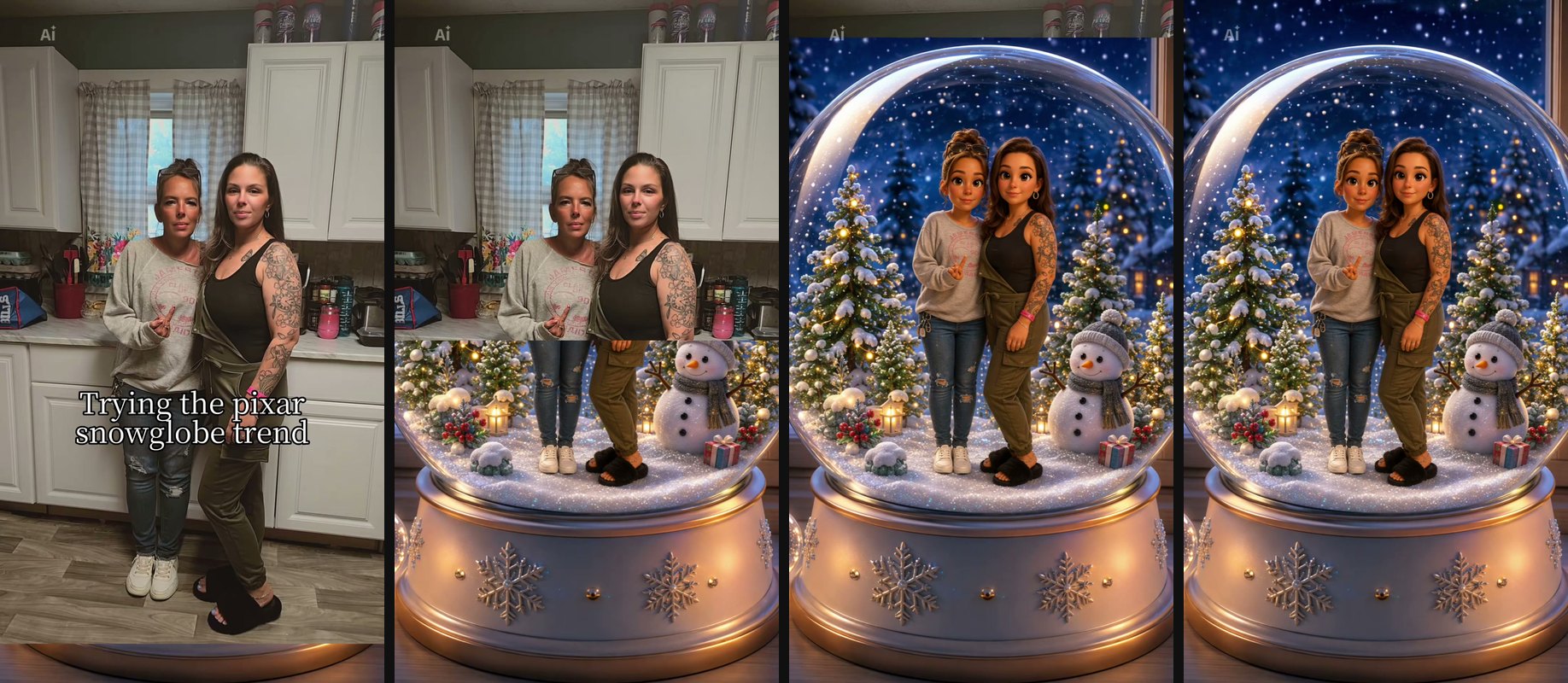
Your video is 11 seconds long in four parts, with the trend's sound. Below is the clip the trend comes from, and your video follows it part by part with the two of you in it.
Original clip: @katangel_71 on TikTok
- 0-1 second, the photo: The two of you as in a real photo, side by side in a cosy kitchen.
- 1-6.5 seconds, the slide-up: A Christmas snow globe slides up from the bottom of the frame and covers the photo.
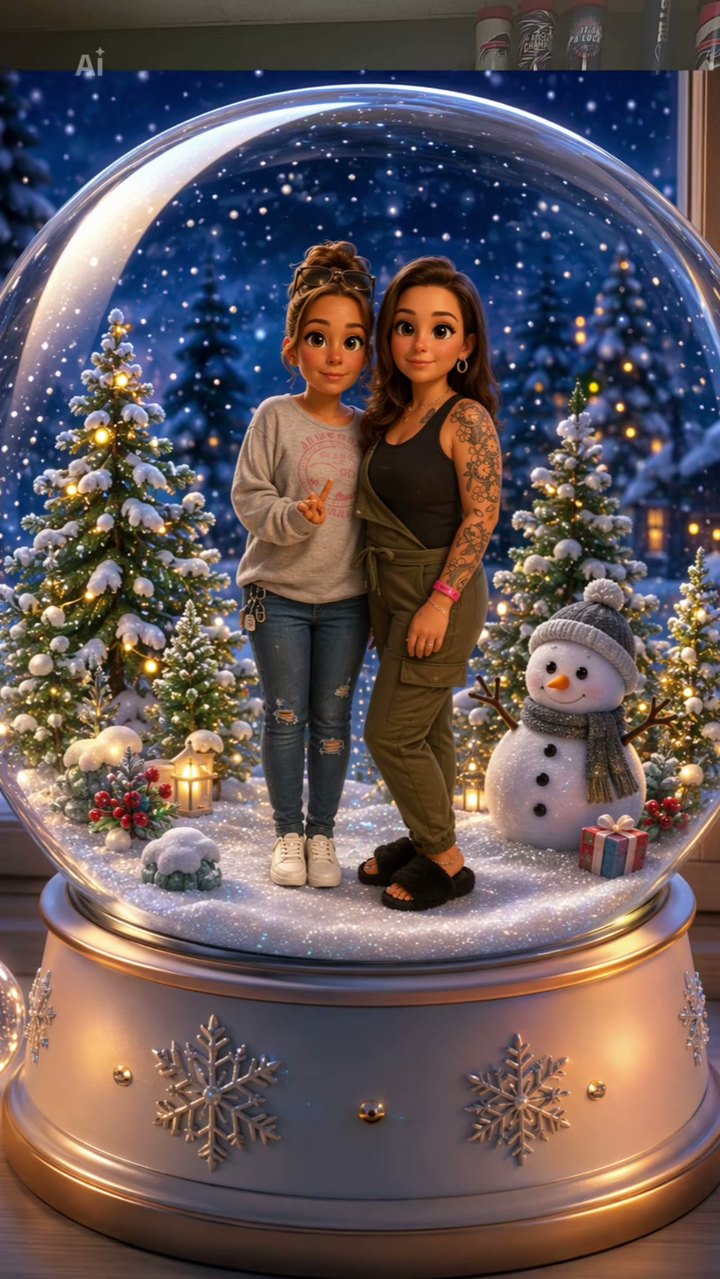
- 6.5-9 seconds, the globe: Inside the glass you're cute 3D cartoon figures in your own outfits, on the snow between lit trees, a snowman, and gifts.
- 9-11 seconds, the pull-back: Snow falls and the camera slowly pulls back to the whole globe on its white base by a night window.
Original clip: @katangel_71 on TikTok
Your faces, hair, and outfits come from your photo, and only you change.
Tips for Photos That Look Good in the Snow Globe
The photos that look best in the snow globe follow a few simple guidelines.
- Full length: The figures stand full length, so keep your full body in the frame.
- Faces to the camera: Sharp photos in good daylight make sure your face looks great.
- Matching outfits: Matching outfits or Christmas sweaters look excellent as 3D figures.
- Your pet: A pet can take either spot with its whole body in view.
- One photo each: You can add one photo of you both or one photo each.
Original clip: @katangel_71 on TikTok
Where the Pixar Snow Globe Filter Came From
The trend started as a snow globe idea that began as a prompt in 2025 and turned into the Christmas template couples and friends post now.
- April 9, 2025: A prompt shared on X put the people in a photo inside a crystal snow globe as cute 3D figures.
- November 23, 2025: A first Pixar snowglobe template ran on TikTok for Christmas 2025.
- November 14, 2026: The CapCut template "Pixar Snowglobe Ai" went up, and the first video with it carried the caption "Trying the pixar snowglobe trend" and the sound every later post uses.
- November 15, 2026: The most-viewed post of the template went up; it had 33,000 views by November 18, 2026. It's the clip on our page.
- November 18, 2026: The trend's sound was in 275 TikTok videos, and the template had 2,218 uses.
Our guide sets the Pixar snow globe CapCut template route beside ours.
Pixar Snow Globe Filter FAQ
Is the Pixar snow globe filter a picture or a video?
The Pixar snow globe filter makes an 11-second 9:16 video with the trend's sound. It isn't a still picture.
Can my dog or a cartoon character be in the snow globe?
Yes, either spot in the snow globe can be a dog, a cat, or a character. Its own photo must show its whole body in view.
Do we need the CapCut template or an app?
No. You only need a web browser. There's no app, no template, and no prompt needed.
How much does one Pixar snow globe video cost?
The $9.90 pack makes one 720p video. A 1080p video takes 1,480 credits, and the Create button shows its price when you pick 1080p. One photo or two, the price is the same.
How do I put a photo in a snow globe?
Add it on the Pixar Snow Globe AI Filter page. A Christmas snow globe slides up over your photo, with the two of you inside as cute 3D cartoon figures.
What other trend videos can we make from one photo?
GTA 6 Loading Screen AI turns one photo into an 8-second video in which a hand-painted loading-screen poster slides up over your mirror photo. AI Pregnancy Announcement turns one photo of the two of you into a 15-second black-and-white video in which one of you shows the positive test and you hug.
Make Your Pixar Snow Globe Video in Three Presses
You can make your Pixar snow globe video easily by choosing your photos and the quality. Add your photo, pick 720p or 1080p, leave the box ticked, and press Create to get your video.
Written by The Seadanse Team; we read the page on November 18, 2026.
Related Articles
- Pixar Snow Globe CapCut Template: How It Works and a Way With No App — the "Pixar Snowglobe Ai" template, how people open it, and the browser route beside it.


