
Oh You Can Make It Cap AI Prompt (Copy-Ready): All 9 Shots
The Oh You Can Make It Cap AI prompt gives you all nine timed shots, who laughs, who spins, the white studio, the clip's sound, and a one-photo line.
 The Seadanse Team17 min read
The team behind Seadanse. We run the models we write about, and we publish the specs, prices and limits the marketing leaves out.

TL;DR — The Oh You Can Make It Cap AI prompt below is a copy-ready prompt for all nine shots of the trend's 14-second clip. It names who laughs and who spins in each shot, and it writes out the white studio and the clip's own sound. It also has a line for one photo and a list of what never carries over from your reference clip. To skip the prompt, Seadanse's Oh You Can Make It Cap AI makes the same nine shots from your photos, with the sound in the file.
Under the AI remake that set the trend off, viewers asked "How the hell do i do this" and "what ai dis is". The tutorials for a video app's Recreate button show only the tail of a prompt on screen. They start with "seamless integration into the original footage" and end on "No character duplication".
That app's route makes a 10-second, 720p clip for 150 credits a try. A prompt with no shots and no seconds leaves the tool guessing who does what. The camera ends up cutting to the wrong person, or it leaves out the sound.
Here's a full prompt you can paste, how it's built, how to use it, and the five habits that keep it on the beat.
What Is the Oh You Can Make It Cap AI Prompt?
The Oh You Can Make It Cap AI prompt is the written instruction a video tool reads to remake the trend's nine shots with your photos. We wrote this prompt from the shot list our page is built on.
Here it is, for two photos.
People:
Person A is the one in photo 1 (a person, a cartoon or game character, or a pet): [describe A's face, hair and outfit]. Person A is the one who asks for the spin, laughs and talks.
Person B is the one in photo 2 (a person, a cartoon or game character, or a pet): [describe B's face, hair and outfit]. Person B is the one who flips their hair, does the full spin and says "Oh, he tweaking" to the camera.
Each keeps exactly this face, hair, skin tone, build and outfit in every shot. Person A's face never appears on Person B, and Person B's face never appears on Person A. Exactly one person is in each shot; there is never a two-shot and nobody else is ever in frame.
If photo 1 shows a cartoon, anime or game character, the whole video is in that style. If it is a real photo, the whole video is photoreal. A pet stays a real animal of its own breed, face, ears and coat, standing and acting like a person.

Set:
A plain, seamless white studio wall, bright and even, with nothing else in the room. Each shot is a fixed camera, knee-up to full body, with the head near the top edge of the frame.

Reference clip:
Your reference clip is the 14-second white-studio exchange. It is for motion and timing only: copy its nine shots, every cut on the same frame, and every movement, pose, hand gesture, turn of the body, hair movement, head movement, mouth movement while talking and laughing, facial expression and gaze at the same moment. Take no face, hair, body, clothing, jewellery or tattoo from the reference clip; none of its people appear.

Shots:
Landscape frame, the same shape as the reference clip.
[Shot 1] 0-1.9 s: Person A talks to someone off camera and throws the right arm up.
[Shot 2] 1.9-3.1 s: Person B flips their hair, does a full spin and shows their back.
[Shot 3] 3.1-5.1 s: Person A, hand at the mouth, laughs a long, high, giddy laugh.
[Shot 4] 5.1-6.3 s: Person B smiles.
[Shot 5] 6.3-8.7 s: Person A rubs their chin and talks.
[Shot 6] 8.7-10.1 s: Person B turns the eyes to the camera lens and talks to it.
[Shot 7] 10.1-11.5 s: Person A talks back, puzzled.
[Shot 8] 11.5-12.3 s: Person B talks.
[Shot 9] 12.3-13.8 s: Person A, fingers at the chin, talks.

Sound:
Keep the reference clip's own dialogue and laugh, with every mouth on its words.

Photos:
Photo 1 sets Person A's face, hair, skin tone, age, build and outfit, and photo 2 sets Person B's; ignore each photo's background, pose and framing. The reference clip sets only the shots, the cuts, the camera and the moves.

Final rules:
Person A is recognizable as the one in photo 1 in shots 1, 3, 5, 7 and 9, and Person B as the one in photo 2 in shots 2, 4, 6 and 8, each in their own outfit from their photo throughout. Nobody from the reference clip appears. No captions, subtitles, watermarks, logos or any text on screen.The parts in square brackets are yours to fill in, one short description per person. Everything else stays as it is.
You'll describe each person's face, hair and outfit in those brackets. That tells the tool which photo goes to which role.
How the Oh You Can Make It Cap AI Prompt Is Built
The Oh You Can Make It Cap AI prompt is built in seven labelled parts, and the longest is the shot list. Each part handles one job so the tool doesn't mix up faces, movements or cuts.
The table below breaks down each part of the prompt and what it does.
| Part | What it says | Why it's there |
|---|---|---|
| People | Photo 1 is Person A, who laughs; photo 2 is Person B, who spins; one person per shot | Keeps each face on its own person through every cut |
| Set | A plain, seamless white studio; fixed camera, knees up to full body | Gives every version the same room |
| Reference clip | Copy the nine shots, every cut and every move; take no person | Moves come from the clip, faces from your photos |
| Shots | Nine shots, each with its seconds, 0 to 13.8 | Lands the spin, the laugh and the call-out on the beat |
| Sound | Keep the clip's own dialogue and laugh | Every mouth stays on its words |
| Photos | Each photo sets one person's face, hair, build and outfit | Ignores each photo's background and pose |
| Final rules | Who's in which shots, nobody from the clip, no text on screen | Works like a negative prompt |
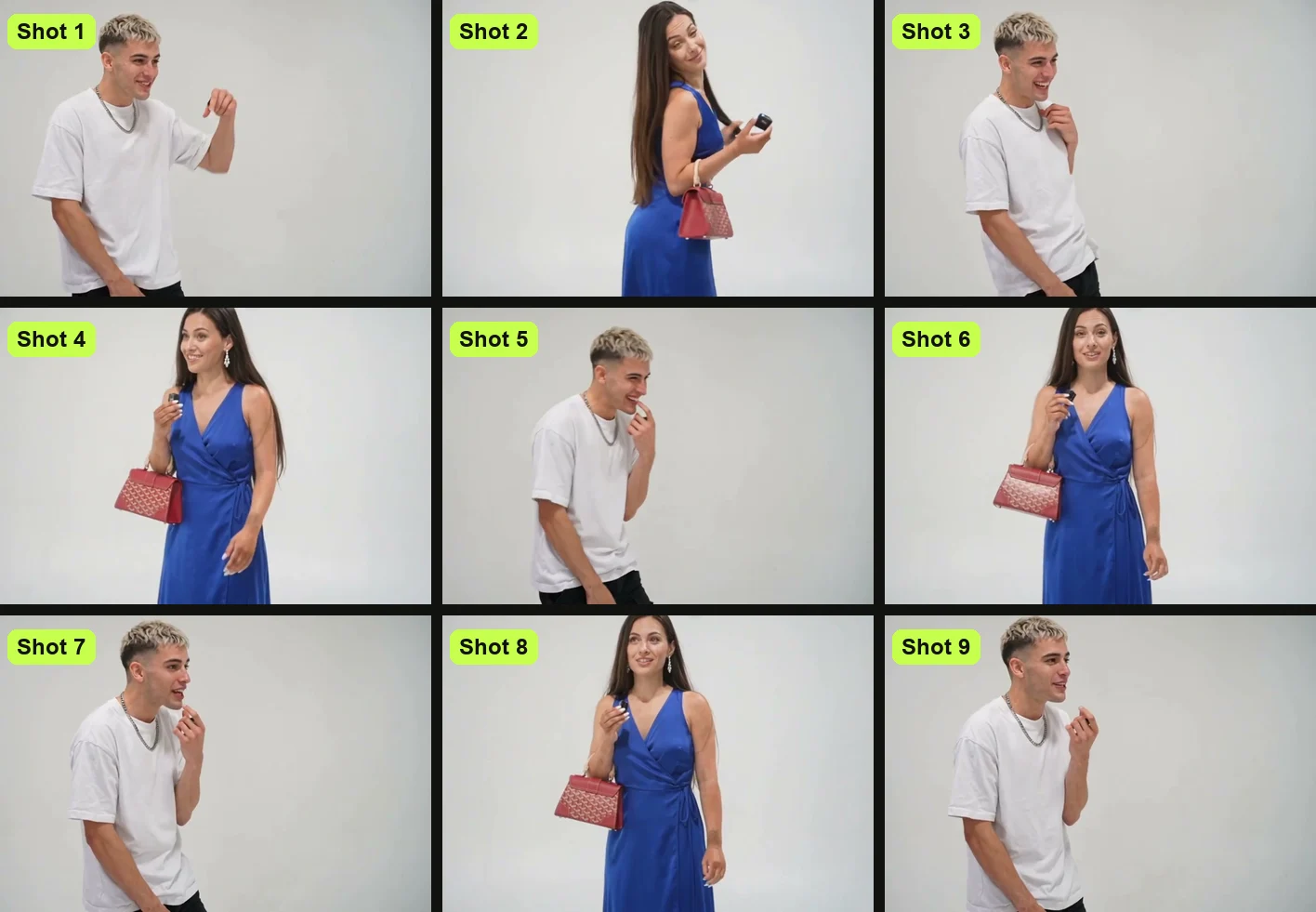
Every section works together. The prompt tells the tool that the reference clip (a short video the tool copies the moves and camera from) provides the timing. Your photos provide the people.
How Do You Use the Oh You Can Make It Cap AI Prompt?
To use the Oh You Can Make It Cap AI prompt, you need a video tool that takes two photos and one reference clip together. You'll also need a copy of the 14-second white-studio clip, and your photos. A tool that only animates one photo has no clip to follow.
Here's what you need:
- The tool: A video tool that takes two photos and one reference clip in the same go.
- Photo 1 and photo 2: One clear photo for Person A, who asks for the spin and laughs, and one clear photo for Person B, who spins.
- The reference clip: A copy of the 14-second white-studio clip, in its own landscape frame, with all nine shots.
- The fill-ins: The square brackets, where you write one short description per person.
- The sound: A tool that makes silent video leaves you to add the clip's sound in an editor.
Both photos should feature people who are 18 or older. Make sure each face is clear, in good light, facing the camera, and framed from the knees up or full body.
If you'd rather skip the setup, the Oh You Can Make It Cap AI generator does it from your photos.
Use the Oh You Can Make It Cap AI Prompt With One Photo
The Oh You Can Make It Cap AI prompt works with one photo if you swap the Person B line for the partner line below. You won't need to hunt for a second photo of someone else.
Person B is a made-up adult, the partner of Person A as in a dating show: aged 21 to 32, attractive and well dressed in a going-out outfit, with hair that falls past the shoulders so the hair flip reads, and a hair colour and outfit colours clearly different from Person A's. Person B is never a real or famous person and wears no text or logos. Keep the same Person B, with the same face, hair and outfit, in shots 2, 4, 6 and 8.That line makes Person B "a made-up adult, the partner of Person A as in a dating show", aged 21 to 32, attractive and well dressed in a going-out outfit. Person B gets hair past the shoulders "so the hair flip reads", with hair and outfit colours clearly different from Person A's.
Photo 1 can be you, your dog or a character. A cartoon, anime or game character in photo 1 turns the whole video into that style, while a real photo makes the whole video photoreal. A pet "stays a real animal of its own breed", "standing and acting like a person".
Habits That Keep the Oh You Can Make It Cap AI Prompt on the Beat
Five habits keep the Oh You Can Make It Cap AI prompt on the beat, and you can see each one in the prompt above. If you skip any of them, the video loses its rhythm.
Name Who Laughs and Who Spins in Every Shot
Person A asks for the spin and laughs, while Person B flips their hair and spins. Naming their jobs in every shot keeps the tool from flipping their actions.
The prompt assigns Person A as "the one who asks for the spin, laughs and talks". It sets Person B as the one who "flips their hair, does the full spin and says "Oh, he tweaking" to the camera".
The final rules lock this down. Person A appears in shots 1, 3, 5, 7 and 9, and Person B appears in shots 2, 4, 6 and 8. That keeps each role where it belongs.
Keep One Person in Every Shot
The prompt states that "Exactly one person is in each shot; there is never a two-shot and nobody else is ever in frame." A two-shot (both people in one frame) ruins the rhythm of the cuts.
The original clip never shows both people at once. It cuts back and forth between them the whole time.
Keeping one person per shot matches the clip, cut for cut.
Time All Nine Shots to the Clip
The prompt lists all nine shots from 0 to 13.8 seconds so the cuts match the original video. It keeps "every cut on the same frame".
Nine shots in about 14 seconds, so the camera cuts back and forth between the two of them the whole time. Here's the full breakdown:
- Shot 1 (0 to 1.9 seconds): Person A talks to the one off camera and throws an arm up: "let me see you do a 360".
- Shot 2 (1.9 to 3.1 seconds): Person B flips their hair, does a full spin and shows their back, while Person A, off camera, says "Ooh, can you make it clap?"
- Shot 3 (3.1 to 5.1 seconds): Person A, hand at the mouth, laughs a long, high, giddy laugh.
- Shot 4 (5.1 to 6.3 seconds): Person B smiles.
- Shot 5 (6.3 to 8.7 seconds): Person A rubs their chin and talks.
- Shot 6 (8.7 to 10.1 seconds): Person B turns their eyes to the camera and says "Oh, he tweaking".
- Shot 7 (10.1 to 11.5 seconds): Person A talks back, puzzled: "I'm tweaking, how?"
- Shot 8 (11.5 to 12.3 seconds): Person B: "You tweaking".
- Shot 9 (12.3 to 13.8 seconds): Person A, fingers at the chin, gets one last line in.
Listing the seconds forces the tool to keep the pacing brisk. Without the numbers, the tool invents its own cuts.
Give Each Person a Face of Their Own
Each photo sets one person's face, hair, skin tone, build and outfit. The prompt tells the tool to "ignore each photo's background, pose and framing".
The prompt makes sure "Person A's face never appears on Person B". Each person "keeps exactly this face, hair, skin tone, build and outfit in every shot".
The reference clip provides the movement and timing. Your photos provide the identities, while the prompt keeps those identities separate.
Keep the Clip's Own Sound
The prompt includes a line to "Keep the reference clip's own dialogue and laugh, with every mouth on its words." That keeps the cheeky banter matched to the video.
The exchange is cheeky and flirty. The humor comes directly from the dialogue and Person A's giddy laugh.
If your video tool makes silent video, you'll need to export the file first. Then you can add the clip's sound in an editor.
Our Oh You Can Make It Cap AI Prompt vs ohyoucanmakeitcap.com's Template
ohyoucanmakeitcap.com publishes a prompt template for this trend, last updated October 26, 2026, on ohyoucanmakeitcap.com's prompt template. That page says: "A text prompt alone can't get you this clip." It calls the trend "a copy of one specific 15-second edit, with about ten cuts".
Its template has labelled lines for Inputs, Motion, a "Do not copy the faces, hair or clothes" line, Person A, Person B, Clothes, Mouths, and Output. Its Motion line keeps the clip's "plain light-grey studio" and "the small handheld mic".
You describe each person "by what they do in the clip rather than by name or looks". Its Output line ends "no extra people, no audio". It's written for two photos, "one person each", with no seconds for any shot.
| Our Oh You Can Make It Cap AI prompt | ohyoucanmakeitcap.com's template | |
|---|---|---|
| Who's in each shot | Named for all nine shots | You describe each person "by what they do in the clip" |
| Timing | Every shot with its seconds, 0 to 13.8 | No seconds given |
| Set | Written out: a plain, seamless white studio | Kept from the clip: "plain light-grey studio" |
| Sound | Keeps the clip's own dialogue and laugh | "no audio" |
| One photo | A partner line | Two photos, "one person each" |
| Pets and characters | A line for each | One person per photo |
Our prompt adds the seconds of every shot, who's in each one, the white studio written out, the clip's own sound and a one-photo line.
Can You Make an Oh You Can Make It Cap AI Video Without a Prompt?
Yes, you can make an Oh You Can Make It Cap AI video without a prompt on Seadanse's Oh You Can Make It Cap AI page. The nine shots and the clip's sound are built in. You do everything directly in your browser.
Here's how you make the video:
- Add photo 1: Upload the photo of the person who asks for the spin and laughs.
- Add photo 2 or leave it: Upload a second photo for the person who spins, or leave it blank for a made-up partner.
- Pick 480p or 720p: Choose your preferred video resolution.
- Press Create: Let the generator build your clip.
You get a landscape MP4 of about 14 seconds, in the original clip's frame, with no watermark on exported video. One 720p video costs $9.90, paid once, with no sign-up, on Seadanse pricing. One photo or two cost the same.
You can also read our full guide on how to make an Oh You Can Make It Cap AI video for more photo tips.
Oh You Can Make It Cap AI Prompt FAQ
Answers to common questions about the Oh You Can Make It Cap AI prompt appear below.
Is this the prompt Seadanse's page uses?
This prompt is written from the same shot list our page is built on: who's in each of the nine shots, the white studio and the clip's own sound. On our page you never see or write a prompt, you add photos and press Create.
Which AI video tools accept the Oh You Can Make It Cap AI prompt?
Any video tool that takes two photos plus one reference clip in one go accepts the Oh You Can Make It Cap AI prompt. A tool that only takes one photo can't copy the cuts and moves from the reference clip. You can check the Oh You Can Make It Cap AI generators compared to see other options side by side.
Does the Oh You Can Make It Cap AI prompt keep the sound?
Yes, the prompt's sound line asks for the clip's own dialogue and laugh, with every mouth on its words. The sound that carried the trend came from the TikTok post that carried the sound, posted on October 21, 2026. On Seadanse, the sound plays from the first second.
Can I use the Oh You Can Make It Cap AI prompt for my dog or a cartoon character?
Yes, the prompt supports both pets and fictional characters. A cartoon, anime or game character turns the entire video into that visual style. A pet stays a real animal of its own breed, standing and acting like a person.
Why is it called Oh You Can Make It Cap?
The line people actually hear in the clip is "Ooh, can you make it clap?", but the trend's captions spelled it "make it cap", and that's the name that stuck. The clip comes from a 2024 white-studio exchange where Person A gets flustered flirting and Person B says "Oh, he tweaking". Read where the Oh He Tweakin meme comes from to explore how the clip evolved.
Can I use the Oh You Can Make It Cap AI prompt without a reference clip?
A tool with no reference clip has nothing to copy the moves and the cuts from, so it makes up its own. The prompt is written specifically for a reference clip. On our page, the reference motion and cuts are built in automatically.
Ready to Skip the Oh You Can Make It Cap AI Prompt?
You can skip copying prompts, tracking down reference clips, and lining up cuts by creating your video directly in your browser. Head over to make an Oh You Can Make It Cap AI video on Seadanse for $9.90 at 720p. The nine shots, the white studio and the original audio are already timed for you.
Written by The Seadanse Team, the team that built the Oh You Can Make It Cap AI page.
Related Articles
- How to Make an Oh You Can Make It Cap AI Video From 1 or 2 Photos (4 Steps) — the four steps, who laughs and who spins, and the photos that work best.
- Oh He Tweakin Meme: The 'Can You Make It Clap' Clip and Its AI Remakes — what the line means, where the 2024 clip comes from, and how the AI versions took over.
- Oh You Can Make It Cap CapCut Template: Where It Is and Why It Fails — the templates, the promo steps, and the fixes.
- Best Oh You Can Make It Cap AI Generators (2026): 10 Ways Compared — the sites and apps that make this video, side by side on photos, length, sound and price.


