
How to Make an Outstanding Tiny Desk AI Video With Your Whole Band
Seadanse: how to make an Outstanding Tiny Desk AI video. Fill five seats, get 19 seconds with the original sound, 720p for $9.90, no sign-up.
 The Seadanse Team10 min read
The team behind Seadanse. We run the models we write about, and we publish the specs, prices and limits the marketing leaves out.

TL;DR — You make an Outstanding Tiny Desk AI video by adding 1 to 5 photos to our Outstanding Tiny Desk AI template and pressing Create. Photo 1 sings lead in both close-ups, photo 2 takes the sax solo, photo 3 sits at the red keyboard, and photos 4 and 5 sing backup. You get 19 seconds in 9:16 with the original "Outstanding" sound, and one 720p video is $9.90, no sign-up.
Every Outstanding Tiny Desk AI video keeps the same room, the same five shots and the same sound. Only the people change, so the whole job's casting. The question your group chat fights over is who gets the close-ups and who gets the sax.
On our Outstanding Tiny Desk AI page, we've already set up the five shots, the cuts on the beat, the office set and the sound. You hand out five seats and press Create.
Your lead singer laughs straight into the camera in the big close-up. Your sax player gets a solo in profile on a gold saxophone.
Here's what's below:
- The five seats: what each photo plays in the band.
- Who goes where: how to cast your people across the five spots.
- The 4 steps: the lead's photo, the other four, the quality, Create.
- The right photos: the pictures that work best in every seat.
What Each Seat Does in an Outstanding Tiny Desk AI Video
An Outstanding Tiny Desk AI video has five seats, one photo each, and the order you add the photos sets who plays what. Five photos fill all five seats, so everyone in the band's one of your people.
Here are the five seats:
- Photo 1: the lead singer, the one photo the page needs, and the only one in both close-ups.
- Photo 2: the sax player, the only one in the sax solo.
- Photo 3: the keyboard player, front and centre at the red keyboard in both band shots.
- Photo 4: the backup singer on the left, in both band shots.
- Photo 5: the backup singer on the right, in both band shots.
Each photo stays in the seat you put it in. A seat with no photo goes to one of our built-in band members, the same look every time, so the band's always full.
Watch Your Band Play the 19 Seconds
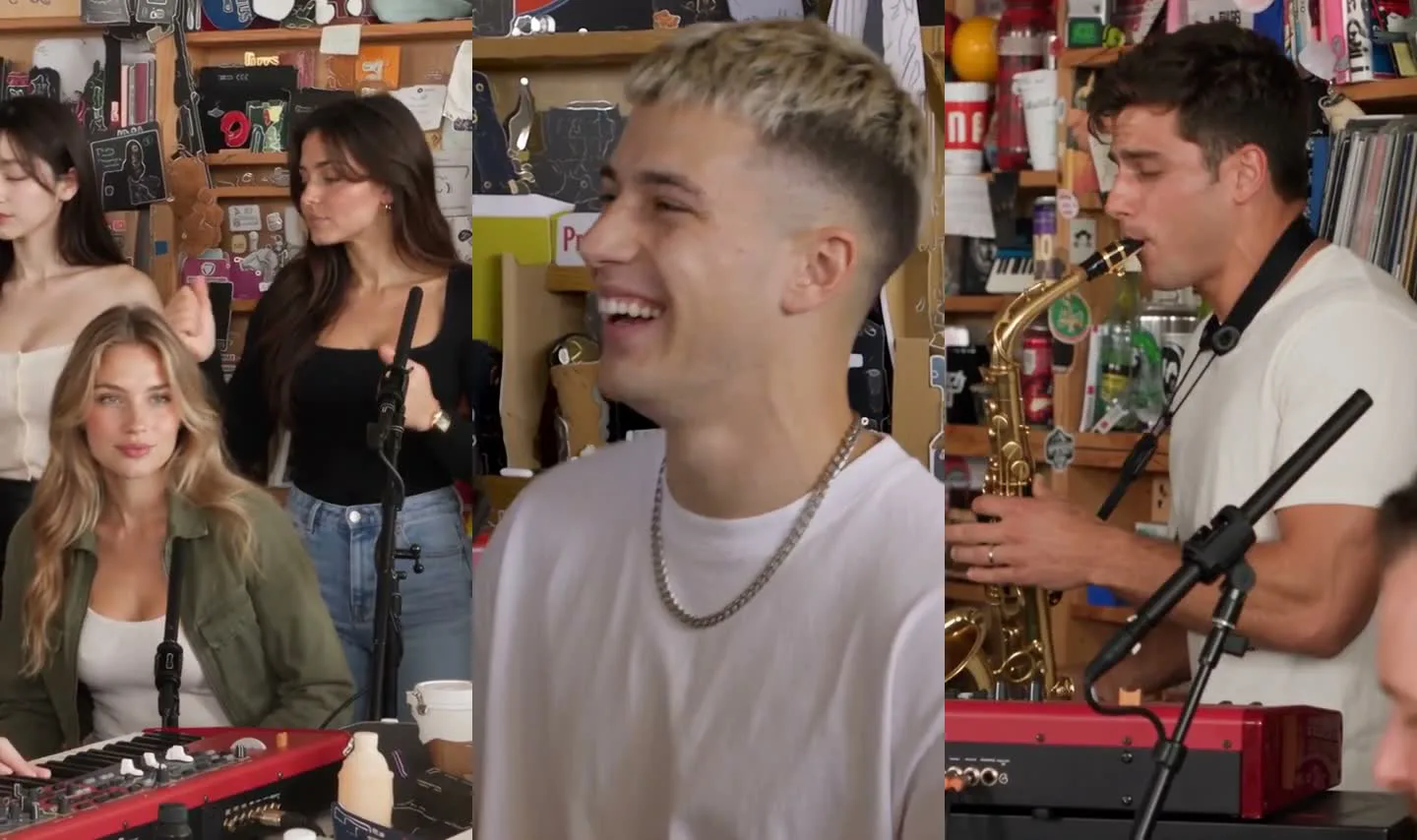
Your 19-second Outstanding Tiny Desk AI video plays in five shots, cut on the beat of the "Outstanding" sound. We've set up the cuts on the beat so the rhythm hits right from the start.
Here's how the 19 seconds play out:
- The opening close-up (0 to 1.4 seconds): the lead singer alone, in profile, nodding into the groove.
- The band shot (1.4 to 6.7 seconds): the keyboard player front and centre at the red keyboard, the two backup singers behind on the left and on the right, singing.
- The big laughing close-up (6.7 to 13 seconds): the lead singer alone, head thrown back laughing, then singing straight into the camera.
- The sax solo (13 to 16.4 seconds): the sax player alone in profile, playing a gold saxophone into a microphone on a long boom arm.
- The closing band shot (16.4 to 19 seconds): back to the band at the red keyboard.
You can read how the Tiny Desk AI trend started with five college football coaches.
Who Should Go in Each Seat?
The best way to cast an Outstanding Tiny Desk AI video is to give the close-ups to the person the video's about. Give the sax solo to the one you most want to see on their own. The rest of your crew backs them up.
Here's how to cast it:
- The lead singer: the person the video's about, the birthday, the winner, the one who lost the bet. That's because photo 1 is the only face in both close-ups, including the big laugh.
- The sax player: the one you most want to see alone, because the sax solo is the only shot photo 2 is in, and nobody else is in it.
- The keyboard player: the one who holds the group together, because photo 3 sits front and centre in both band shots.
- The backup singers: the two who are always side by side, because photos 4 and 5 stand behind on the left and on the right in both band shots.
- The rest of the crew: more than five people means more than one video: each video takes five photos, and you can make another with a new cast.
Some casts that work:
- The office: the boss or the birthday person in the close-ups, the new hire on the sax, the team lead at the keys, two coworkers singing backup. Everyone's in their work clothes from their photo.
- The league: the league winner in the close-ups and the last-place finisher on the sax solo, the commissioner at the keys, two rivals singing backup. They're in team jerseys from their photos.
- The pet band: a dog or a cat at the red keyboard, which sits up with its paws on the keys, with you in the close-ups.
We've gathered more Tiny Desk AI meme casts to show other ways to fill your band.
Make an Outstanding Tiny Desk AI Video in 4 Steps
To make an Outstanding Tiny Desk AI video with your band, you add the lead singer's photo, add up to four more, pick a quality and press Create. It's all on one page. The whole thing runs right in your web browser.
Step 1: Add the Lead Singer's Photo
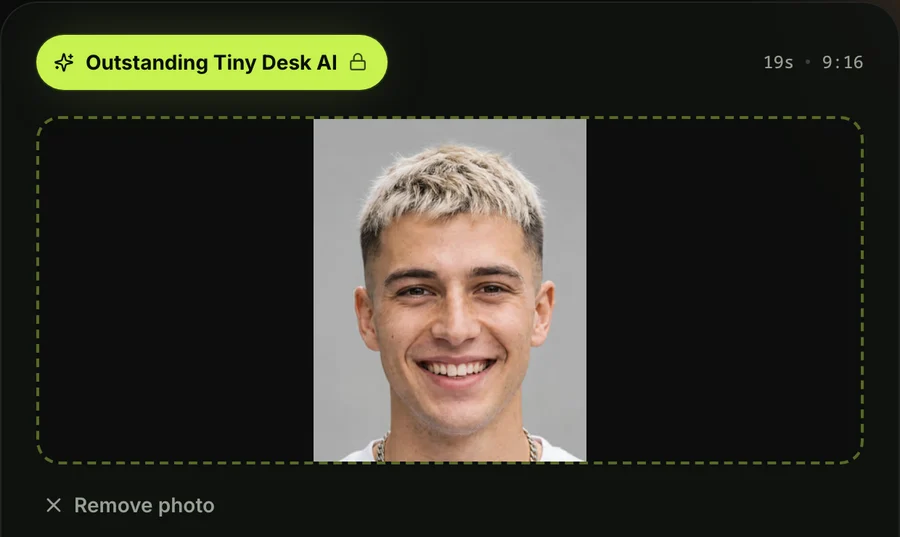
Open Seadanse's Outstanding Tiny Desk AI in your browser on a phone, tablet or computer. Pick the photo of the person who'll sing both close-ups, from your camera roll or your computer. That's the one photo the page needs.
Step 2: Add Up to Four More for the Other Seats
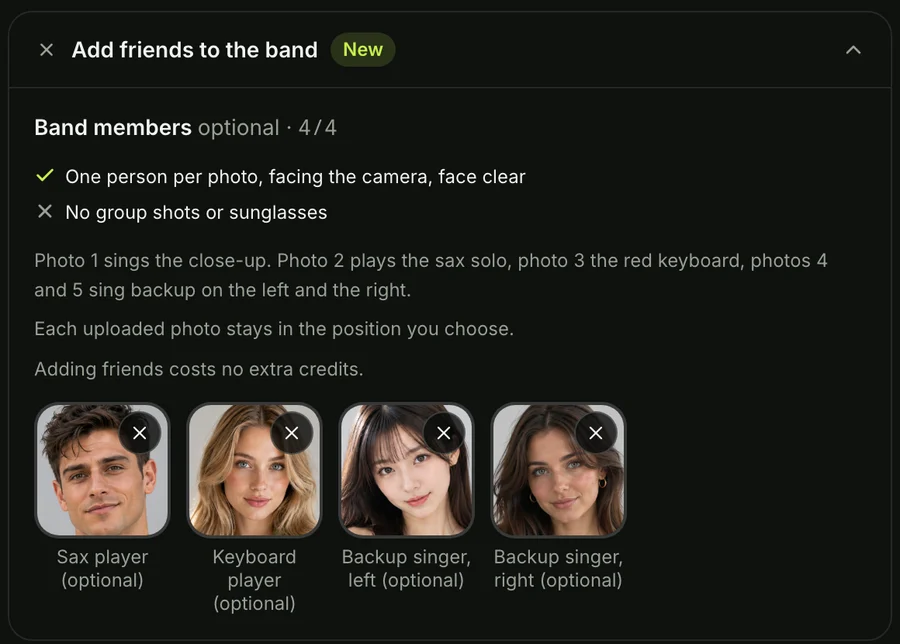
Open the section for the rest of the band under the lead's photo with one tap. Add photos in this order: the sax player, the keyboard player, the backup singer on the left, the backup singer on the right.
Leave any seat empty and one of our built-in band members plays it, so the band's always full. One photo or five cost the same.
Step 3: Pick 480p, 720p or 1080p
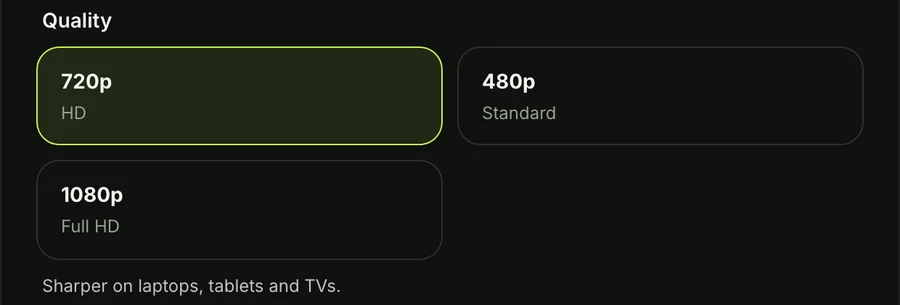
The page opens on 720p. The price shows on the Create button before you pay.
480p is made for TikTok and Reels on a phone. 720p is sharper on laptops, tablets and TVs. 1080p is the sharpest, for big screens.
Step 4: Keep the Box Ticked and Press Create
The tick box confirms you have the right to use the photos and that every person in them is 18 or older. Keep the box ticked, then press the Create button. You don't need an account, since you'll pay once and the video starts right on the page.
A window with the credit packs opens, and you'll pay once at checkout with no account and no subscription. The checkout email carries a link that signs you in, so your video opens on any device. Here's how pay-once credits work.
When your video's ready, you'll download your 19-second vertical 9:16 MP4 with the original "Outstanding" sound and no watermark on exported video.
Which Photos Work Best for Every Seat
The photos that work best in an Outstanding Tiny Desk AI video show one person, character or pet each, with the face clear, facing the camera, in good light. That gives each band member their own look behind the desk.
- One subject per photo: pick pictures that show one person, character or pet, without group shots.
- A clear face: pick photos where the face is clear, looking straight at the camera, without sunglasses.
- The outfit they'll wear: pick the photo in the outfit you want them to wear, like a team jersey, a hoodie or a suit. That's because everyone plays in their own clothes.
- 18 or older: make sure every person in your photos is 18 or older.
- Characters and pets: pick a cartoon, anime or game character to turn the whole video, the band and the room into its style. Pick a dog or cat to sit up with paws on the keys.
The background of each photo's left out, so everyone sits right in the office set.
Outstanding Tiny Desk AI Video FAQ
How many people can be in an Outstanding Tiny Desk AI video?
Up to five people can be in the band, one photo each: the lead singer, the sax player, the keyboard player and two backup singers. One photo's enough to make the video, and our built-in band members fill the rest.
Who sings in the close-ups?
Photo 1, the lead singer, and only photo 1 sings in the close-ups. They'll get the opening close-up nodding into the groove and the big laughing close-up.
Do my friends have to sing or play anything?
No, nobody in your photos has to sing or play an instrument. That's because the performance and the original "Outstanding" sound are already in the template.
What song plays in an Outstanding Tiny Desk AI video?
The original "Outstanding" sound plays from the first second. The song's by the Gap Band, from the 1982 album Gap Band IV, and the trend comes from Charlie Wilson's NPR Tiny Desk concert.
How much does an Outstanding Tiny Desk AI video cost?
$9.90 buys one 19-second 720p video, paid once with no subscription, and that pack also covers a 480p video. A 720p video takes 500 credits, a 480p video takes 375 credits, and a 1080p video takes 2,500 credits from the $39.90 pack.
One photo or five cost the same, pack credits stay valid for 12 months, and a video that fails returns its credits automatically. Every pack is on Seadanse pricing.
Can I make other music videos with my friends?
You can drop one to three photos into No Scrubs AI to take the lead in a 15-second chorus dance with the "No Scrubs" chorus sound. You can use one to five photos in Uptown Funk AI to join the street dance in a 15-second clip with the "Uptown Funk" song. You can also make the desk concert on its own page with Tiny Desk AI.
Cast Your Outstanding Tiny Desk AI Video Now
Fill all five seats with your own crew so everyone's in the band. Put your lead in the close-ups, give a friend the sax solo, and set someone at the red keyboard. You can make an Outstanding Tiny Desk AI video in your browser with the original "Outstanding" sound for $9.90 at 720p.
Written by The Seadanse Team, the team that built the Outstanding Tiny Desk AI page.
Related Articles
- How to Make a Tiny Desk AI Video From One Photo (4 Steps) — the one-photo version, step by step.
- Tiny Desk AI Meme Ideas: Who Goes on the Sax (and How) — the casts people have made, and who to put in yours.
- What Is the Tiny Desk AI Trend? The Coaches Video, Explained — who made the first one, when, and how it spread.
- Outstanding Tiny Desk AI Template: What the CapCut One Does — the template the TikTok tutorials link.


