
Nano Banana Changes the Whole Image? 6 Fixes, and How to Edit Only Part of It
Nano Banana changes the whole image because edits redraw it. Six prompt fixes cut drift, and marking the area keeps the rest pixel-identical in our cat test.
 The Seadanse Team11 min read
The team behind Seadanse. We run the models we write about, and we publish the specs, prices and limits the marketing leaves out.

TL;DR — Nano Banana changes the whole image because every edit comes back fully redrawn, with every pixel drawn again, so 4 things you didn't ask about can move: faces, text, the background and the framing. Six prompt fixes make that drift smaller: one change per request, a keep-list, where in the picture, the source size, the next edit from the result you like, and a compare before you keep it. The fix that holds is marking the area. Seadanse's editor runs Nano Banana 2 and pastes everything outside your box back from the original. In our cat test on November 19, 2026, everything outside the box came back pixel-identical.
You ask Nano Banana for one small change, like blue eyes on a cat or a gold headline on a poster.
It comes back with your change, but the face looks a little different, the letters moved, or the edges got cropped.
You try again with a longer prompt, and something else shifts instead. When Nano Banana keeps changing your image, retyping the request gets old fast.
Here's why a prompt-only Nano Banana edit redraws your photo, plus six changes to what you type that'll cut the drift.
Then you'll see how to mark one spot so everything outside your box comes back exactly as it was. In our cat test, it was pixel-identical (every dot of colour the same as before).
Why Nano Banana Changes the Whole Image When You Edit
Nano Banana 2 answers every edit request with a whole redrawn picture. It draws every pixel again, even in spots you didn't mention.
So when you edit with words alone, nothing's held still by default, and four things happen:
- Every edit is a full redraw: Every pixel gets drawn again. Anything your words don't pin down can drift, including faces, letters on a sign, the background and the edges.
- Broad instructions: Prompts like "make it nicer", "fix the lighting" or "make it look like a film poster" ask the model to rework the whole scene. Asking for several changes in one request does the same.
- No keep-list: An instruction that only says what to add or change, and says nothing about what to keep, leaves faces, text, background and framing open to move.
- Frame and size: Nano Banana 2 draws in a set list of frame shapes, at 1K, 2K or 4K. Leave the frame on "auto" and the model picks the shape. It can also hand back a smaller image than your upload.
Chat apps and prompt-box editors (a page with an upload slot and one text box) work the same way. That's because the words you type are the only thing telling the model what to touch.
6 Fixes When Nano Banana Changes the Whole Image
Six changes to what you type and how you work cut the drift in any chat app or prompt-box editor.
Ask for One Change per Request
One change per request gives the model one thing to redraw at a time. Ask for the eye colour first, get that picture back, and then ask for your next change as a follow-up on that result.
When you bundle several edits together, more of the scene moves at once.
Name What Must Stay the Same
A keep-list tells the model what to leave alone while it makes your change. Paste this line right after your instruction: "Keep every word, letter, number and logo exactly as written, keep every face the same person, and keep the layout and framing."
You'll also want to add anything else that matters to your photo, like the pose, the clothes or the lighting.
Say Where in the Picture the Change Goes
Naming the spot tells the model where to look. Point to the area in plain words, like "the headline at the top of the poster, nothing else".
Or give the position in percentages, like "about 20% to 70% from the left and 5% to 15% from the top". Seadanse's editor writes the box's position into its own instruction the same way, in percentages.
Keep the Source Size and Shape
Picking your frame shape stops the model from cropping your edges or picking a shape of its own. If your editor has a frame-shape menu, don't leave it on "auto".
Pick the shape closest to your photo, pick the largest size it offers, and add "keep the layout and framing" to your prompt.
Start the Next Edit From the Result You Like
Building your next change on top of a good result keeps the progress you've already made. You don't go back to the original and ask for everything again.
In Seadanse's editor, "Continue editing this one" starts the next edit from that result, and an "Edit history" trail shows "Original › Edit 1 › Edit 2".
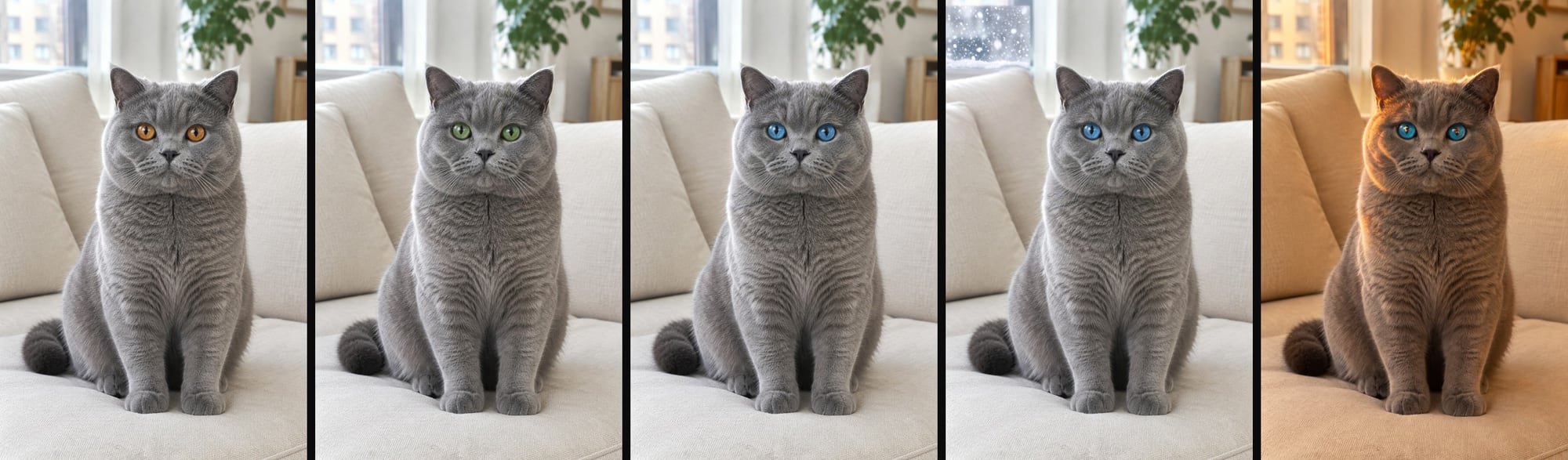
On November 19, 2026, we ran a five-step test on a cat photo. It went from the original to green eyes, then blue eyes, snow outside the window and golden light, and each step started from the one before.
Compare Before You Keep It
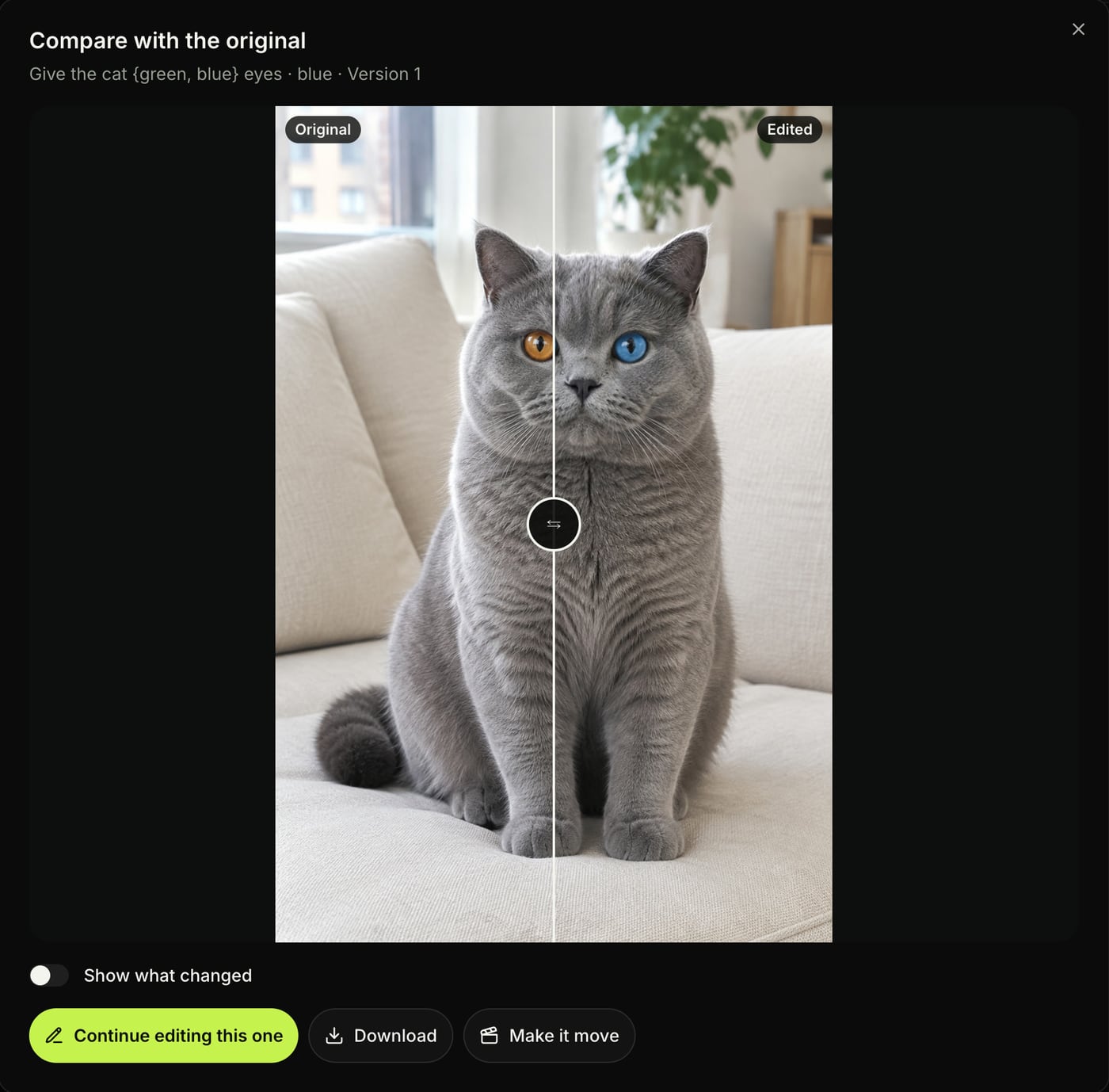
Putting your result next to the original lets you check faces, words, edges and corners before you download.
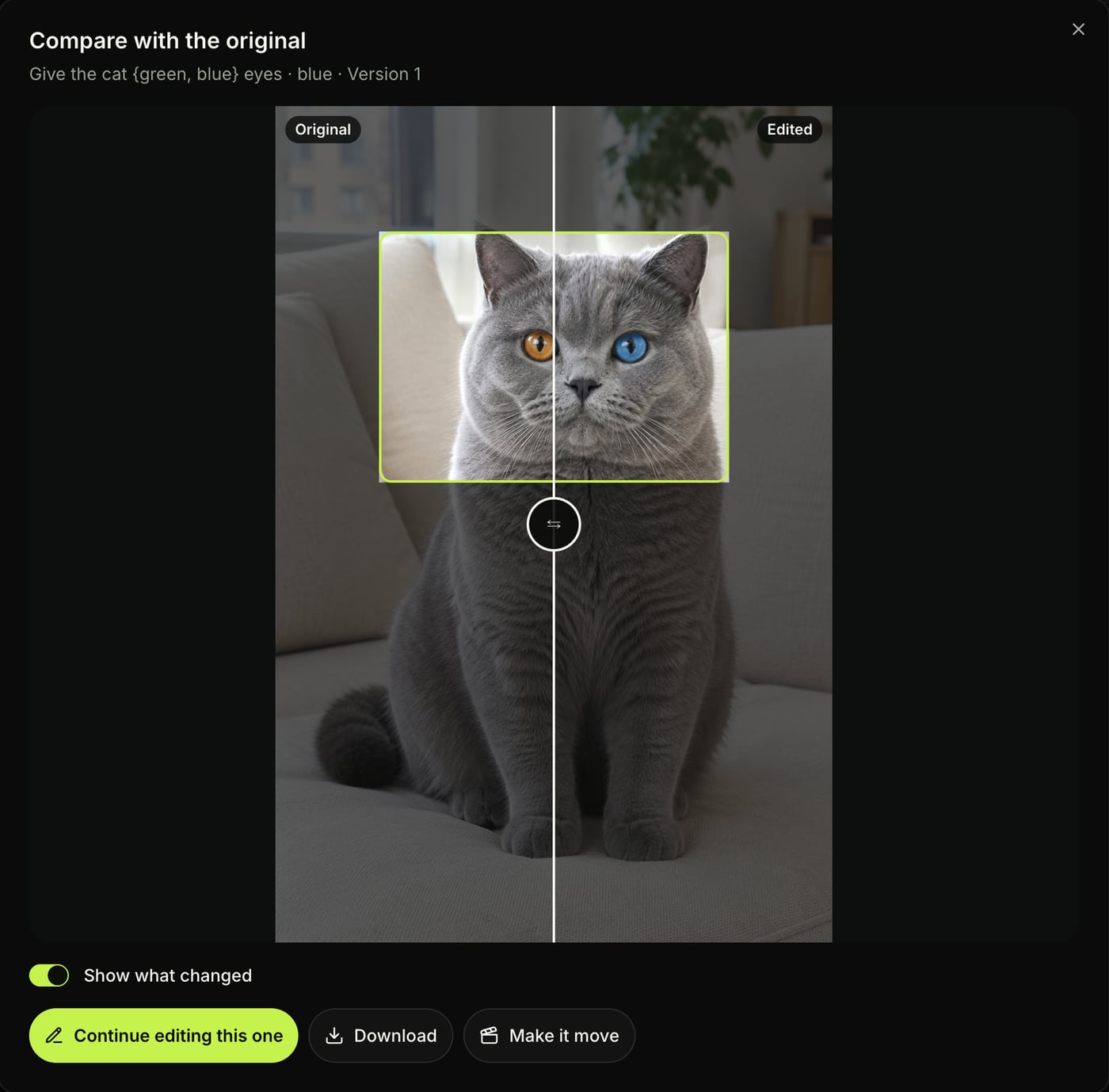
In Seadanse's editor, "Compare with the original" shows both pictures with a divider you drag between "Original" and "Edited".
Mark the Area Instead: Edit Only Part of the Image With Nano Banana 2
Seadanse's image editor runs Nano Banana 2, and it doesn't just hope the model leaves the rest of your photo alone. It pastes everything outside your box back from your original.
Prompt fixes make the drift smaller because they ask the model to leave the rest alone, while a marked box makes everything outside it come back pixel-identical, as it did in our cat test.
How to Edit Only Part of an Image in Seadanse's Editor
Five steps take you from your photo to a boxed edit in Seadanse's image editor:
- Image tab: Open the AI Image Creator, pick the "Image" tab, open the "Text/Image to Image" menu and pick "Edit an image".
- Choose an image to edit: Upload a photo from "Uploads" or pick one from "My creations" in the "Choose an image to edit" window.
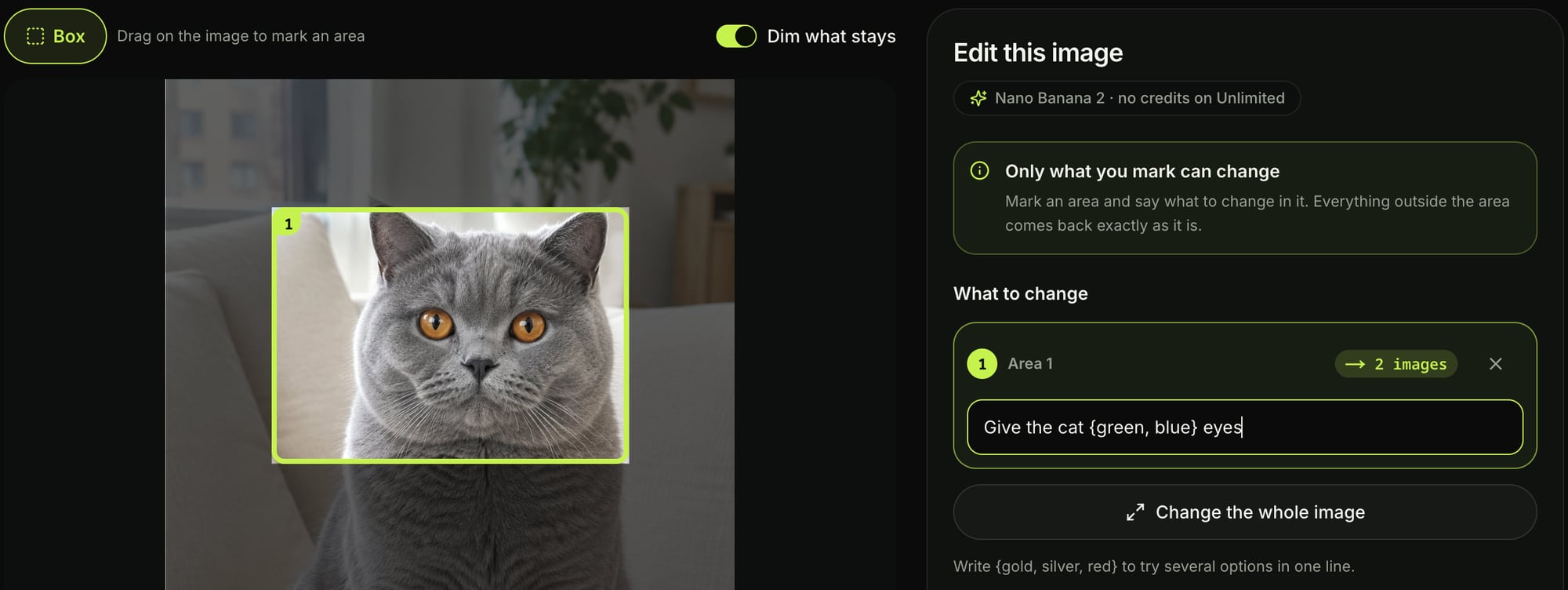
- Box tool: Drag the "Box" tool on your picture to mark the spot. Switch on "Dim what stays" to darken everything outside your boxes so you see what's marked.
- What to change: Type your instruction on the "What to change" line for "Area 1". You can also add a "Change the whole image" row for an overall change like "Warmer overall tone".
- Generate button: Pick 1K, 2K or 4K (7, 11 or 16 credits an image; the model label reads "Nano Banana 2 · 7 credits/image"). Check the image and credit count above the button, then press "Generate 2 images" (the button shows your exact count).
There are two more ways in: "Edit this image" under any image you've made, and the "Edit this image →" hint that shows up when you upload a picture with an edit prompt.
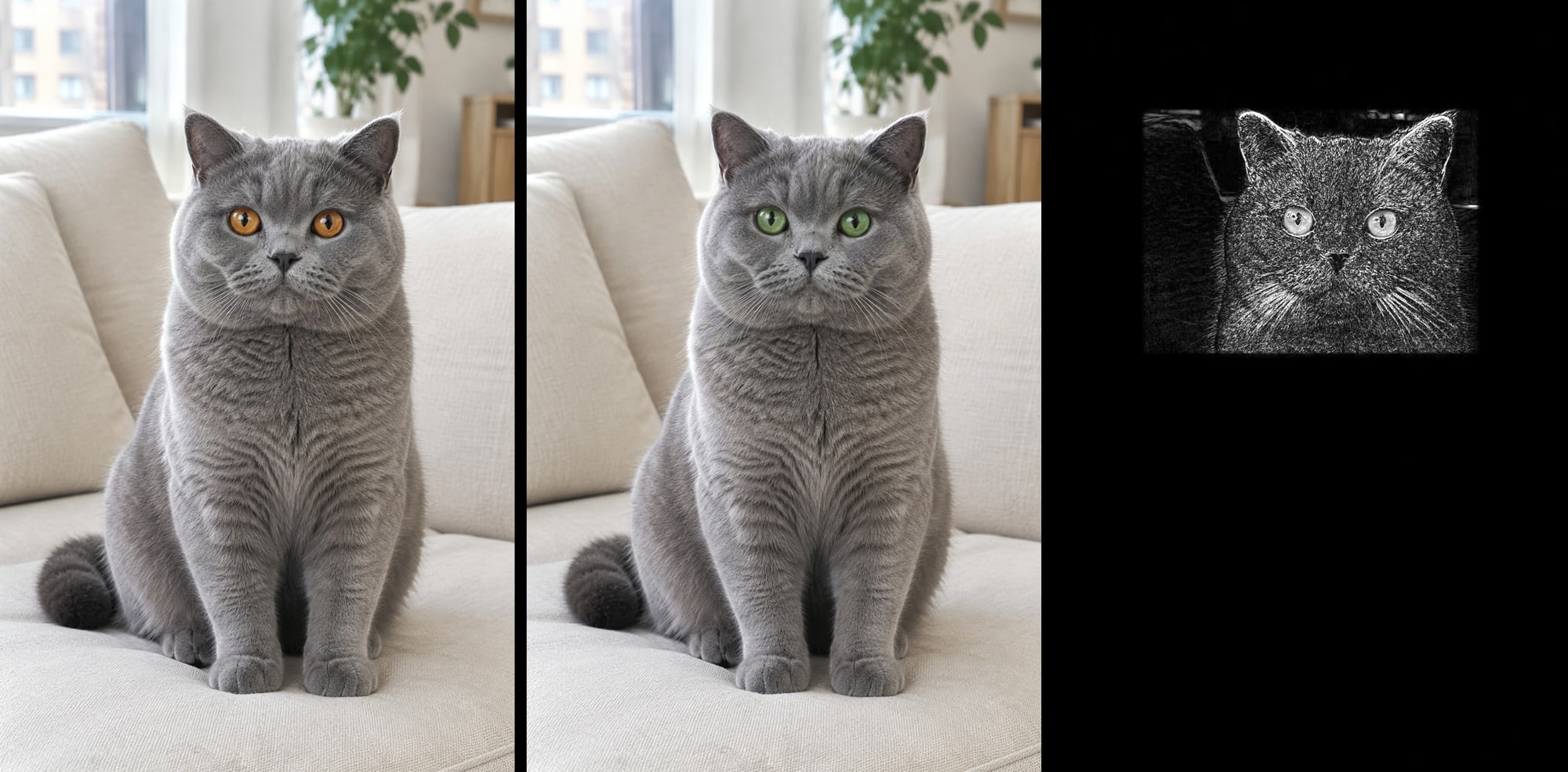
You can also write "{gold, silver, red}" on a change line to try up to 6 options in one pair of braces. On our grey cat photo, we boxed the face and wrote "Give the cat {green, blue} eyes", which made one green image and one blue one.
You'll also see options to pick ×1, ×2 or ×4 versions, for up to 8 changes and 24 images in one press.
Outside the Box, Our Cat Edit Came Back Pixel-Identical
On November 19, 2026, we took a bakery poster reading "FRESH EVERY MORNING" and "OPEN 7AM TO 3PM", with six pastries and handwritten price tags. We boxed only the headline and asked for gold.
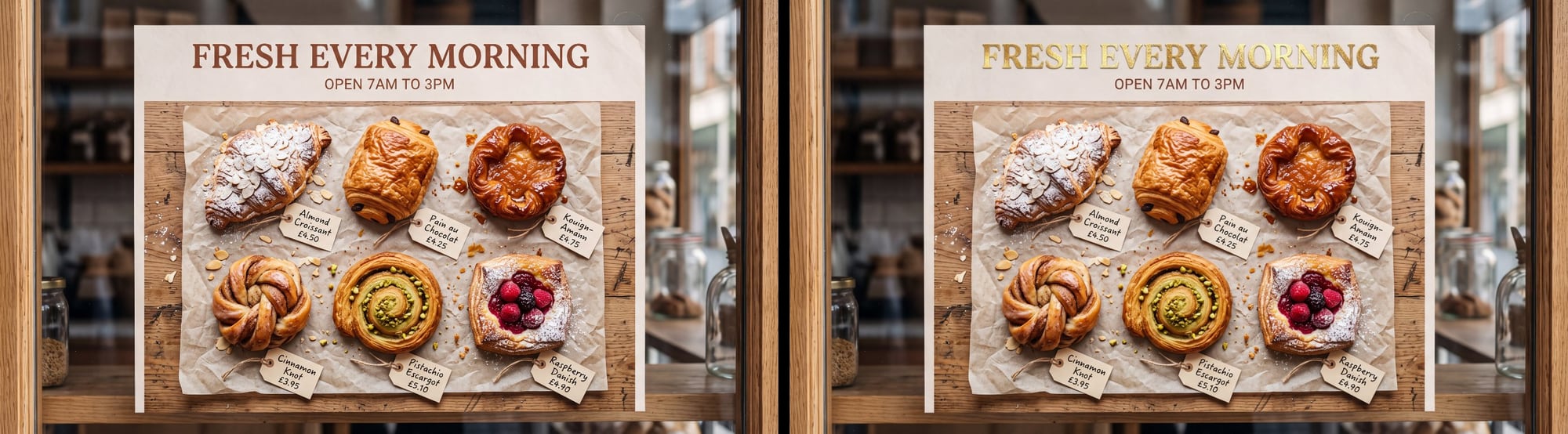
The headline turned gold, and the rest of the poster stayed as it was.
So the pastries, the price tags and the opening hours stayed as they were.
We checked our cat edit with a difference map (a picture where the brighter a spot is, the more it changed). When the eyes turned green on the 1024×1536 cat photo, only the boxed face lit up. Everything outside the box stayed black, so it came back pixel-identical.
In the editor, "Compare with the original" has a "Show what changed" switch.
Turn it on and you'll see the pixels that changed light up on your screen, next to "Download" and "Make it move" (which opens the video maker with your picture attached).
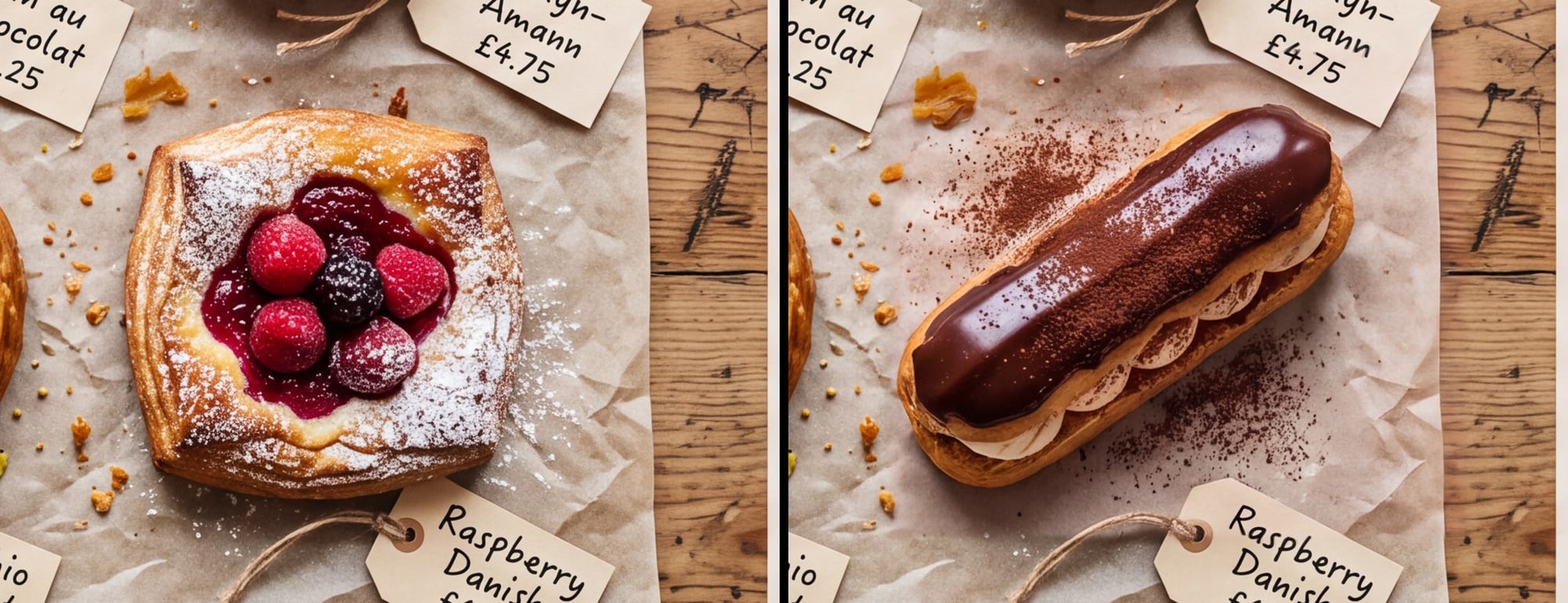
On the same poster, we boxed only the raspberry danish and left its price tag outside the box. Then we asked for a chocolate éclair at 4K, and the éclair came in while the tag under it still reads "Raspberry Danish £4.90".
That 4K run's 5504×3072 original came back 5504×3072, so you don't lose any size. The price tags and the other pastries are untouched.
To try it on your own photo, open the image editor in the AI Image Creator. Pick your picture, draw a box, type the change and press Generate.
Nano Banana Inpaint and Partial Edits: Quick Answers
Can Nano Banana edit only part of an image?
A prompt-only request to Nano Banana redraws the whole picture every time, so it doesn't leave the rest alone on its own.
To edit only part of an image with Nano Banana, draw a box around the part in Seadanse's editor, and everything outside the box comes back from your original.
Is there a Nano Banana inpaint tool?
Inpainting (redrawing only a marked part of a picture) is built into Seadanse's image editor.
You get a "Box" tool and a "What to change" line for each marked spot, and you can run up to 8 changes in one press.
Why does Nano Banana change the face when I edit?
Nano Banana draws every pixel again on every edit, faces included, even when you didn't ask about the face.
Add the keep-line to ask the model to keep every face the same person, or box only the part you want changed so the face sits outside the box and comes back untouched.
Stop the Redraw: Mark It, Then Compare
Careful prompts narrow down what the model touches, so they cut the drift.
Boxing the spot in Seadanse's editor pastes everything outside your box back from your original, so the rest of your photo comes back exactly as it was, pixel-identical in our cat test.
For the full walkthrough on boxing areas and testing options, read our step-by-step guide to editing part of an image. You can also compare which Nano Banana image editors let you mark an area.
When you're ready to fix your own photo without the rest of the scene drifting, mark the area in Seadanse's image editor.
Written by The Seadanse Team; we ran every edit shown here in the editor on November 19, 2026.
Related Articles
- How to Edit Only Part of an Image With AI — box the spot, say what to change, try options and versions, and compare before you keep it.
- Best Nano Banana Image Editors — the Nano Banana editors side by side, and which ones let you mark the area you want changed.


