
Best Nano Banana Image Editor in 2026: 6 Tools Compared
The best Nano Banana image editor is Seadanse's Edit this image: box the part to change, keep the rest as it was, and make up to 24 images per press.
 The Seadanse Team17 min read
The team behind Seadanse. We run the models we write about, and we publish the specs, prices and limits the marketing leaves out.

TL;DR — The best Nano Banana image editor for changing only one part of a picture is Seadanse's "Edit this image", in the AI Image Creator. You box the part, say what to change, and one press makes up to 24 images. Everything outside the box comes back as it was — when we gave a cat green eyes on November 19, 2026, every pixel outside the box matched the original. The other five Nano Banana editors we opened that day each showed a prompt box and no area tool, and each has its own strength, listed below.
You ask Nano Banana to make one headline gold on your bakery poster. The headline turns gold, but the croissants on the shelf change shape too.
You try again with a new prompt, and now the opening hours move. When you're trying to edit only part of an image with Nano Banana, retyping your whole prompt gets old fast.
We opened six Nano Banana image editors on November 19, 2026. Here's what each one gives you.
Seadanse's "Edit this image" is the one of the six where you mark the part to change with a box. What's outside the box comes back as it was, and one press makes up to 24 images.
Best Nano Banana Image Editor Picks at a Glance
The six Nano Banana image editors below each take your picture and a prompt. They differ in how you mark your edit and how many images you'll get back.
- Seadanse "Edit this image": You box the part to change, write several options in one line, and pick ×1, ×2 or ×4 versions. You'll get up to 24 images per press, and what's outside the box comes back as it was.
- ImgUpscaler: You add one image, write a prompt, and pick from six one-click presets like Replace background and Object remover.
- CyberBanana: You upload up to 8 source images and make 1 to 4 images a run, at 1K, 2K or 4K.
- imageeditorai.ai: You use Nano Banana 2.1 with up to 10 reference images and up to 4K, plus a Layers tab.
- VisualGPT: You upload up to 4 optional images and write a prompt in a compact panel.
- NoteGPT: You get a model picker with Nano Banana on the list, and one-purpose tools like Remove Background.
| Tool | Best for | Mark an area | Options in one line | Images per press | Compare with the original | Credits shown |
|---|---|---|---|---|---|---|
| Seadanse "Edit this image" | Changing only the part you mark | Yes, a box per area, up to 8 changes | Yes, up to 6 in curly brackets | Up to 24 | Yes, a divider plus "Show what changed" | 7 / 11 / 16 for an image at 1K / 2K / 4K |
| ImgUpscaler | One-click preset edits | No area tool on the main editor | — | — | — | 8 for a run |
| CyberBanana | Up to 8 source images | No area tool | — | 1 to 4 | — | 6 (promo) / 8 / 16 at 1K / 2K / 4K |
| imageeditorai.ai | Up to 10 reference images | No area tool | — | — | — | 15 (Nano Banana 2.1) |
| VisualGPT | A quick prompt edit | No area tool | — | Output count shown as 1 | — | 4 on the Generate button |
| NoteGPT | Switching image models | No area tool | — | — | — | 2 a day without credits, then 6 for an image |
The rival rows show what each tool's own editor page showed when we read it on November 19, 2026, signed out; a dash means the page didn't show it.
What to Look For in a Nano Banana Image Editor
The model matters, but the Nano Banana image editor around it decides whether you'll get the one change you asked for.
- Area marking: You show the editor where to work with a box, so everything else stays as it was.
- Versions per press: You get several options and versions from one press, so you pick the one you like instead of retrying.
- Compare with the original: There's a divider to drag across the picture and a view of what changed.
- Continue editing: Your next edit starts from the result you liked, with a history trail you can click through.
- Resolution kept: You pick 1K, 2K or 4K (about 4,000 pixels across), and the picture keeps its size.
The model under the editor on Seadanse is Nano Banana 2.
1. Seadanse "Edit this image": Best Nano Banana Image Editor for Changing Only What You Mark
Seadanse's "Edit this image" is the image editor in the AI Image Creator, and you mark what to change with a box. You'll edit a picture you made on Seadanse or one you upload.
Box the Areas and Say What to Change
The "Box" tool in "Edit this image" lets you drag on the image to mark an area. Each box gets a number and its own row, like "Area 1" and "Area 2", with a text line labelled "What to change".
You can turn on "Dim what stays" to darken everything outside your boxes. You can also click "Change the whole image" to add a row for the whole picture, with up to 8 changes per press.
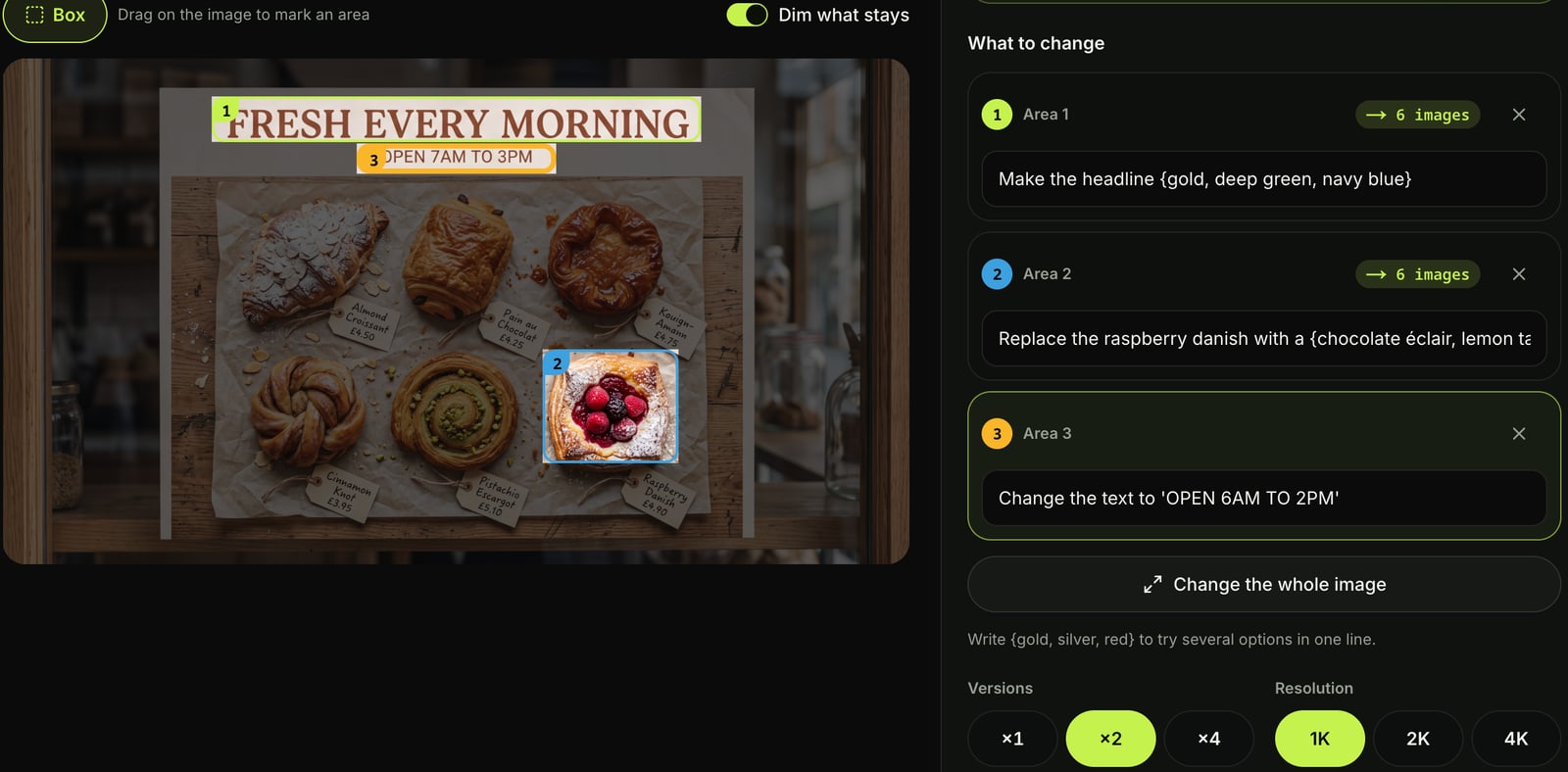
In our November 19, 2026 test, we drew three boxes on a bakery window poster. We marked the headline, one pastry and the opening hours.
Try Several Options in One Line, ×1, ×2 or ×4
Curly brackets in "What to change" let you test several ideas, so you don't retype your prompt. The editor's hint reads "Write {gold, silver, red} to try several options in one line."
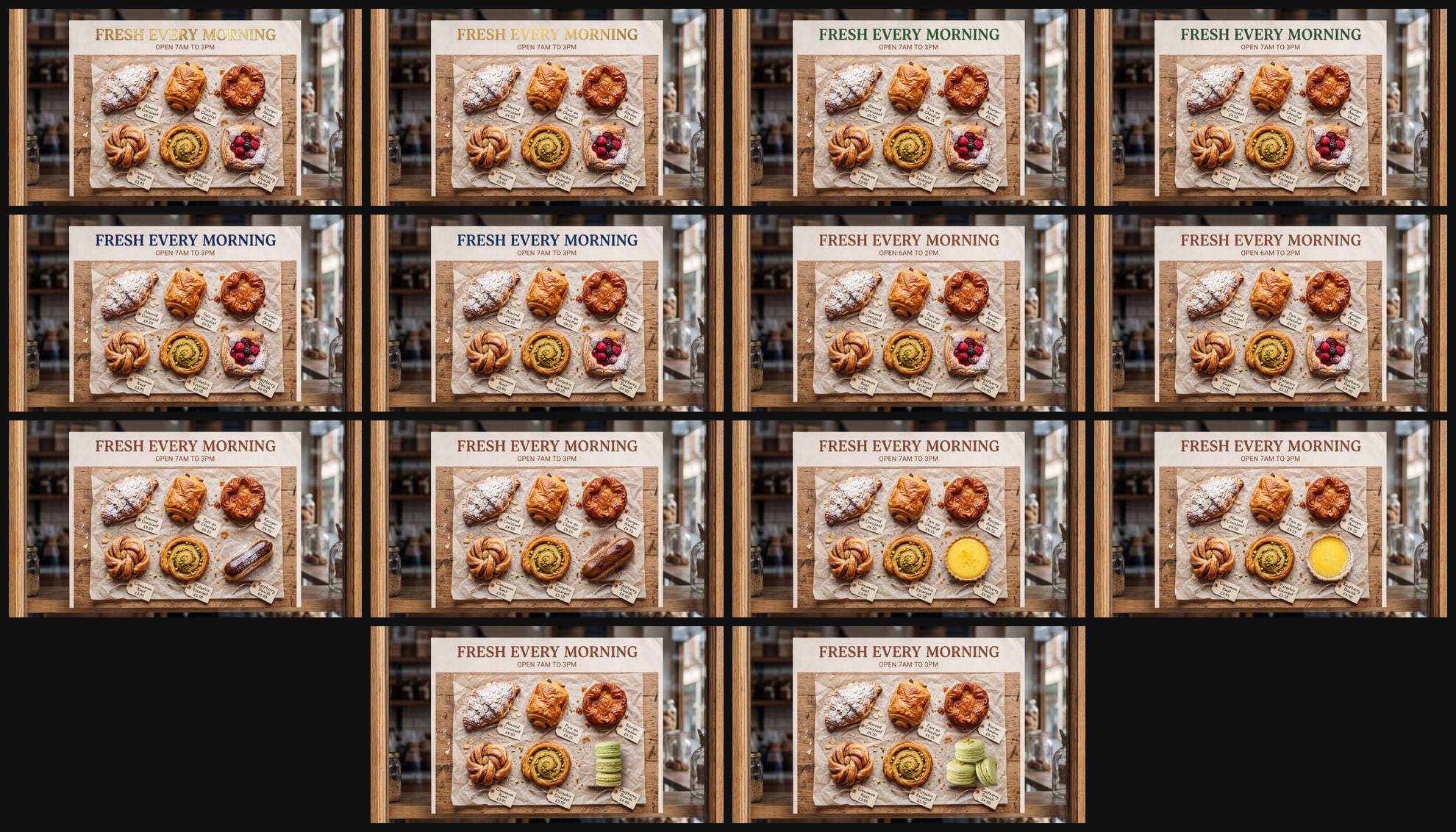
You can put up to 6 options inside one pair of curly brackets. Then you pick ×1, ×2 or ×4 versions of every option, up to 24 images per press. Each change is tried on its own copy of the image, and our bakery press with ×2 versions at 1K made 14 images from three rows:
- Area 1: We wrote "Make the headline {gold, deep green, navy blue}" for 3 options. That's 6 images at ×2 versions.
- Area 2: We wrote "Replace the raspberry danish with a {chocolate éclair, lemon tart, pistachio macaron stack}" for 3 options. That's 6 images at ×2 versions.
- Area 3: We wrote "Change the text to 'OPEN 6AM TO 2PM'" for 1 option. That's 2 images at ×2 versions.
Everything Outside the Box Comes Back as It Was
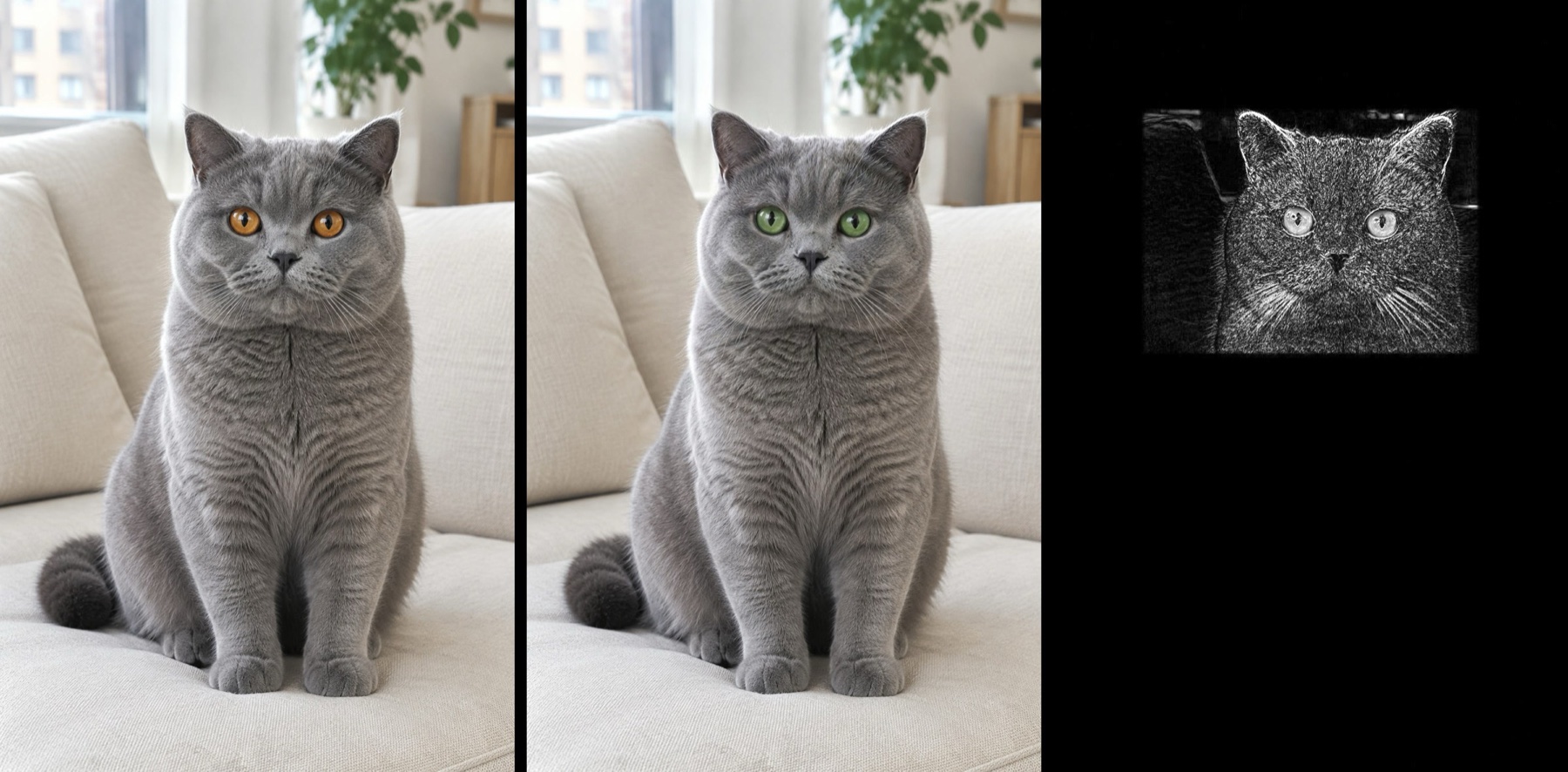
The panel in "Edit this image" states a clear rule. It says: "Only what you mark can change — Mark an area and say what to change in it. Everything outside the area comes back exactly as it is."
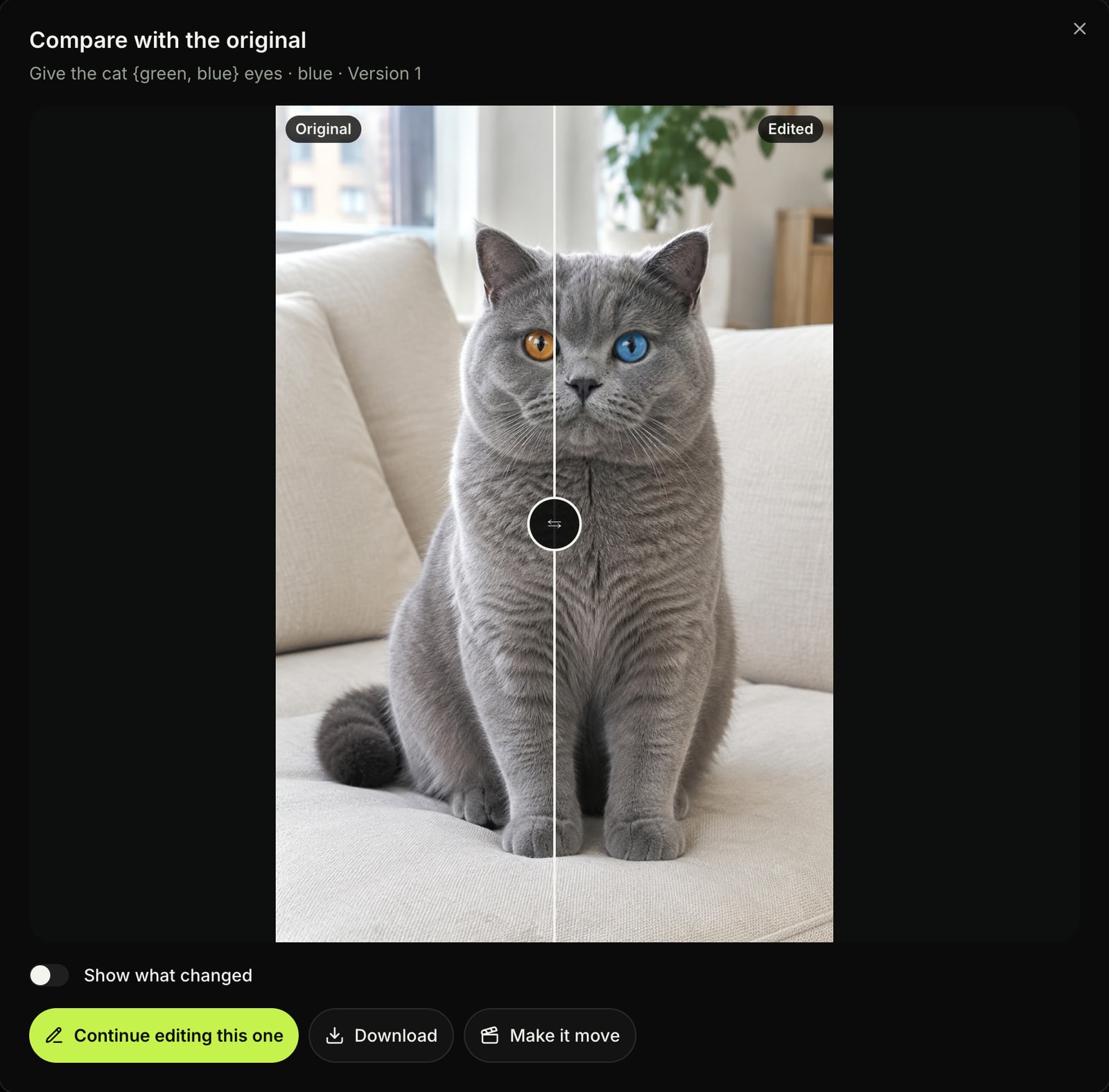
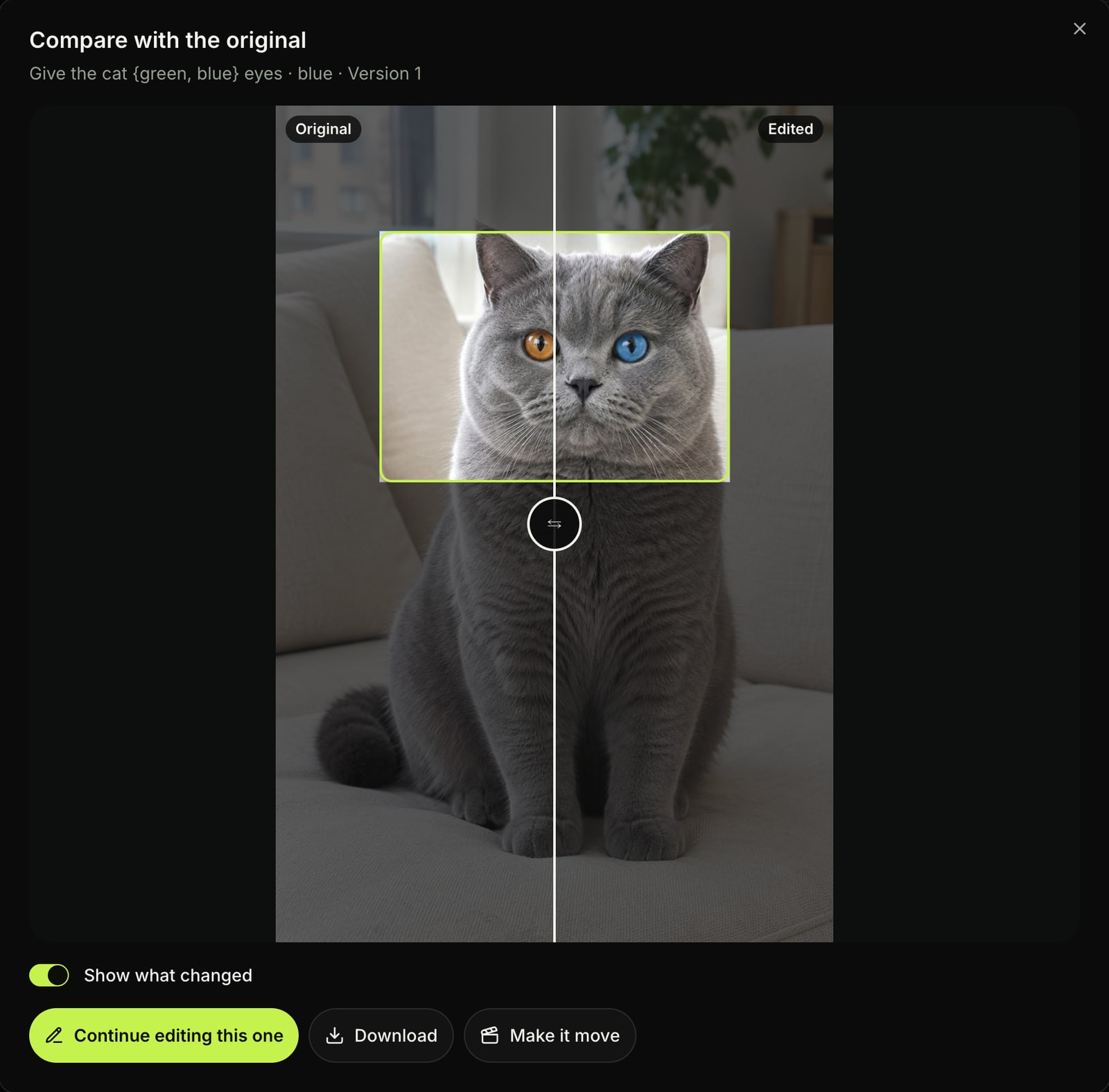
We gave a grey cat green eyes on a 1024×1536 photo, and every pixel outside the box matched the original. The difference map below is black everywhere outside the box.
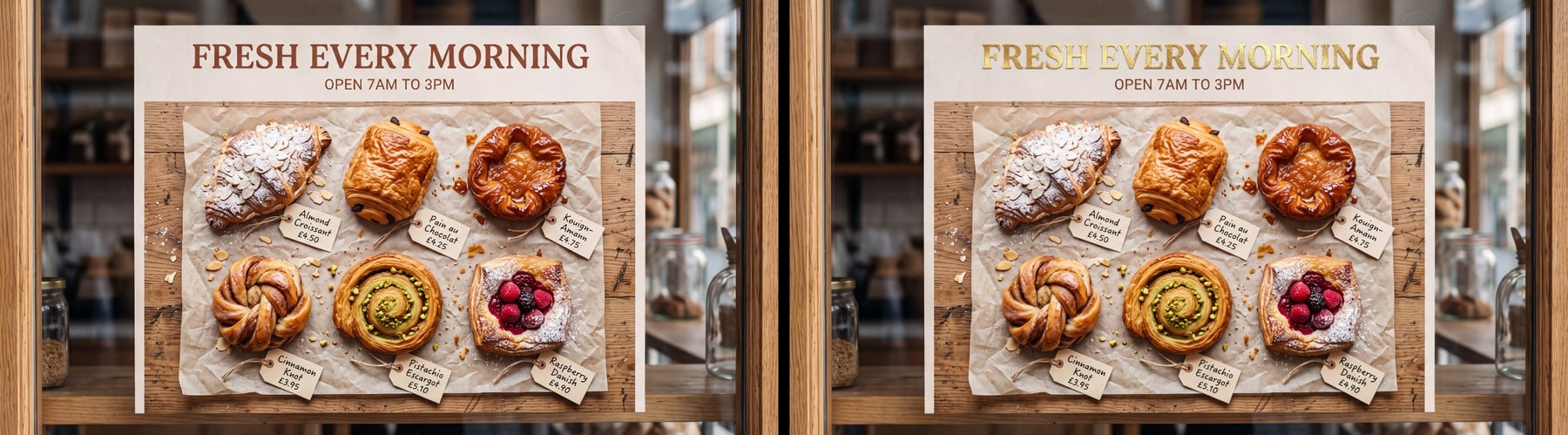
On the bakery poster, the headline turned gold and the rest of the poster stayed as it was — the pastries, the six price tags and the shop window.
In our pastry swap, the price tag under the danish sat outside the box, so it stayed as it was. To change a tag's words, you'll box the tag as its own change.
We also ran a separate 4K edit on a 5504×3072 bakery picture. We swapped the raspberry danish for a chocolate éclair, and it came back 5504×3072 with the price tags and the other pastries unchanged.
Compare With the Original and See What Changed
Results in "Edit this image" fill in as they finish, and you'll see a counter like "Results — 3 of 14 ready". Each finished result opens "Compare with the original", where you drag a divider between "Original" and "Edited" to inspect your change.
You can also click "Show what changed". It lights up the changed pixels and leaves the rest of the picture dark.
Continue Editing, Then Make It Move
Clicking "Continue editing this one" starts your next edit from that exact result. An "Edit history" trail at the top shows "Original › Edit 1 › Edit 2".
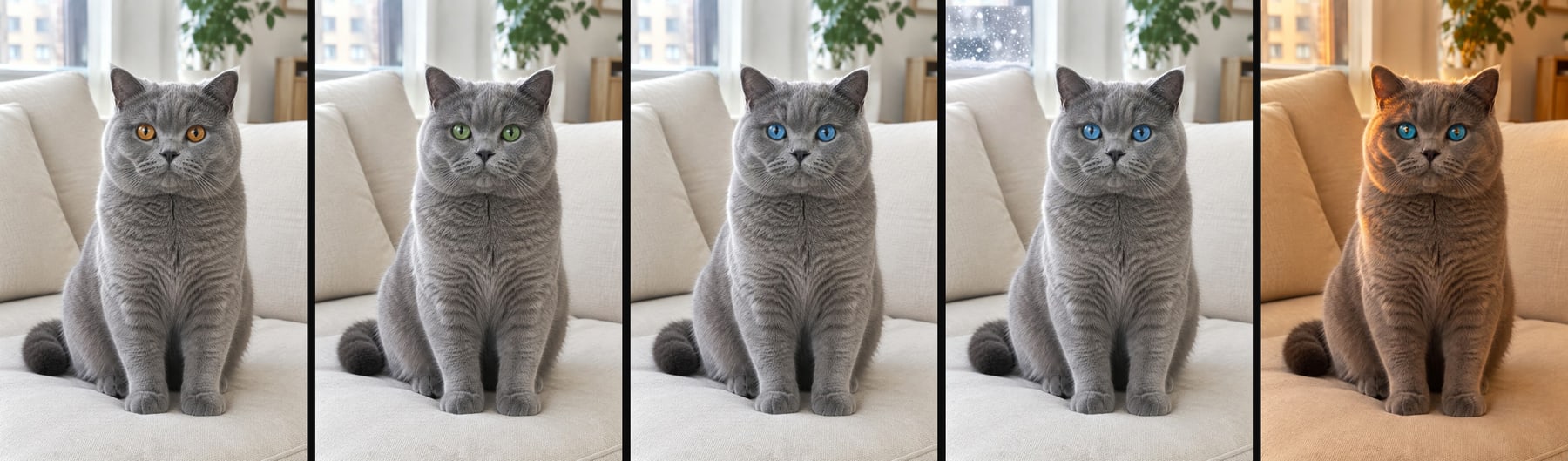
We ran a five-step chain from one picture of a grey cat with orange eyes. We changed to green eyes, then blue eyes, then snow falling outside the window, and then warm golden light.
When you're happy with an image, "Download" saves it. Clicking "Make it move" opens Seadanse's video maker with the picture attached, ready to turn into a video.
Pick 1K, 2K or 4K and See the Credits Before You Press
The settings bar in "Edit this image" shows your resolution options. You'll also see how many credits (the site's own currency, bought in packs) your press will use.
- Resolution and credits: You pick 1K, 2K or 4K. That uses 7 credits for an image at 1K, 11 at 2K, or 16 at 4K on Nano Banana 2.
- Summary before you press: A summary line shows the image count and the credits, like "14 images" and the button "Generate 14 images". A confirm dialog lists each change, its images and its credits.
- "Unlimited images": This option is included with Pro at 1K, with no credits.
You can check the credit packs on the Seadanse pricing page. When you're signed in to your Seadanse account, there are three ways to open "Edit this image":
- AI Image Creator mode menu: Pick "Image", open the mode menu ("Text/Image to Image"), and choose "Edit an image". Then click "Choose an image to edit" to upload one or pick one you made.
- Under any finished image: Click "Edit this image". It sits right next to "Make it move", "Download image" and "Run it again".
- From a change prompt: Upload one picture and write a prompt that asks for a change. A hint reading "Only changing part of this image?" offers "Edit this image →".
2. ImgUpscaler: Best Nano Banana Editor for One-Click Preset Edits
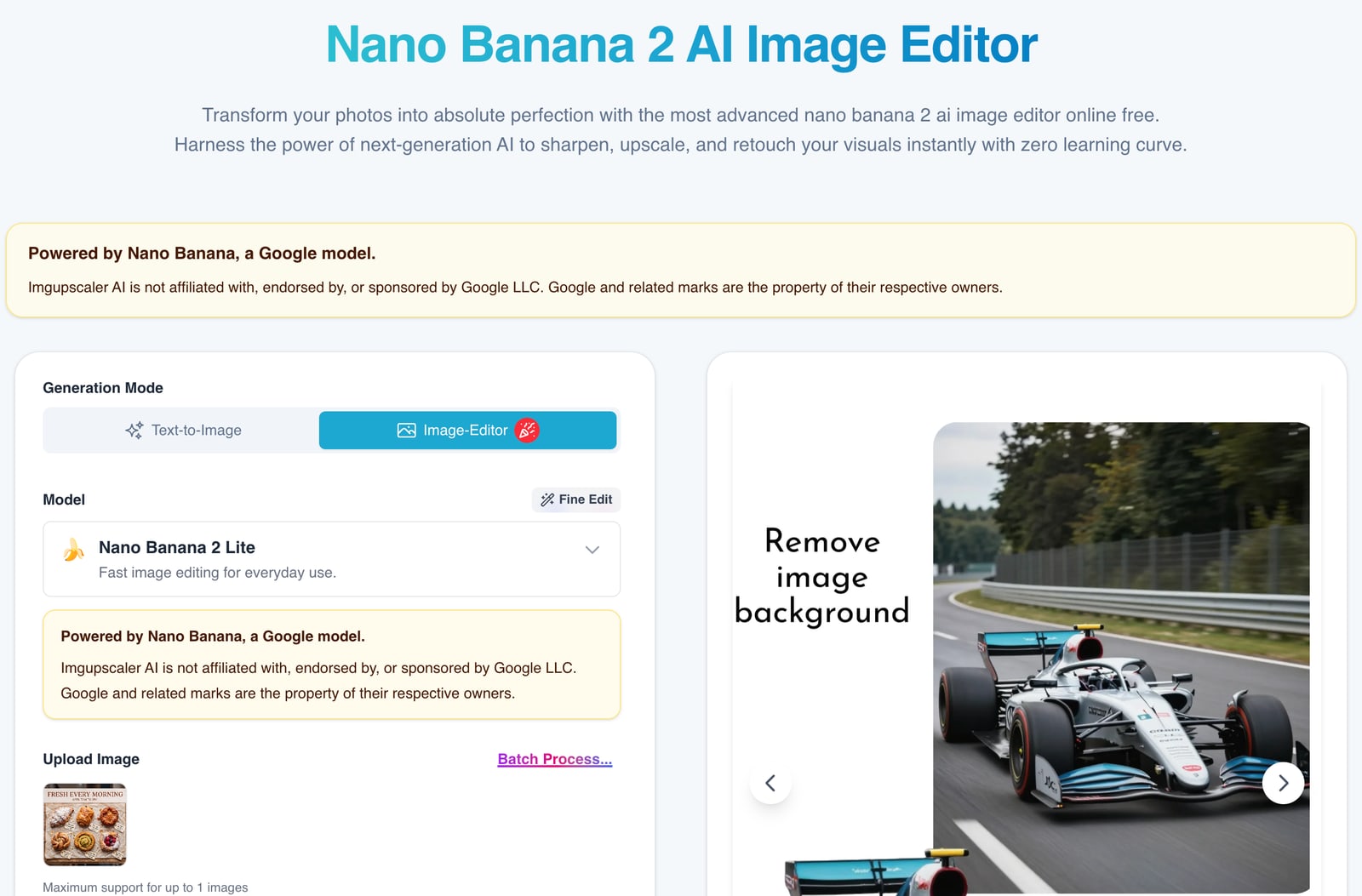
ImgUpscaler's Nano Banana 2 AI Image Editor page gives you a prompt box alongside six one-click preset buttons for common photo jobs.
- What you add: You upload one image and type in a prompt box reading "Describe what you want to change in the image…". You'll also see aspect ratio buttons.
- Presets: You can pick Replace background, Change hair color, Object remover, Style transfer, Old photo restoration, or Image merge.
- Credits: The button shows "Credits Required 8 Credits" for a run, and signed-out visitors start with 10 credits.
- Fine Edit: A separate "Fine Edit" page, behind sign-in, shows "Analyze" and "Select object" and a History panel.
Its main editor page showed a prompt box and no area tool when we read it on November 19, 2026.
3. CyberBanana: Best Nano Banana Editor for Up to 8 Source Images
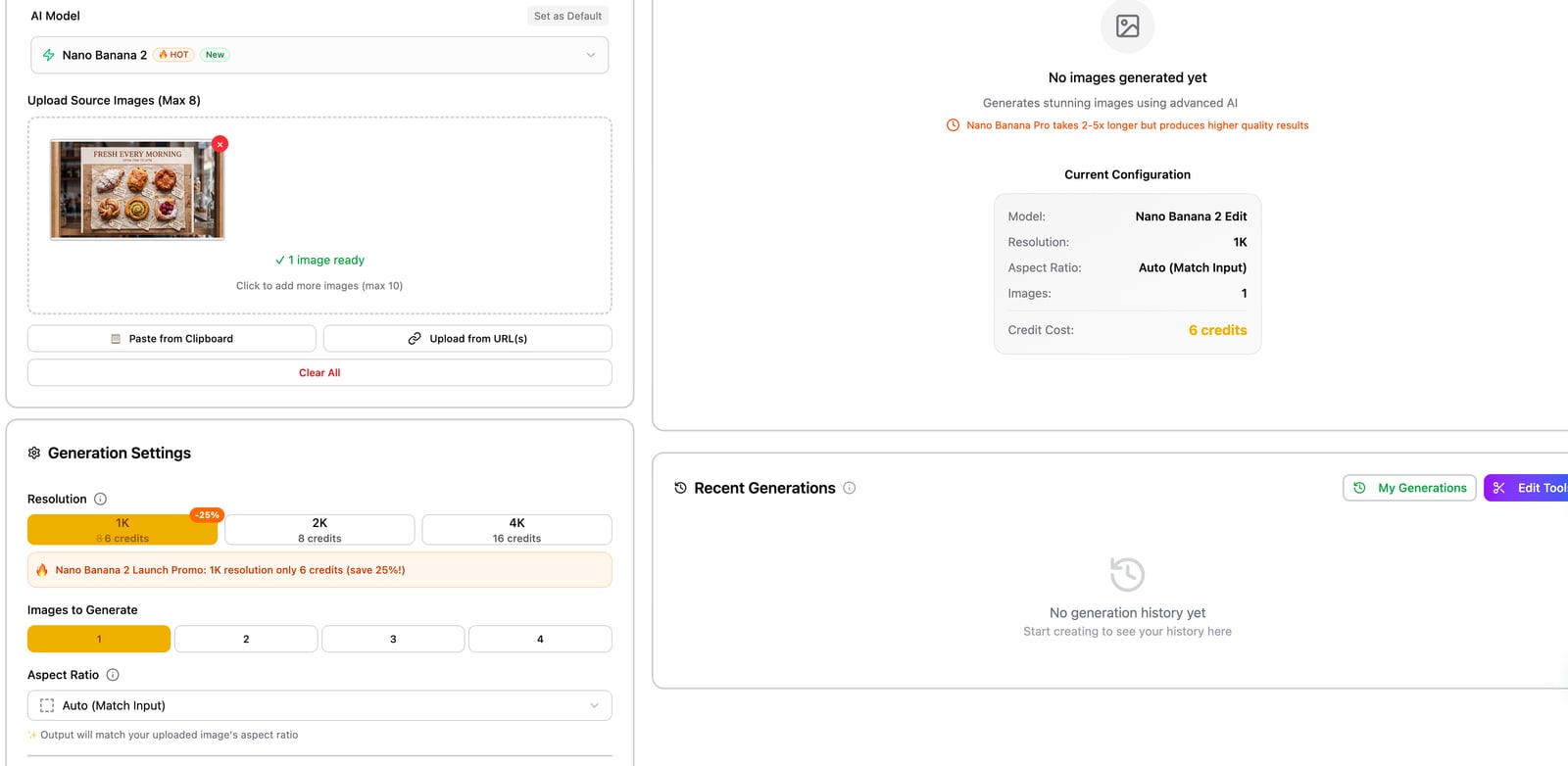
CyberBanana's Nano Banana generator page lets you add up to 8 source pictures in its Image to Image mode. You'll also choose how many outputs you want.
- Source images: You upload up to 8 source images and write a prompt, then click "Sign In to Generate".
- Images to Generate: You pick 1, 2, 3 or 4 images for your run.
- Resolution and credits: You pick an aspect ratio and a resolution. Credits are 1K at 6 credits (a promo price), 2K at 8 credits, and 4K at 16 credits.
- Batch Processing: Its guide lists "Batch Processing (Advanced): Generate multiple images with different prompts at once — Pro Feature".
Its editor page showed a prompt box and no area tool when we read it on November 19, 2026.
4. imageeditorai.ai: Best Nano Banana Image Editor Online for Up to 10 Reference Images
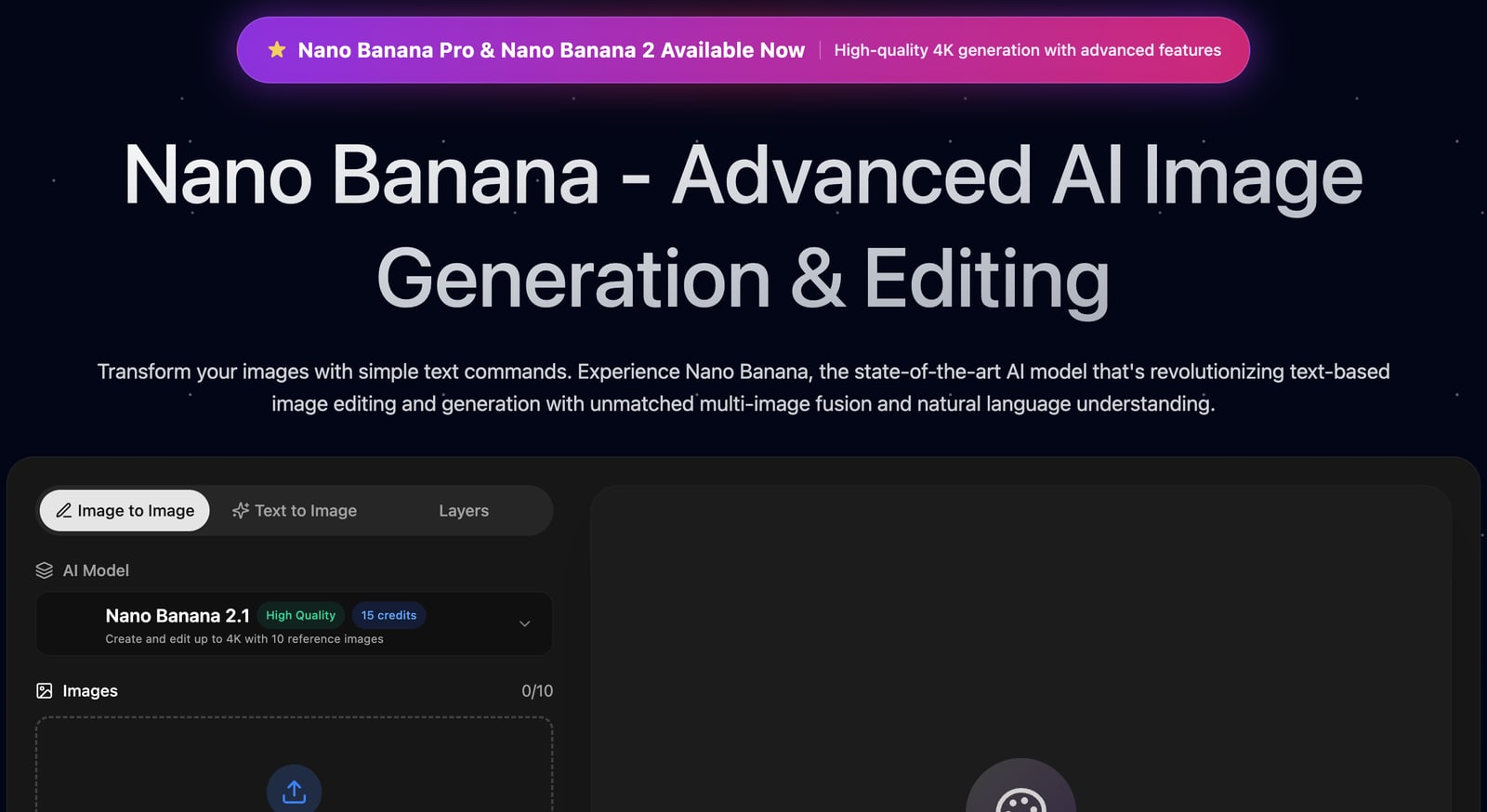
imageeditorai.ai's Nano Banana editor is a Nano Banana image editor online. It takes up to 10 reference pictures and edits up to 4K.
- Tabs: The panel gives you Image to Image, Text to Image, and Layers (transparent layers made by a different model).
- Model: The page shows "Nano Banana 2.1" at "15 credits", with the line "Create and edit up to 4K with 10 reference images".
- Prompt: You type in a box reading "Describe the changes you want to make to the image...".
- Sign in: The editor shows a Sign In button to run your edit.
Its editor page showed a prompt box and no area tool when we read it on November 19, 2026.
5. VisualGPT: Best Nano Banana AI Image Editor for a Quick Prompt Edit
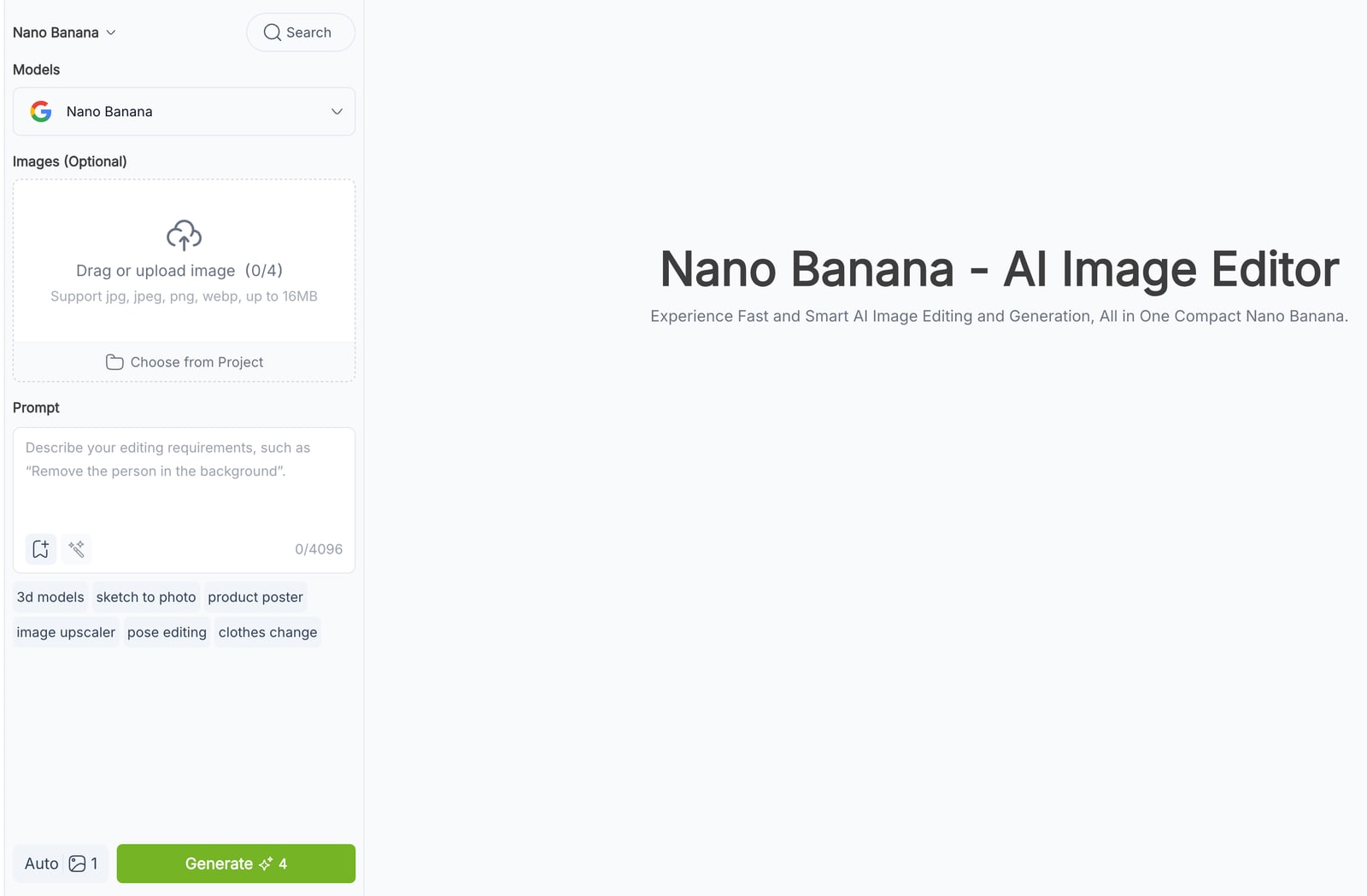
VisualGPT's Nano Banana AI Image Editor page puts your upload slot, prompt box and output count in one compact panel.
- Images (Optional): You can upload up to 4 images for your run.
- Prompt box: You type your edit into a box reading "Describe your editing requirements, such as 'Remove the person in the background'".
- Output and credits: The panel shows an output count setting (it showed 1) and a "Generate 4" button (4 credits).
Its editor page showed a prompt box and no area tool when we read it on November 19, 2026.
6. NoteGPT: Best for Switching Between Nano Banana and Other Image Models
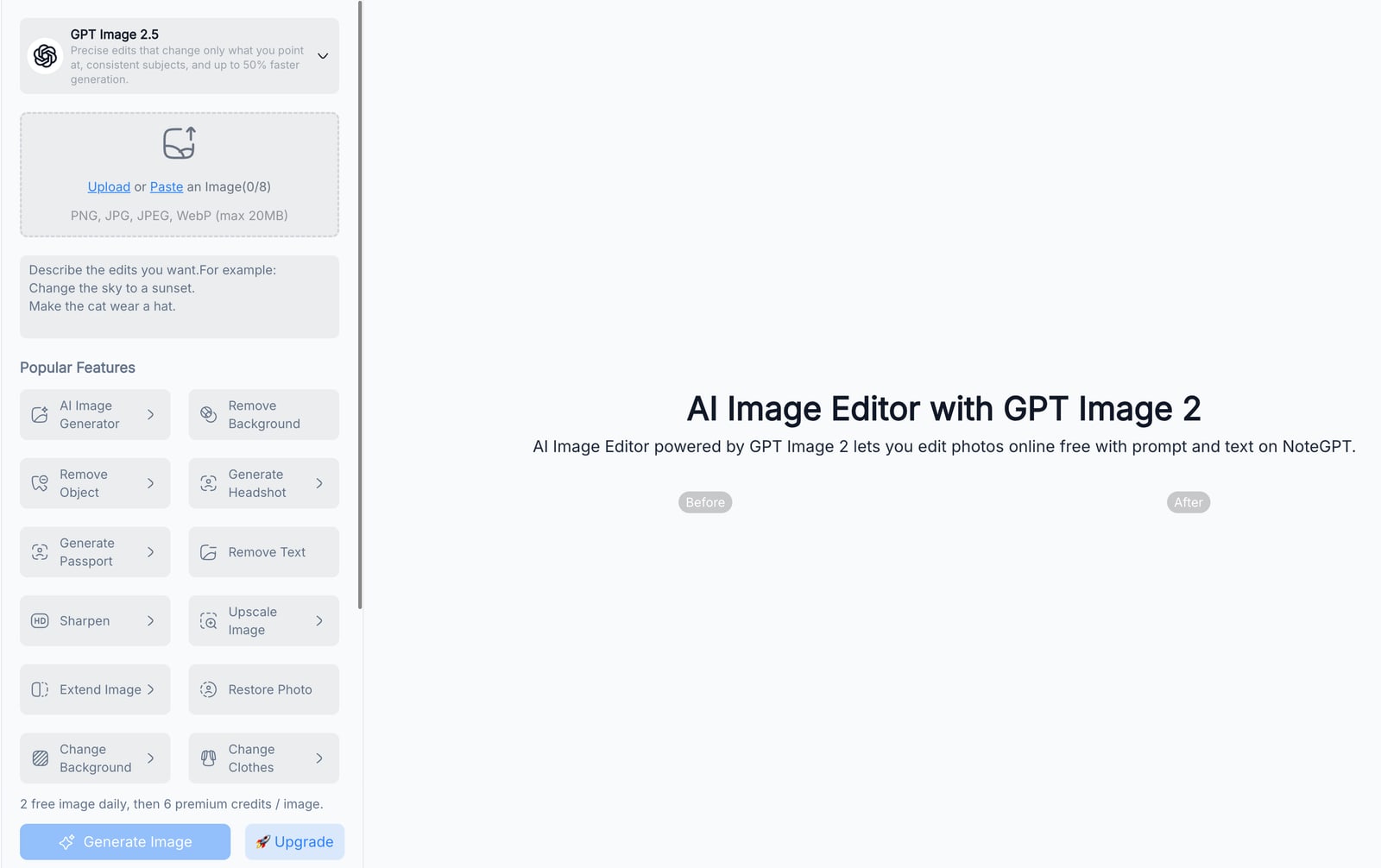
NoteGPT's AI Image Editor page pairs a multi-model picker with a row of one-purpose photo tools.
- Model picker: GPT Image 2.5 was shown when we opened the page, and the menu also offers Nano Banana.
- Images and prompt: You upload up to 8 images and type into a prompt box reading "Describe the edits you want…".
- One-purpose tools: The page lists tools for Remove Background, Remove Object, Change Background and more.
- Credits: The page shows the line "2 free image daily, then 6 premium credits / image".
Its editor page showed a prompt box and no area tool when we read it on November 19, 2026.
Which Nano Banana Image Editor Should You Pick?
The right Nano Banana image editor depends on your job. Here's how to pick between marking one spot and sending a whole-image prompt.
- Pick Seadanse: Choose this editor if you want to change one part — a headline, a product, a line of text — and keep the rest exactly as it was. You'll also get many versions from one press.
- Pick ImgUpscaler: Choose this tool if one of its six presets is the edit you need.
- Pick CyberBanana or imageeditorai.ai: Choose one of these if you want to mix several source or reference images in one prompt.
- Pick VisualGPT or NoteGPT: Choose one of these if you want a quick prompt edit, or NoteGPT's one-purpose tools.
Nano Banana Image Editor FAQ
Does Nano Banana do image editing?
Yes, Nano Banana edits images when you upload a picture and say what to change. On Seadanse, the "Edit this image" editor runs Nano Banana 2, and you'll drag a box over the exact part you want to change.
What is Nano Banana inpainting?
Nano Banana inpainting (changing only a marked part of a picture) tells the editor which spot may change and which parts stay as they are. In Seadanse's "Edit this image", you mark that part with a box, and everything outside it comes back as it was. Our step-by-step guide walks through how to edit only part of an image with AI.
Why does a Nano Banana edit change the whole image?
A Nano Banana edit changes the whole image when you send a prompt with no marked area. That leaves the whole picture open to change, whereas a box in "Edit this image" tells the editor which part may change. Everything outside the box comes back as it was. We've covered the causes in our guide on why Nano Banana changes the whole image.
How do you get high-quality Nano Banana edits?
You'll get high-quality Nano Banana edits by picking 2K or 4K resolution in the "Edit this image" bar before you press Generate. When we ran a 4K pastry swap on our 5504×3072 bakery picture, the edited image came back at 5504×3072.
How many versions can one press make?
One press in Seadanse's "Edit this image" makes up to 24 images. You can put up to 6 options in curly brackets in one line, pick ×1, ×2 or ×4 versions, and add up to 8 changes. Our three-box bakery press at ×2 versions made 14 images.
How We Picked These Nano Banana Image Editors
We opened each tool's editor page on November 19, 2026, signed out. Then we wrote down what it showed.
- Rival pages: We opened ImgUpscaler, CyberBanana, imageeditorai.ai, VisualGPT and NoteGPT on November 19, 2026, signed out. We wrote down what each editor page showed: what you add, the settings, the credits on the page, and whether there's an area tool.
- Why these five: Each one ranks for "nano banana image editor" or "best nano banana image editor", and each puts Nano Banana on its editor page.
- Seadanse: We used "Edit this image" on production on November 19, 2026. We ran the 14-image bakery press, the five-step cat chain, the pixel check on the cat edit, and the 4K éclair edit.
Every rival fact carries that November 19, 2026 date, so don't forget to check each page again before you pay.
Edit Only the Part You Mark With Nano Banana 2
If you're looking for the best Nano Banana image editor for targeted changes, it's Seadanse's "Edit this image". You box the area you want to change, what's outside your box comes back as it was, and a single press gives you up to 24 images.
To try it on your own photo, open the AI Image Creator, pick "Image", and open the mode menu. Choose "Edit an image", pick your picture, box what to change, type it, and press Generate.
Written by The Seadanse Team; we read every tool's page on November 19, 2026.
Related Articles
- How to Edit Only Part of an Image With AI (8 Steps) — box the part, say what to change, compare, and keep going from the result you like.
- Nano Banana Changes the Whole Image? 6 Fixes, and How to Edit Only Part of It — why a prompt-only edit moves everything, and the fixes that hold.
- How to Change Text in an Image With AI: Box the Words, Write the New Ones — new words in the same font, with colour options in one line.
- How to Swap a Product in a Photo With AI (8 Steps) — box the product, list the replacements, keep the price tags.


