
How to Make an Oh You Can Make It Cap AI Video From 1 or 2 Photos (4 Steps)
Seadanse: how to make an Oh You Can Make It Cap AI video from 1 or 2 photos. The spin, the laugh, 'Oh, he tweaking', original sound, 720p for $9.90, no sign-up.
 The Seadanse Team13 min read
The team behind Seadanse. We run the models we write about, and we publish the specs, prices and limits the marketing leaves out.

TL;DR — You make an Oh You Can Make It Cap AI video by adding 1 or 2 photos to Seadanse's Oh You Can Make It Cap AI and pressing Create. You get a video of about 14 seconds that remakes the 2024 white-studio clip shot for shot. Photo 1 asks for the spin and laughs, photo 2 spins and says "Oh, he tweaking" — with the clip's own sound. There's no app, no template and no prompt, and one 720p video costs $9.90, paid once, with no sign-up.
Under the AI remake that set the trend off, a viewer asked: "How the hell do i do this".
The usual answer is a CapCut template found through social posts. But under a CapCut promo for the trend, another viewer wrote: "Don't work btw".
On our Oh You Can Make It Cap AI page, we've built the white studio, all nine shots and the clip's own sound into the page. You add a photo, press Create, and see the price before you pay.
You'll get a cheeky video where you ask for a 360, your friend spins, and you crack up laughing with your hand over your mouth.
They turn right to the camera with "Oh, he tweaking", and the sound plays from the first second.
Here's what's below:
- The 4 steps: how to add your photos, pick a quality and press Create.
- Who laughs, who spins: how the page assigns each photo to the two roles.
- The other routes: where CapCut templates, recreation buttons and single-trend sites trip people up.
- The right photos: which angles, lighting and poses work best for your video.
How Do You Make an Oh You Can Make It Cap AI Video?
To make an Oh You Can Make It Cap AI video, you add 1 or 2 photos to our page, pick a quality and press Create.
You'll get back an MP4 of about 14 seconds in the original clip's white studio. Everything happens in your web browser, and the clip's own sound is already in the file.
Here's what changes and what stays in the final cut:
- What changes: the two people change to match the faces, hair, build and outfits from your uploaded photos.
- What stays: the plain white studio, the nine shots, and every move, gesture, look and laugh stay locked to the clip's timing.
- What you hear: the clip's own sound plays under your video from the first second.
One photo's enough, because the page makes an adult partner for you when you don't add a second picture.
You can add your first photo to our Oh You Can Make It Cap AI generator and press Create whenever you're ready.
What Happens in Your 14-Second Oh You Can Make It Cap AI Video
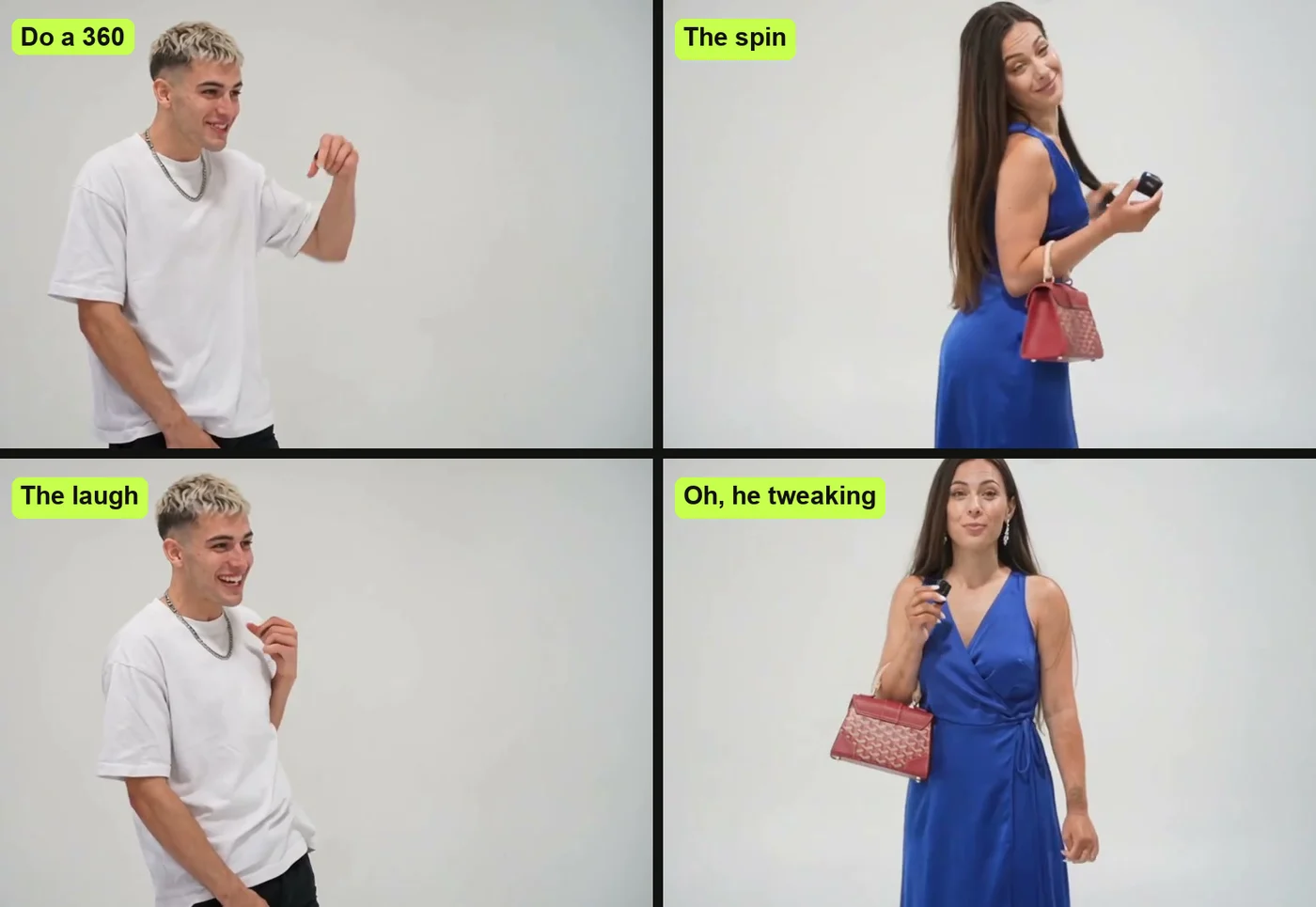
Your Oh You Can Make It Cap AI video is the 2024 clip's nine shots, cut on the same frames, with your two people in the white studio.
Each shot shows one person in a fixed camera, framed from the knees up to full body.
Here's how your 14 seconds play out:
- The ask (0 to 2 seconds): photo 1 talks to the one off camera and throws an arm up: "let me see you do a 360".
- The spin (2 to 3 seconds): photo 2 flips their hair and does a full spin, while photo 1, off camera, says "Ooh, can you make it clap?"
- The laugh (3 to 9 seconds): photo 1 breaks into a long, high, giddy laugh with a hand over the mouth; photo 2 smiles back; photo 1 rubs their chin.
- The call-out (9 to 10 seconds): photo 2 turns their eyes to the camera and says "Oh, he tweaking".
- The comeback (10 to 14 seconds): photo 1: "I'm tweaking, how?" Photo 2: "You tweaking". Photo 1 gets one last line in, fingers at the chin.
The camera never shows you two together, so each photo gets its own shots.
The real line spoken in the clip is "Ooh, can you make it clap?". The captions spelled it "make it cap". You can read where the Oh He Tweakin meme comes from to see how the trend began.
Make an Oh You Can Make It Cap AI Video in 4 Steps
To make an Oh You Can Make It Cap AI video, you add your first photo and add a second one if you want. Then pick 480p or 720p and press Create, all on one page. You won't have to install any app or edit anything yourself.
Step 1: Add the Photo of Who Asks for the Spin
Open Seadanse's Oh You Can Make It Cap AI page in your browser.
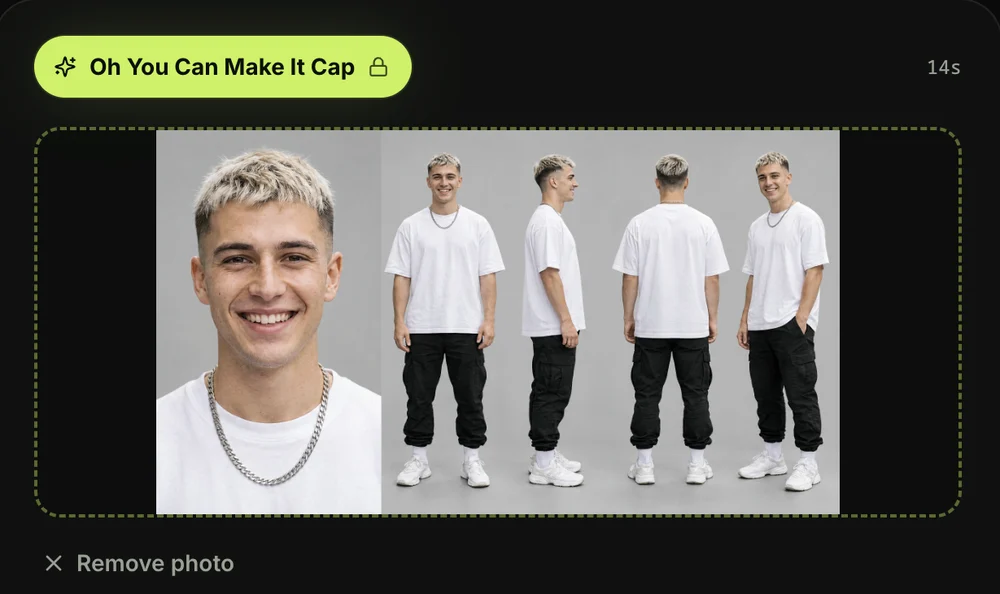
Tap the first photo box and pick the photo of the person, pet or character who'll ask for the 360 and laugh, from your camera roll or your computer. This photo is the only one the page strictly needs.
Step 2: Add a Second Photo or Leave It Empty
The second photo is optional. Open the section below the first photo box to add the person who spins and says "Oh, he tweaking", or leave it empty and the page makes a partner for you. One photo or two cost the same.

Step 3: Pick 480p or 720p
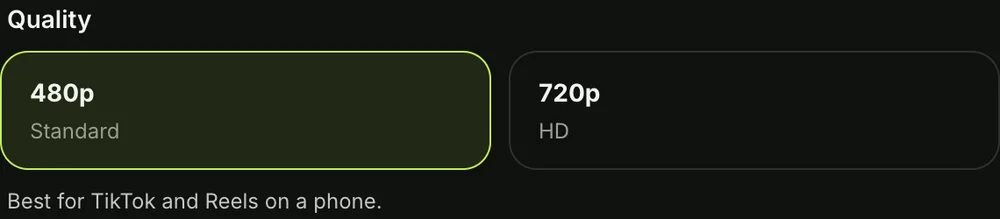
The page opens on 480p. Tap the quality you want; at either quality your video's the same 14 seconds, in the same frame. The price shows on the Create button before you pay.
Step 4: Keep the Box Ticked and Press Create
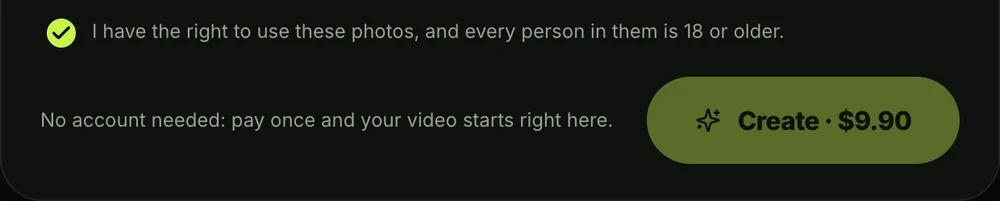
The tick box confirms you have the right to use the photos and that every person in them is 18 or older; leave it ticked.
Then press the Create button. You don't need an account, since you pay once and the video starts on the page.
A window with the credit packs opens when you press Create. You pay once at checkout, with no account and no subscription, and you can see how pay-once credits work across our whole site.
The checkout email carries a sign-in link. That link lets your video open on any phone, tablet or computer.
When your video's ready, you download the MP4 with the clip's sound and no watermark on exported video.
Seadanse runs no facial recognition on the photos you upload, collects no biometric data and never sells personal information. What you've uploaded and what you make stays in your account until you delete it.
Who Laughs and Who Spins in Your Oh You Can Make It Cap AI Video
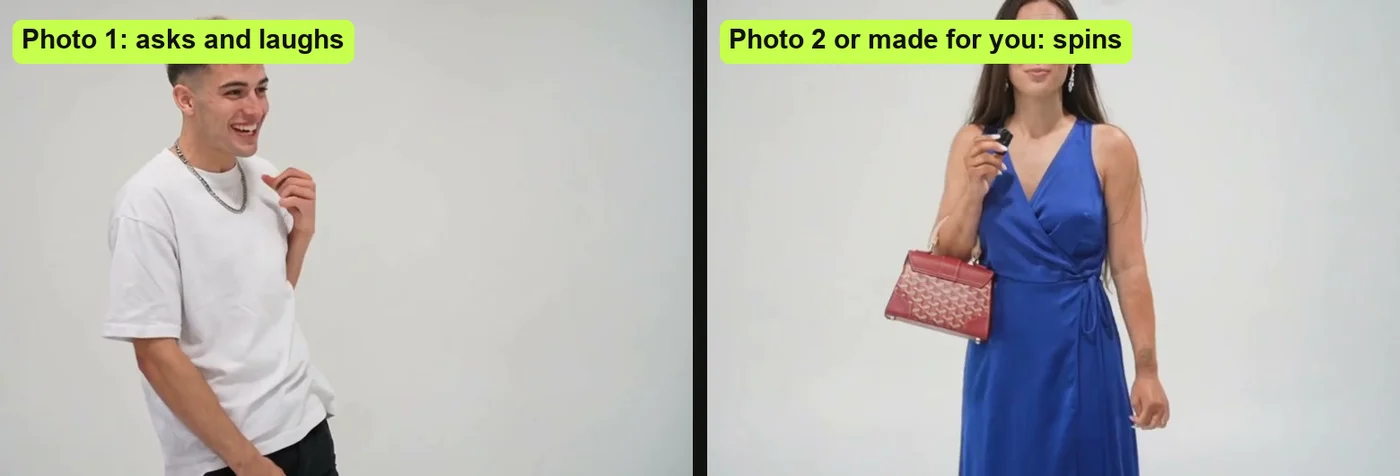
In your Oh You Can Make It Cap AI video, the photo you add first is the one who asks for the spin and laughs. The second photo is the one who spins and says "Oh, he tweaking".
Each person keeps their own face, hair and outfit from their photo in every shot.
Here's who does what:
- Photo 1: this person stars in five of the nine shots, asks for the spin, says the line and can't stop laughing.
- Photo 2: this person stars in four of the nine shots, flips their hair, spins and says "Oh, he tweaking" to the camera.
- No photo 2: the page creates a made-up adult partner for you, cast like a dating-show partner, with hair long enough for the hair flip.
So put the friend with the best laugh first.
Under an AI remake, the top reply just says "can you make it clap" with 3,859 likes, so the line everyone remembers belongs to photo 1.
How Other People Make Oh You Can Make It Cap AI Videos
Most Oh You Can Make It Cap AI videos online come from a CapCut template, a video app's Recreate button, or a website built for this one clip. Each path works a little differently and comes with different steps.
Here are the three routes:
- CapCut templates: a CapCut template is an edit someone already built in the CapCut app, with a slot for your photo. But under another CapCut promo for the clip, a viewer wrote "don't waste your time it's not free".
- A video app's Recreate button: you paste the TikTok link as the reference clip, add two photos and press generate. That makes a 10-second, 720p result that costs 150 credits in that app.
- Single-trend websites: sites built for this one clip let you upload pictures. Some use one photo only, some sell a silent version, and some make an 8-second or 12-second version with a new voice-over.
On our Oh You Can Make It Cap AI video maker, there's no template to hunt for, no link to copy, no reference clip, no prompt and no editor.
All nine shots and the sound are built in. You'll skip the extra apps and get the complete 14-second clip.
You can read why the Oh You Can Make It Cap CapCut template fails if you've run into template issues.
You can also explore the Oh You Can Make It Cap AI generators compared to see how different tools handle the trend.
Which Photos Work Best for an Oh You Can Make It Cap AI Video
The photos that work best for an Oh You Can Make It Cap AI video show one person, pet or character each, from the knees up or full body, with the face clear and in good light.
Each person in your video keeps the face and the outfit from their photo.
Here's what works best:
- One subject per photo: pick a photo that shows just one person, pet or character, facing the camera with no sunglasses so the eyes show.
- Knees up or full body: use a knees-up or full-body picture, because every shot shows the person from the knees up to full body.
- The outfit you want: choose the photo with the clothes you like, since each person keeps the clothes from their own photo.
- 18 or older: make sure every person in your pictures is an adult.
A cat, a dog or another pet works, and so does a cartoon, anime or game character, or a character image made with AI.
You can mix them freely, such as you and your dog, you and a cartoon character, or two characters together.
If you'd rather write your own scene descriptions in another tool, you can copy the copy-ready Oh You Can Make It Cap AI prompt.
Oh You Can Make It Cap AI Video FAQ
How do I do the Oh You Can Make It Cap AI trend?
You can do the Oh You Can Make It Cap AI trend by adding 1 or 2 photos to our page, picking 480p or 720p, and pressing Create.
Other people search for CapCut templates on TikTok or paste links into recreation apps.
What does "Oh, he tweaking" mean?
The phrase "Oh, he tweaking" means he gets so flustered flirting that he can't stop laughing, and she turns to the camera and calls it. "Tweaking" means acting strange or losing it.
What if I only have one photo?
One photo's enough to create the whole clip. Your single photo plays the one who laughs, and the page makes a partner for you who does the spin.
Can I use my dog or a cartoon character?
You can use a dog, a cat, or a cartoon character in either photo spot. They take that spot in the white studio and do the exact same moves.
What sound plays in the Oh You Can Make It Cap AI video?
The sound that plays in your video is the 2024 clip's own audio track. You'll hear the request for the 360, "Ooh, can you make it clap?", the laugh, "Oh, he tweaking" and "I'm tweaking, how?"
It's the same sound that spread across TikTok from the TikTok post that carried the sound.
How much does an Oh You Can Make It Cap AI video cost?
One 720p video costs $9.90 through the $9.90 pack of 500 credits, and that same pack covers a 480p video that takes 375 credits.
One photo or two cost the same.
Credit packs are a one-time payment with no subscription, pack credits stay valid for 12 months, and credits come back automatically if a video fails. You can check all credit details on Seadanse pricing.
Can I make other AI videos with the same photos?
You can make a 28-second shot-for-shot remake of a real viral clip with Raindance AI using the same photos.
You can also turn them into the 14-second two-cat wail and trade, with its sound, using Smalltown Boy AI. Both effects sit right alongside our other AI video effects where you pick an effect and get a video without writing prompts.
Make Your Oh You Can Make It Cap AI Video Now
You can make an Oh You Can Make It Cap AI video from 1 or 2 photos directly in your web browser.
We've built the white studio, the spin, the laugh, the "Oh, he tweaking" line and the sound right into the page. You can jump over to make an Oh You Can Make It Cap AI video right now for $9.90 at 720p.
Written by The Seadanse Team, the team that built the Oh You Can Make It Cap AI page.
Related Articles
- Oh He Tweakin Meme: The 'Can You Make It Clap' Clip and Its AI Remakes — what the line means, where the 2024 clip comes from, and how the AI versions took over.
- Oh You Can Make It Cap CapCut Template: Where It Is and Why It Fails — the templates, the promo steps, and the fixes.
- Best Oh You Can Make It Cap AI Generators (2026): 10 Ways Compared — the sites and apps that make this video, side by side on photos, length, sound and price.
- Oh You Can Make It Cap AI Prompt (Copy-Ready): All 9 Shots — a full prompt for the nine shots, to use in a video tool yourself.


