
Tiny Desk AI Sound Not Working? 6 Fixes for TikTok and Reels
Tiny Desk AI sound not working on TikTok or Reels? Learn why the video goes silent and use 6 fixes from official help pages to restore the music.
 The Seadanse Team8 min read
The team behind Seadanse. We run the models we write about, and we publish the specs, prices and limits the marketing leaves out.

TL;DR — A Tiny Desk AI video plays with no sound on TikTok or Reels for 6 reasons that start after export. The quickest fix is posting from a personal account, or tapping the app's own button to replace the muted track. You can make your clip on Tiny Desk AI for TikTok and Reels to get a finished file with music included.
When you export your video, the sound's in the file. It goes missing after posting because of your account type, a second sound, or a platform mute you can replace.
You post your video, press play, and hear silence. On Instagram Reels, the screen shows "Audio unavailable", while TikTok plays the clip without music.
The help pages from TikTok and Instagram give steps to restore your track. Here's why the music went quiet and how you can get your band singing again.
Why your Tiny Desk AI video has no sound
A Tiny Desk AI video loses its audio during or after the upload step rather than inside the generator. These are the six causes, and they're the same on both platforms:
- Second sound: Adding an extra audio track inside the app strips out the song already saved in the file.
- Business account: Commercial profile rules block popular commercial songs that personal accounts can use freely.
- Removed sound: Platform copyright systems can mute a song on an existing post.
- Muted reel: Rights agreements change on Instagram, which marks the track as unavailable.
- Phone settings: Hardware volume, Bluetooth connections, or silent switches mute playback in your hand.
- The file itself: The export never finished saving to your camera roll with its embedded audio track.
6 fixes for a Tiny Desk AI video with no sound
Keep the video's own sound instead of adding a second one
You'll hit this when you tap the sound menu inside TikTok and pick a trending song over your clip. TikTok's help page notes that "all previous background music and voices will be replaced" once you change the audio.
- Open TikTok and tap the plus icon to upload your video.
- Pick your saved MP4 file from your device.
- Leave the sound selection menu empty so the clip keeps its original audio.
- Tap Next and publish your post.
Post from a personal account, not a Business Account
You'll hit this when you manage a brand page or commercial profile that can't use popular music. Under TikTok's music terms, the standard sound library is for personal, non-commercial use.
Instagram enforces the same standard. Certain business profiles lose access to the licensed music library.
- Open your profile settings in TikTok or Instagram.
- Switch your account type from a Business Account to a personal account.
- Upload your saved video file to your feed.
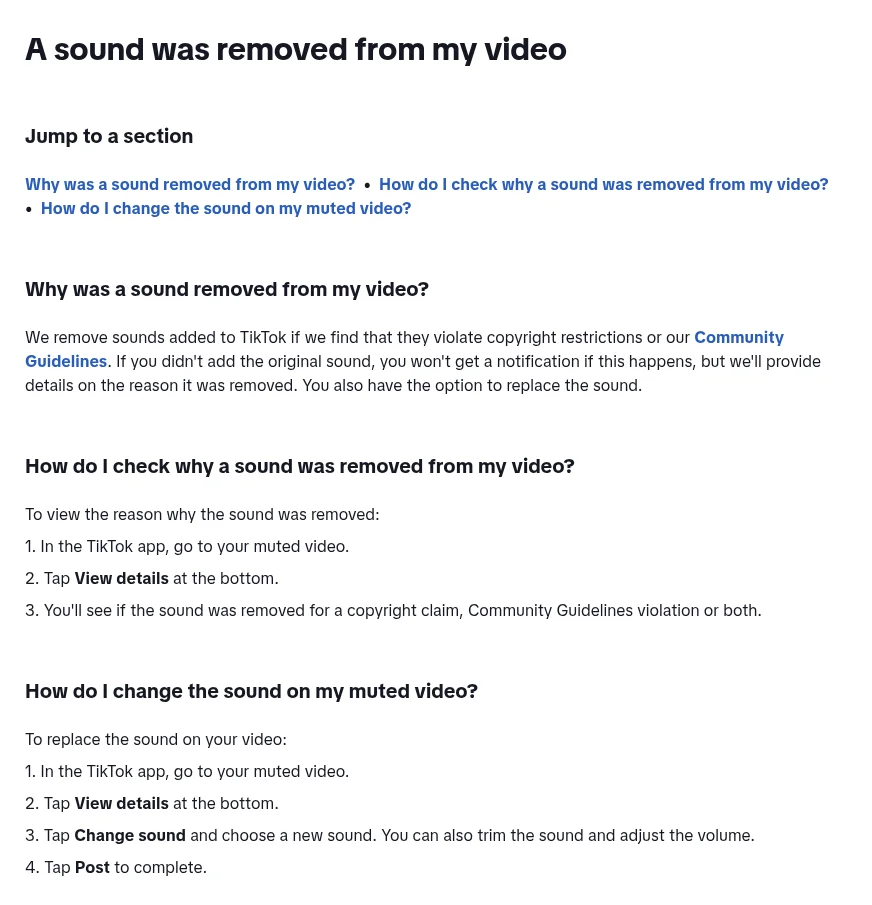
Change the sound on a muted TikTok video
You'll see this when TikTok removes sounds that break copyright rules or its Community Guidelines. You can replace the audio on the published video without losing your view count.
- Open the muted video on your TikTok profile.
- Tap View details at the bottom of the screen to read why the track was removed.
- Tap Change sound and choose a new audio track.
- Trim the audio or adjust the volume if needed, then tap Post.
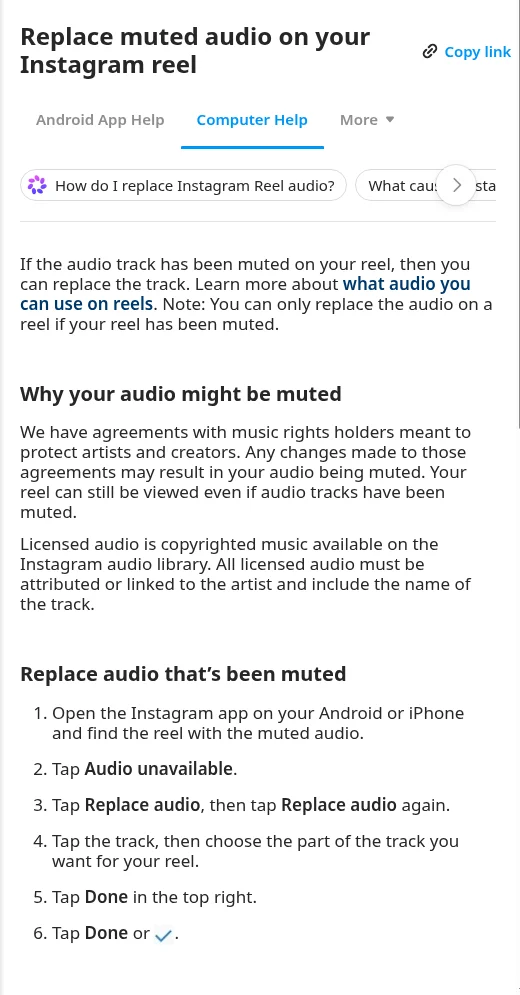
Replace "Audio unavailable" on an Instagram Reel
You'll see this when Instagram changes licensing agreements with rights holders, which mutes the sound on your published reel. According to Instagram's Help Center, "You can only replace a muted track one time."
- Open the muted reel on your Instagram profile.
- Tap Audio unavailable at the bottom of the reel.
- Tap Replace audio, then tap Replace audio a second time.
- Pick your replacement song, choose the part you want, and tap Done.
Check your phone's silent mode and volume, then restart
It's your phone when its hardware blocks sound output, which works the same way on both iPhone and Samsung devices. TikTok's missing sound checklist outlines four quick device checks:
- Turn off silent mode using your physical switch or system settings.
- Raise your media volume slider.
- Disconnect any active Bluetooth headphones or speakers.
- Restart the social media app and restart your phone.
Play the downloaded MP4 before you post
It's the file when an incomplete download leaves you with a silent media file. If you need help saving your file, check our guide on how to download your Tiny Desk AI video.
- Open your phone's default gallery or camera roll.
- Locate the exported 19-second MP4 and press play.
- Listen for the song right from the first second. If it plays aloud on your phone, the audio's in the file, so the problem's in the posting step.
Try Seadanse Tiny Desk AI: the "Outstanding" sound is in the file
The Seadanse Tiny Desk AI tool creates a finished 19-second vertical 9:16 MP4 with music attached from the first second. You upload 1 to 5 photos, and it places your friends or team into a full five-person band without anyone needing to sing or play an instrument.
Every download keeps the audio locked inside the file, so it's there before you post. Any silence on your feed comes down to platform music settings, an added second track, or a muted audio notice you can replace.
You pick 720p or 480p, and a 720p video uses 500 credits covered by a single $9.90 pack. You pay once on the Create button with no subscription and no sign-up.
Credits stay valid for 12 months, and any video that fails returns its credits automatically. When you want an export that includes the music, use the Tiny Desk AI generator.
Tiny Desk AI sound questions
Why is my Tiny Desk AI video muted after posting?
Your video's muted because an added sound replaced the file's track, or a business profile rule blocked the song. You can fix the post by keeping the original audio or switching to a personal account.
Does a Tiny Desk AI video work on Instagram Reels?
Yes, the video exports as a vertical 9:16 MP4 tailored for Reels and TikTok. If you post from a business account, Instagram's licensed music rules may mute the song.
What song is the Tiny Desk AI sound?
The music is "Outstanding" by The Gap Band, taken from Charlie Wilson's 2023 performance. You can read the full background on the Tiny Desk AI song and how it went viral.
Get the sound back and post your band
Your video file already holds the full performance track. Silence only happens when an app swaps the sound, restricts a business profile, or flags a clip you can fix.
Check your phone settings, choose a personal account, and make your Tiny Desk AI video to share your crew on stage. You can also explore more AI video effects like No Scrubs AI.
Written by the Seadanse team. We read TikTok's and Instagram's own help pages on 27 October 2026.
Related Articles
- How to Make a Tiny Desk AI Video From One Photo (4 Steps) — the picks and presses, and who plays what in your band.
- What Is the Tiny Desk AI Trend? The Coaches Video, Explained — who made the first one, when, and how it spread past college football.
- Outstanding Tiny Desk AI Template: What the CapCut One Does — the template the TikTok tutorials link, and what it does with your photo.
- Best Tiny Desk AI Video Generators (2026): 8 Ways Compared — the sites, apps and templates that make this video, side by side.
- Tiny Desk AI Prompt (Copy-Ready): Every Shot, Every Role — the full prompt behind the video, to use in a video tool yourself.
- Tiny Desk AI Meme Ideas: Who Goes on the Sax (and How) — the casts people have made, and who to put in yours.
- Tiny Desk AI Song: "Outstanding" by The Gap Band, Explained — the song, the 2023 set it comes from, and the part the trend uses.
- Is Tiny Desk AI Free? 6 Options Compared (2026) — what each route gives you free and what it costs to get the full band.
- Tiny Desk AI Coaches Video: Make Your Own Team's Version — six casting ideas for your own crew after a loss.
- Tiny Desk AI CapCut Alternative: 5 Ways Without the Template — what to use when the CapCut template won't open for you.


